> ## Documentation Index
> Fetch the complete documentation index at: https://docs.conduktor.io/llms.txt
> Use this file to discover all available pages before exploring further.
# Kafka cluster configuration
> Add, update, and manage Kafka cluster configurations in Conduktor Console. Connect to Kafka brokers, Schema Registry, and Kafka Connect from the Settings. Enjoy a better experience with Confluent, Aiven and Gateway special integrations.
## Overview
To add, update, and delete Kafka cluster configurations, go to **Settings** > **Clusters**. By default, only users belonging to the **Admin** group or having the `Can manage Cluster configurations` permission will be able to view and manage the clusters.
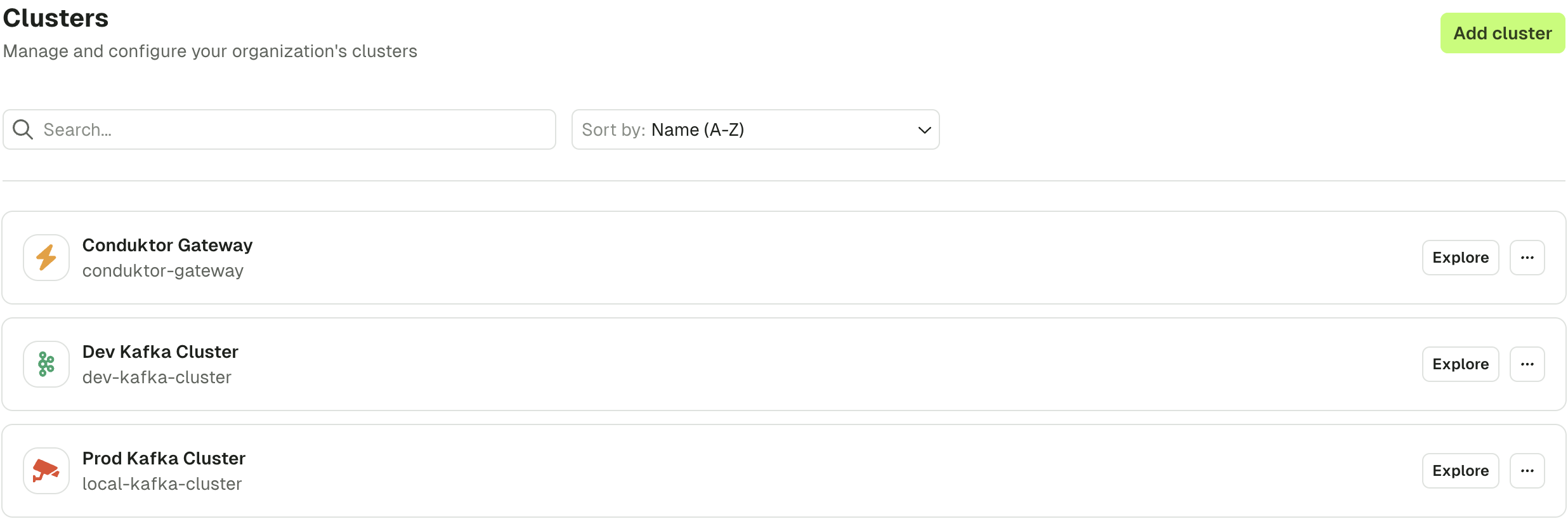 **To add a cluster:** Click **Add cluster** in the top right corner.
**To edit a cluster:** Select it from the list to modify the name, icon, bootstrap servers, and additional properties. You can also enable Schema Registry, Kafka Connect, ksqlDB, and Kafka providers.
## Network requirements
Console connects to Kafka clusters using the Apache Kafka Java client library. It uses standard Kafka client connections with the bootstrap servers you provide in the cluster configuration.
Console requires the same network access to Kafka brokers as any standard Kafka client application.
## Connect to a Conduktor Gateway cluster
Connect Conduktor Console to a Conduktor Gateway cluster the same way you would connect to any Kafka cluster by providing the Gateway bootstrap servers and security configurations. Console will simply act as a Kafka client connecting to Gateway.
The security protocol must match the listener Console connects to (`GATEWAY_LISTENER__SECURITY_PROTOCOL`) in your Gateway configuration.
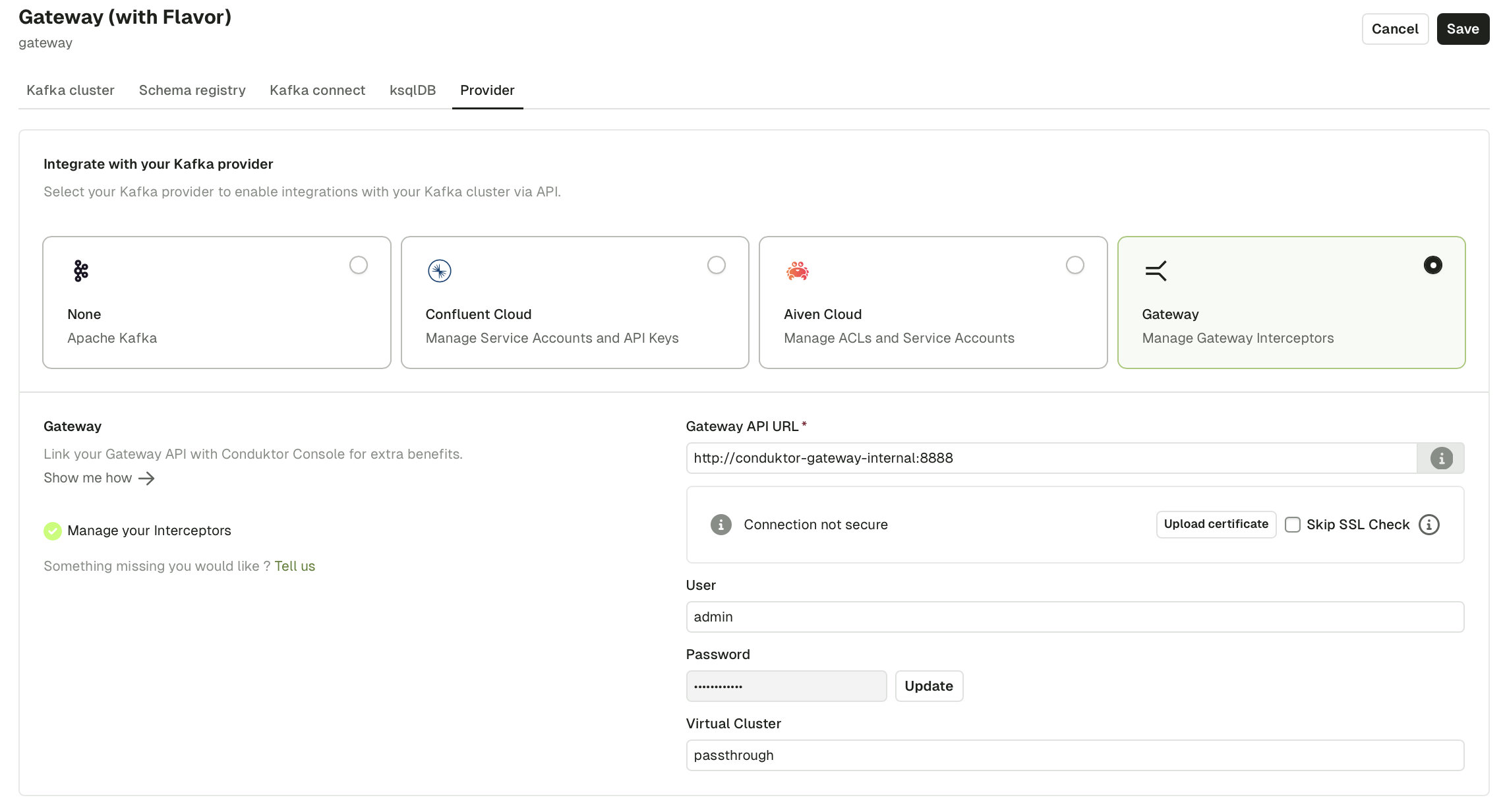
To enable Gateway integration and access Interceptors, Chargeback with Gateway or Partner Zones, select the **Gateway provider** and enter your Gateway API key and secret.
**To add a cluster:** Click **Add cluster** in the top right corner.
**To edit a cluster:** Select it from the list to modify the name, icon, bootstrap servers, and additional properties. You can also enable Schema Registry, Kafka Connect, ksqlDB, and Kafka providers.
## Network requirements
Console connects to Kafka clusters using the Apache Kafka Java client library. It uses standard Kafka client connections with the bootstrap servers you provide in the cluster configuration.
Console requires the same network access to Kafka brokers as any standard Kafka client application.
## Connect to a Conduktor Gateway cluster
Connect Conduktor Console to a Conduktor Gateway cluster the same way you would connect to any Kafka cluster by providing the Gateway bootstrap servers and security configurations. Console will simply act as a Kafka client connecting to Gateway.
The security protocol must match the listener Console connects to (`GATEWAY_LISTENER__SECURITY_PROTOCOL`) in your Gateway configuration.
To enable Gateway integration and access Interceptors, Chargeback with Gateway or Partner Zones, select the **Gateway provider** and enter your Gateway API key and secret.
 ## Connect to a secure Kafka cluster
Console uses the Apache Kafka Java Client [configuration properties](https://kafka.apache.org/documentation/#consumerconfigs) .
To connect to a secure Kafka cluster, specify the values from your `config.properties` file:
```sh theme={null}
security.protocol=SASL_SSL
sasl.mechanism=SCRAM-SHA-512
sasl.jaas.config=org.apache.kafka.common.security.scram.ScramLoginModule required username='' password='';
```
## Connect to a Confluent Cloud cluster
1. In your Confluent cluster dashboard, go to **Data integration** > **Clients**
2. Select **Java** as the language
## Connect to a secure Kafka cluster
Console uses the Apache Kafka Java Client [configuration properties](https://kafka.apache.org/documentation/#consumerconfigs) .
To connect to a secure Kafka cluster, specify the values from your `config.properties` file:
```sh theme={null}
security.protocol=SASL_SSL
sasl.mechanism=SCRAM-SHA-512
sasl.jaas.config=org.apache.kafka.common.security.scram.ScramLoginModule required username='' password='';
```
## Connect to a Confluent Cloud cluster
1. In your Confluent cluster dashboard, go to **Data integration** > **Clients**
2. Select **Java** as the language
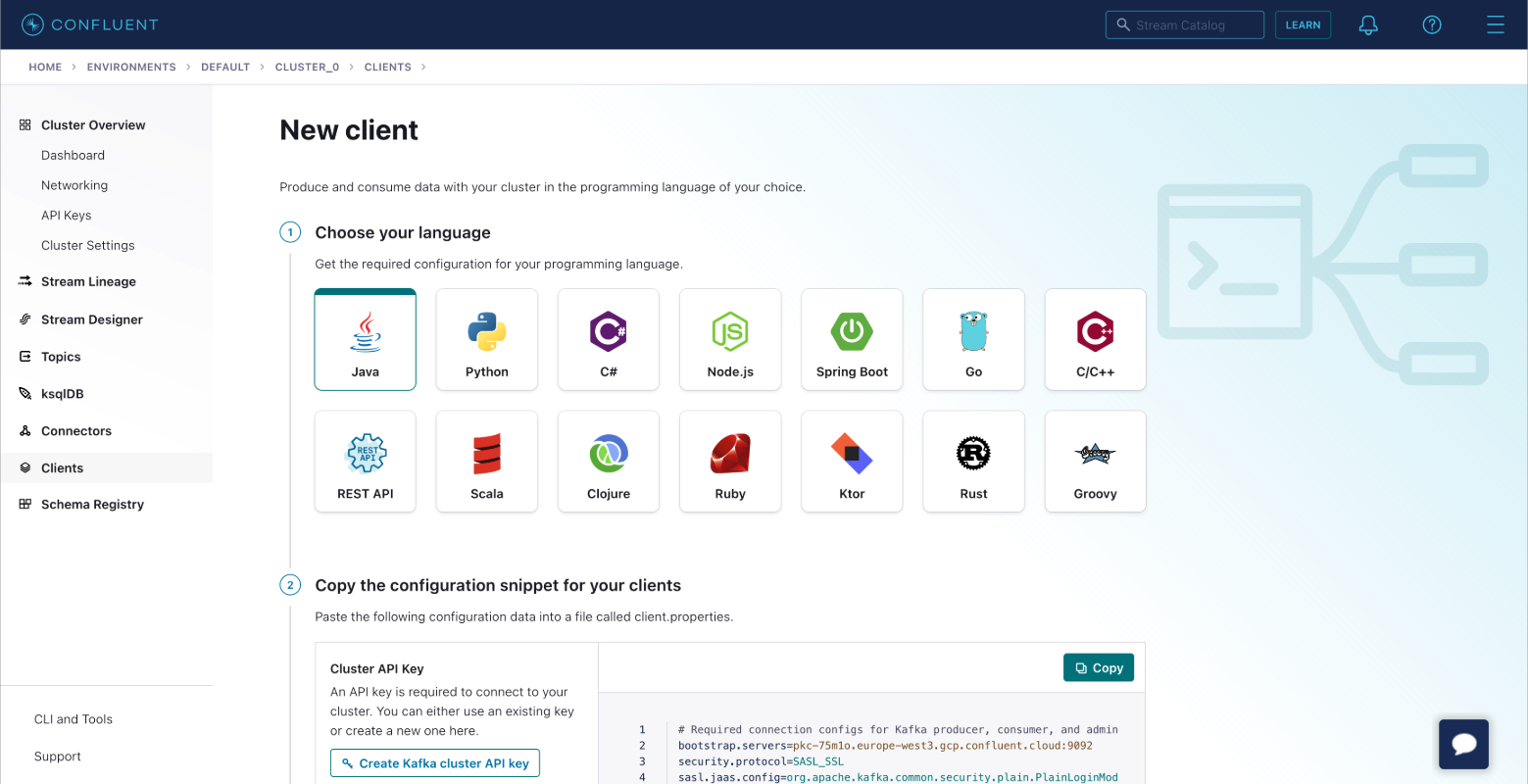 3. Create a **Kafka cluster API key**. Optionally, create a **Schema Registry API Key** if using Schema Registry
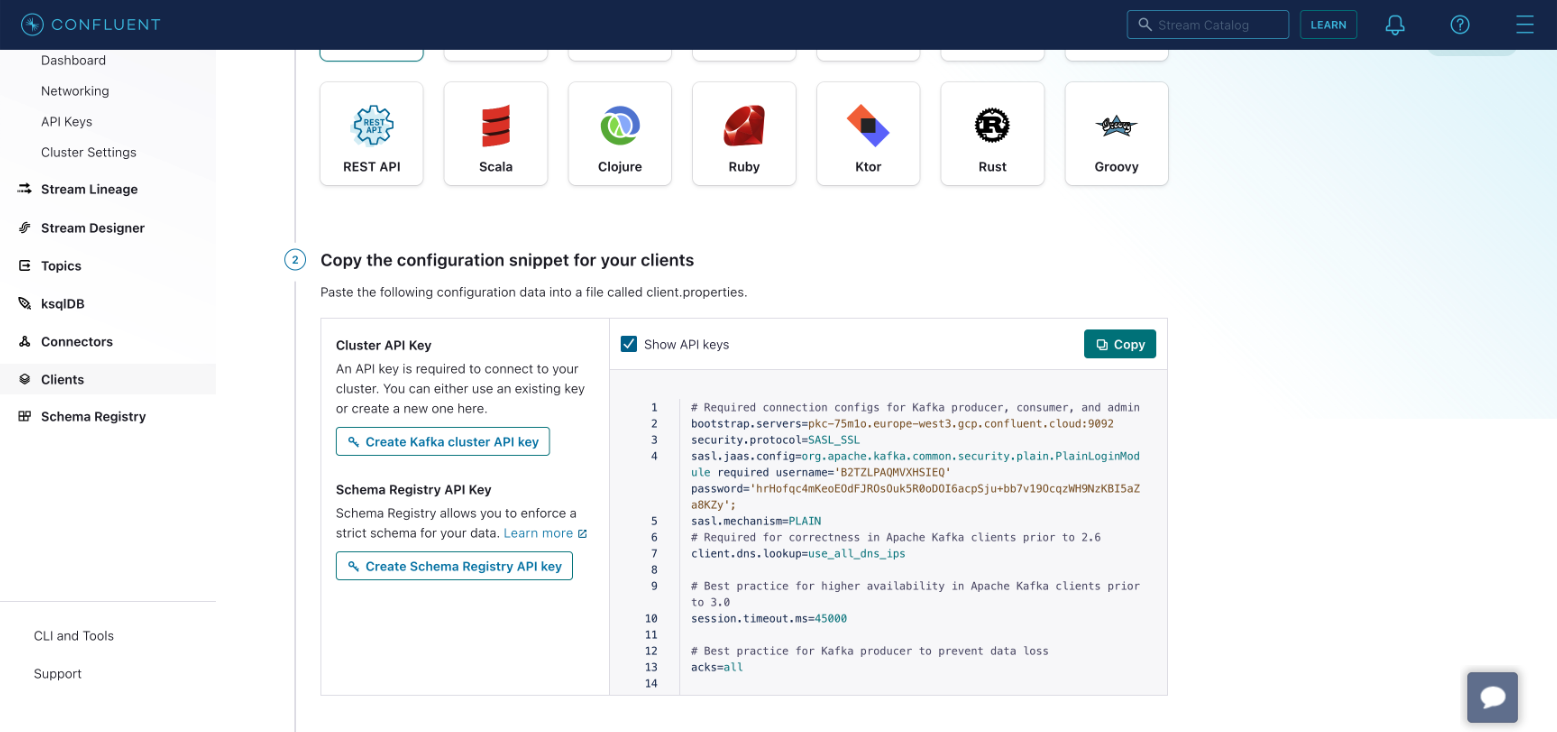 4. Copy the configuration to your clipboard.
5. In Console, add the bootstrap servers and paste the configuration as *advanced properties*.
6. Test the connection. A green **Connected** label appears on success.
4. Copy the configuration to your clipboard.
5. In Console, add the bootstrap servers and paste the configuration as *advanced properties*.
6. Test the connection. A green **Connected** label appears on success.
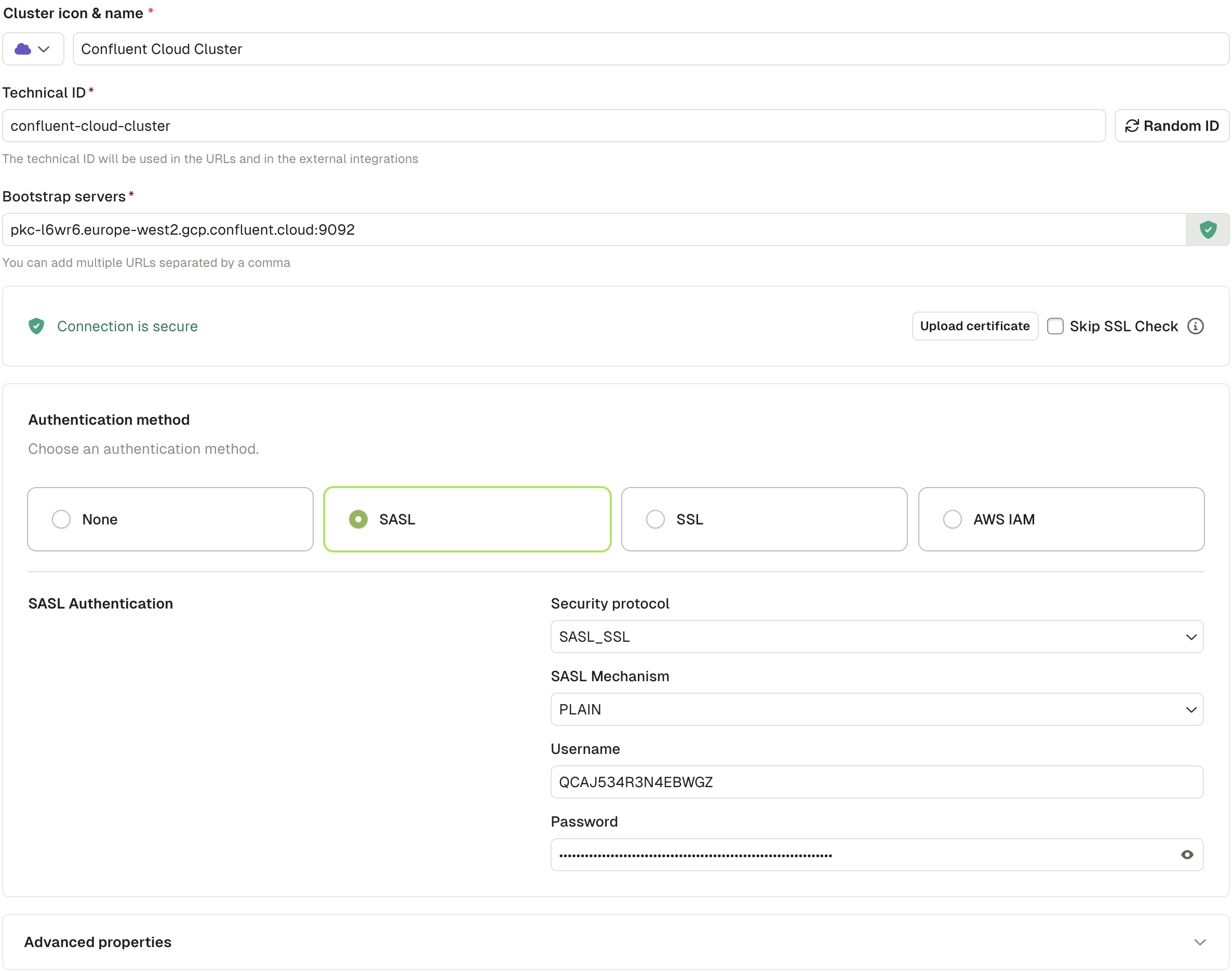 7. Click **Create Configuration** to save
To manage Confluent service accounts, set up the **Confluent provider** in the [cluster configuration](/guide/manage-kafka/kafka-resources/service-accounts-acls#confluent-cloud).
## Connect to an Aiven cluster
Choose one of the following authentication methods:
### SSL authentication
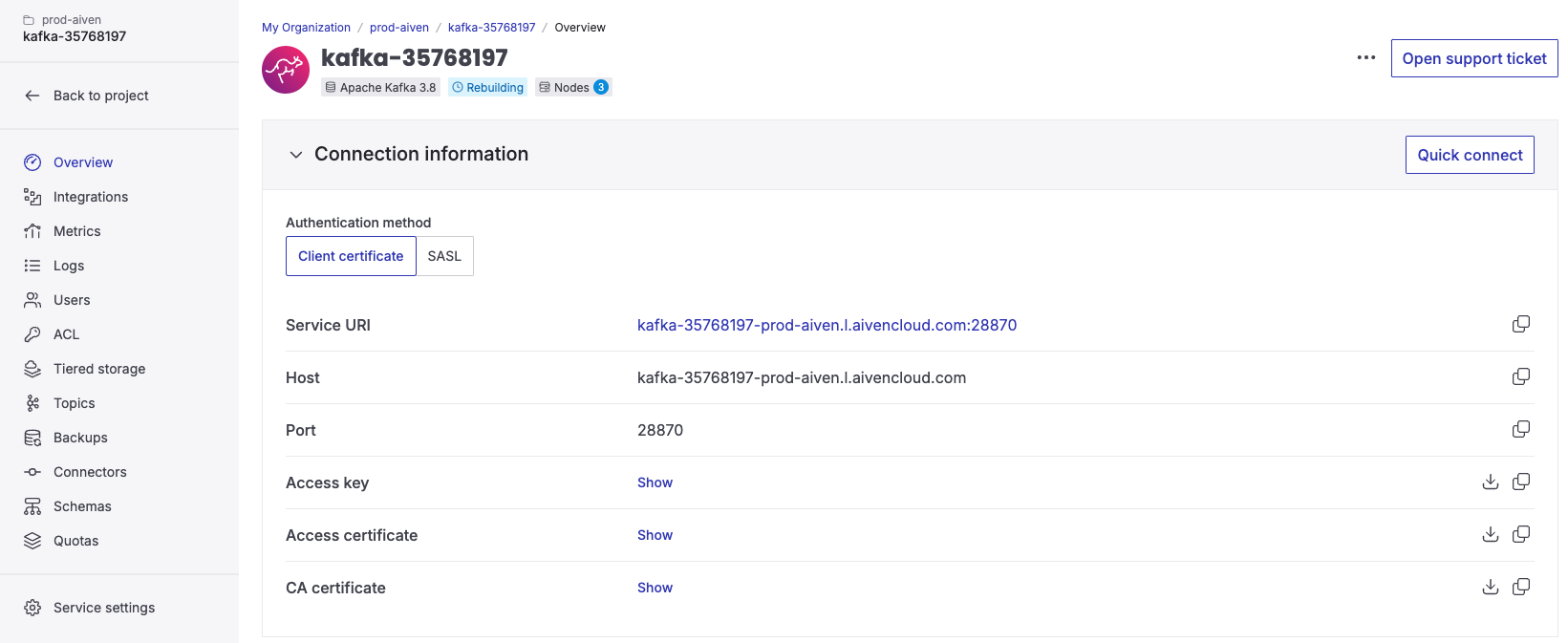
Provide the **Access Key**, **Access Certificate**, and **CA Certificate** from your Aiven console. The **Service URI** is your bootstrap server.
7. Click **Create Configuration** to save
To manage Confluent service accounts, set up the **Confluent provider** in the [cluster configuration](/guide/manage-kafka/kafka-resources/service-accounts-acls#confluent-cloud).
## Connect to an Aiven cluster
Choose one of the following authentication methods:
### SSL authentication
Provide the **Access Key**, **Access Certificate**, and **CA Certificate** from your Aiven console. The **Service URI** is your bootstrap server.
 In Console:
1. Enter the bootstrap server
2. Upload the CA certificate
3. Select **SSL** as the authentication method
4. Paste the **Access Key** and **Access Certificate**
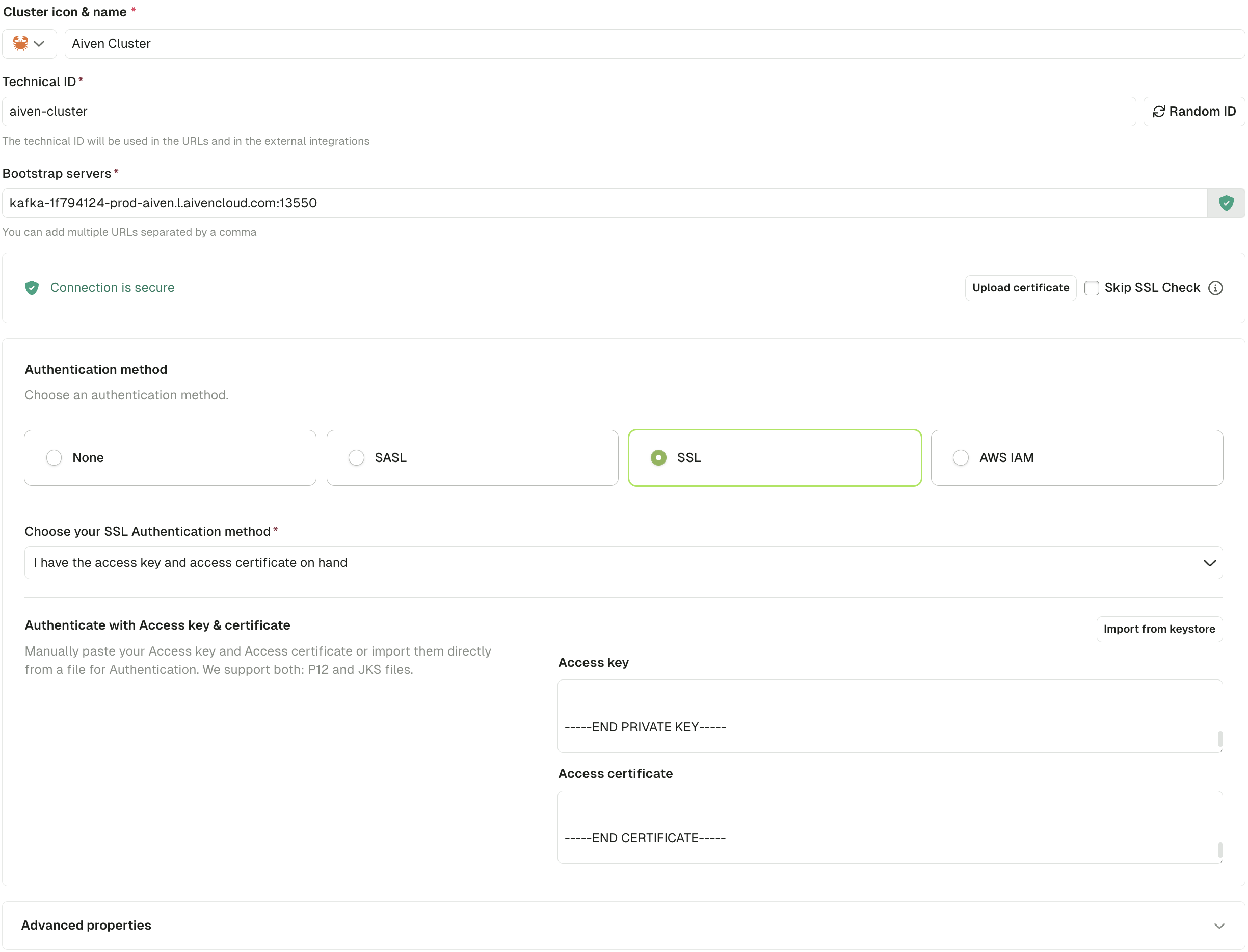
In Console:
1. Enter the bootstrap server
2. Upload the CA certificate
3. Select **SSL** as the authentication method
4. Paste the **Access Key** and **Access Certificate**
 To manage Aiven service accounts, set up the **Aiven provider** in the [cluster configuration](/guide/manage-kafka/kafka-resources/service-accounts-acls#aiven).
### SASL\_SSL authentication
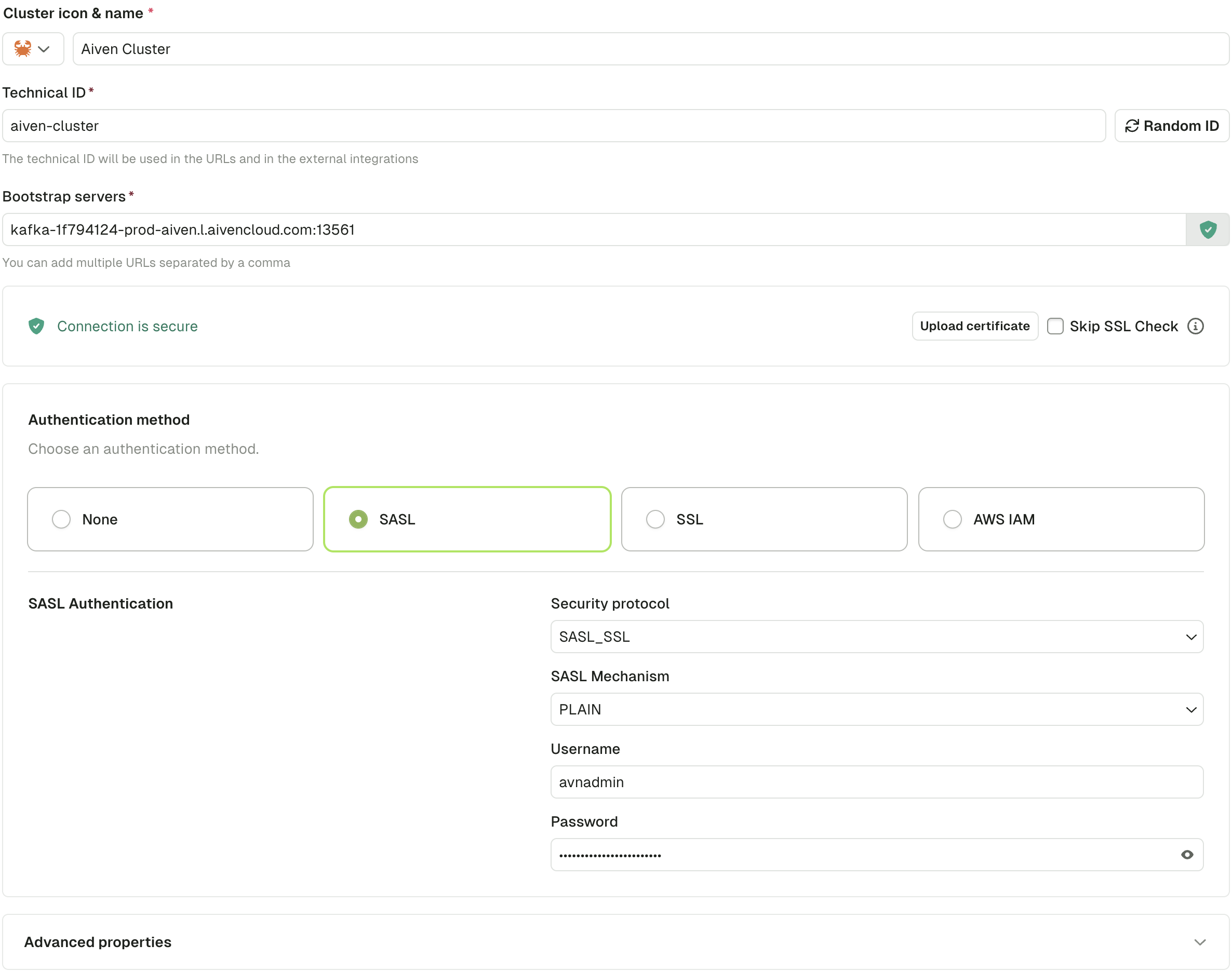
Provide the **Service URI** (bootstrap server), **User**, and **Password** from your Aiven console.
To manage Aiven service accounts, set up the **Aiven provider** in the [cluster configuration](/guide/manage-kafka/kafka-resources/service-accounts-acls#aiven).
### SASL\_SSL authentication
Provide the **Service URI** (bootstrap server), **User**, and **Password** from your Aiven console.
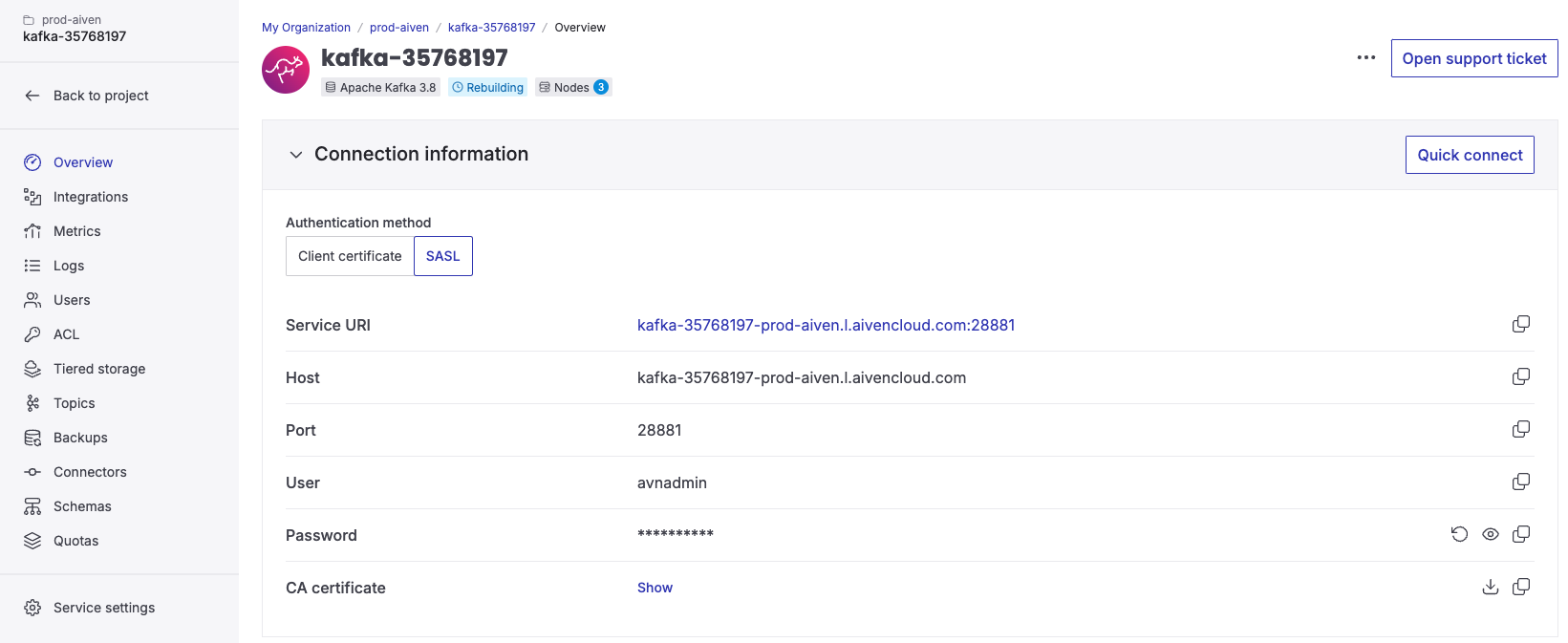 The configuration in Console:
 To manage Aiven service accounts, set up the **Aiven provider** in the [cluster configuration](/guide/manage-kafka/kafka-resources/service-accounts-acls#aiven).
## Connect to an AWS MSK cluster
1. Create an IAM user:
To manage Aiven service accounts, set up the **Aiven provider** in the [cluster configuration](/guide/manage-kafka/kafka-resources/service-accounts-acls#aiven).
## Connect to an AWS MSK cluster
1. Create an IAM user:
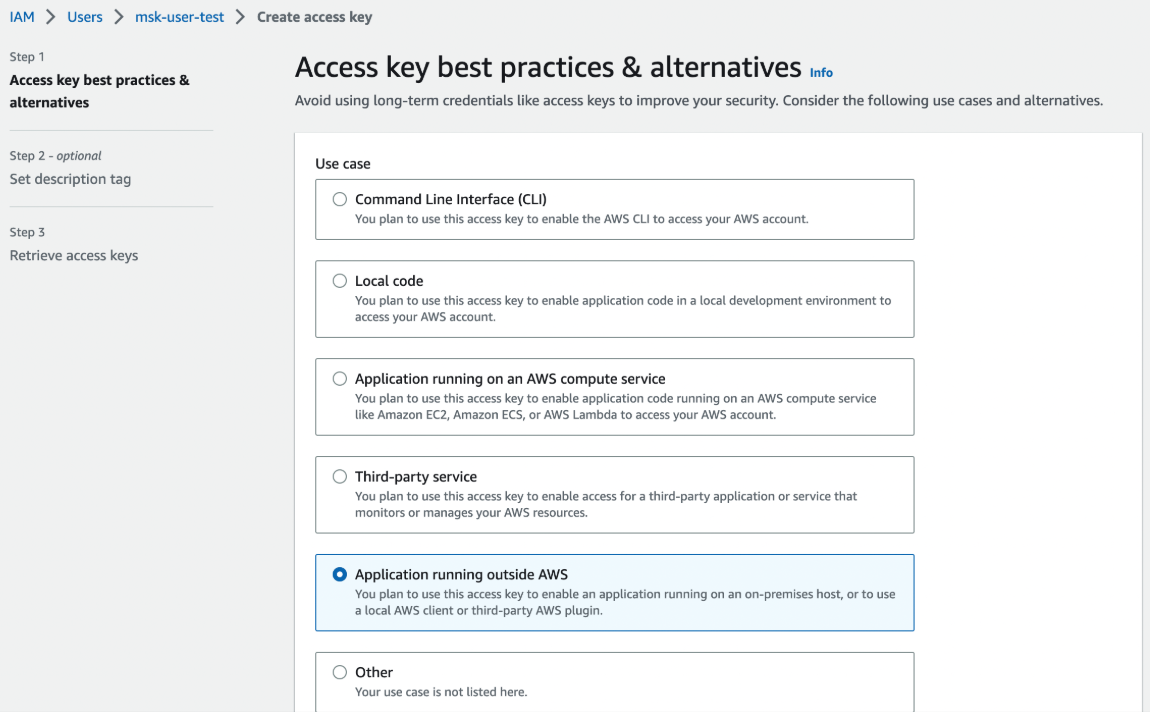 2. Attach permissions to the IAM user:
```json theme={null}
{
"Version": "2012-10-17",
"Statement": [
{
"Effect": "Allow",
"Action": ["kafka:*", "kafka-cluster:*"],
"Resource": "*"
}
]
}
```
3. Generate an access key:
2. Attach permissions to the IAM user:
```json theme={null}
{
"Version": "2012-10-17",
"Statement": [
{
"Effect": "Allow",
"Action": ["kafka:*", "kafka-cluster:*"],
"Resource": "*"
}
]
}
```
3. Generate an access key:
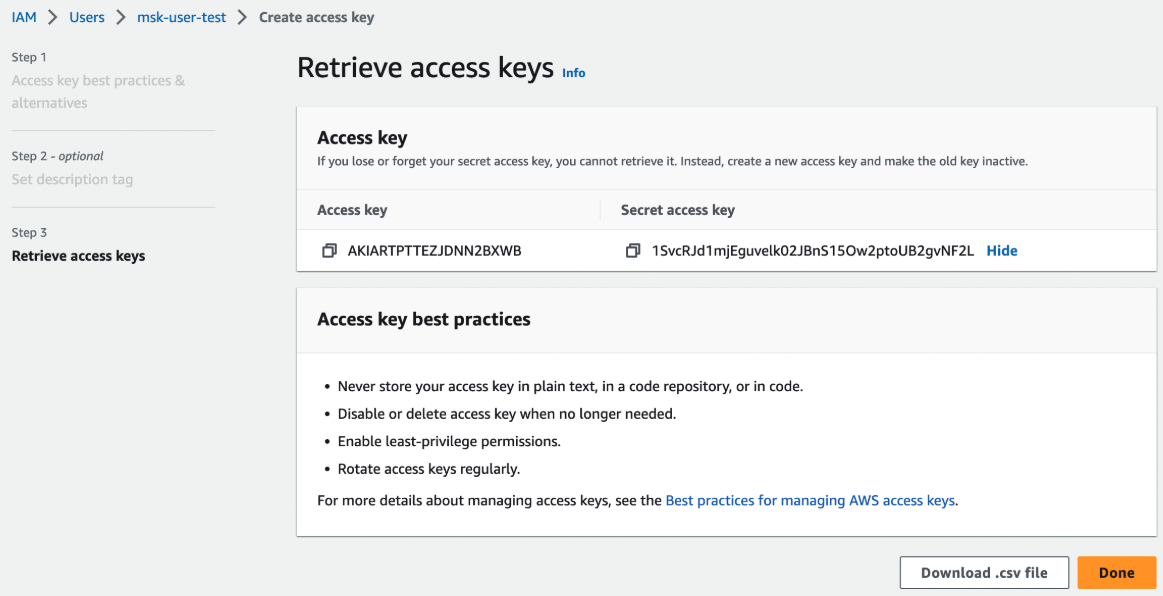 4. In Console, enter the **Bootstrap server** and select **AWS IAM** as the authentication method
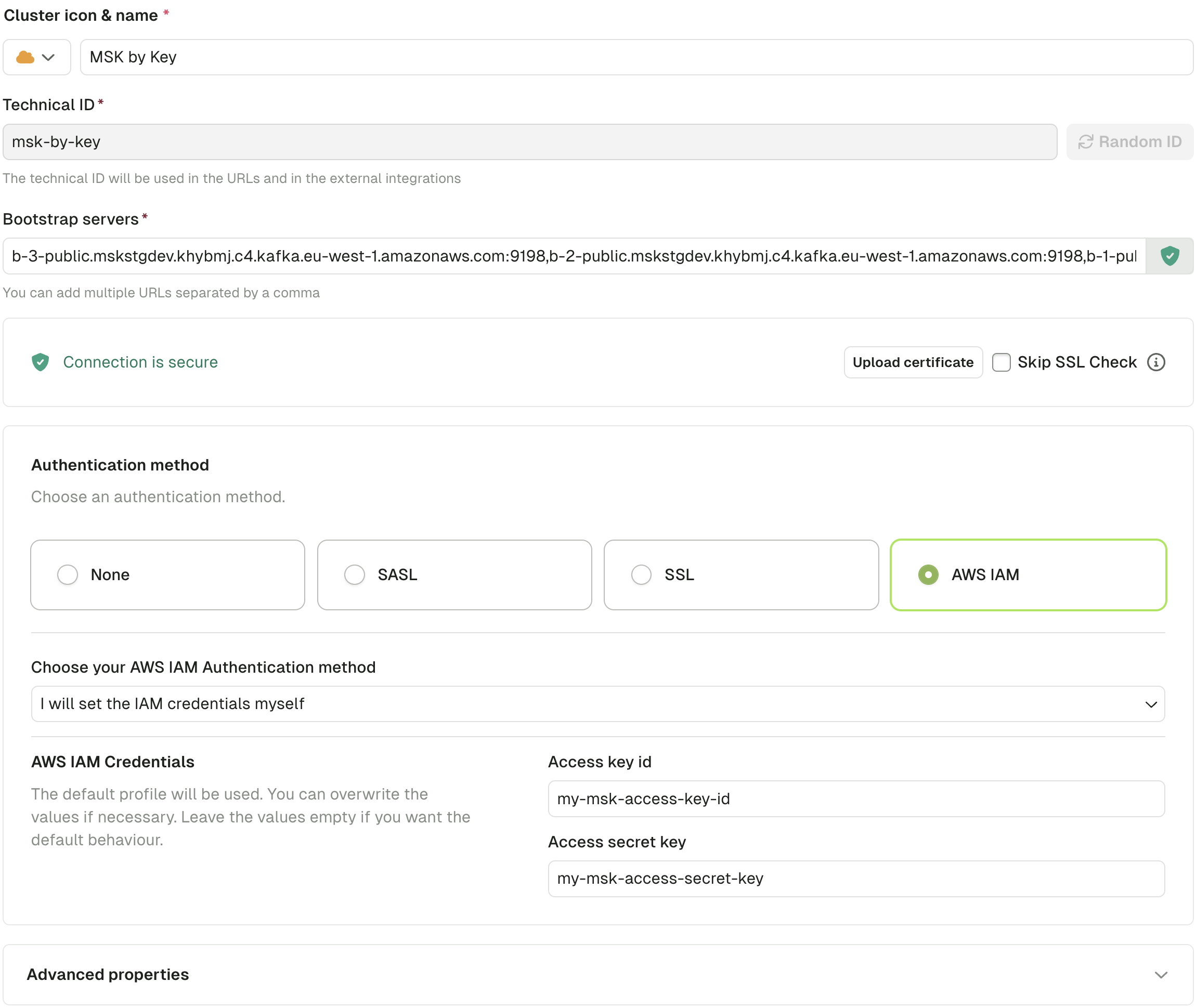
5. Choose one option:
* Inherit credentials from environment variables, or
* Enter the **Access Key** and **Secret Key**
4. In Console, enter the **Bootstrap server** and select **AWS IAM** as the authentication method
5. Choose one option:
* Inherit credentials from environment variables, or
* Enter the **Access Key** and **Secret Key**
 ## Connect to a Cloudera cluster
These instructions use **SASL\_SSL** protocol with **PLAIN** mechanism.
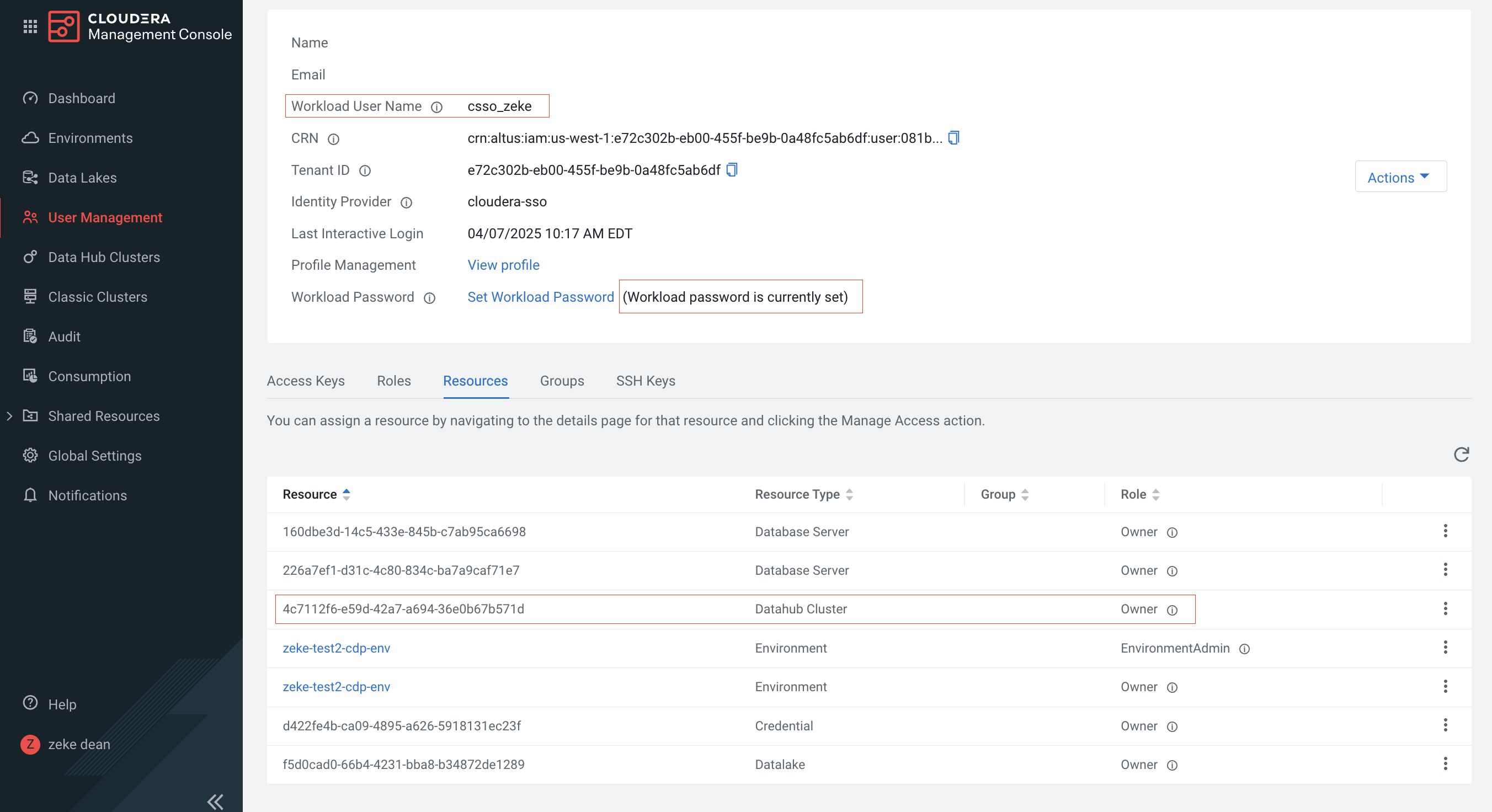
1. Create a workload user with **ownership of the Data Hub cluster**. Note the username and password:
## Connect to a Cloudera cluster
These instructions use **SASL\_SSL** protocol with **PLAIN** mechanism.
1. Create a workload user with **ownership of the Data Hub cluster**. Note the username and password:
 2. Download certificates from Cloudera:
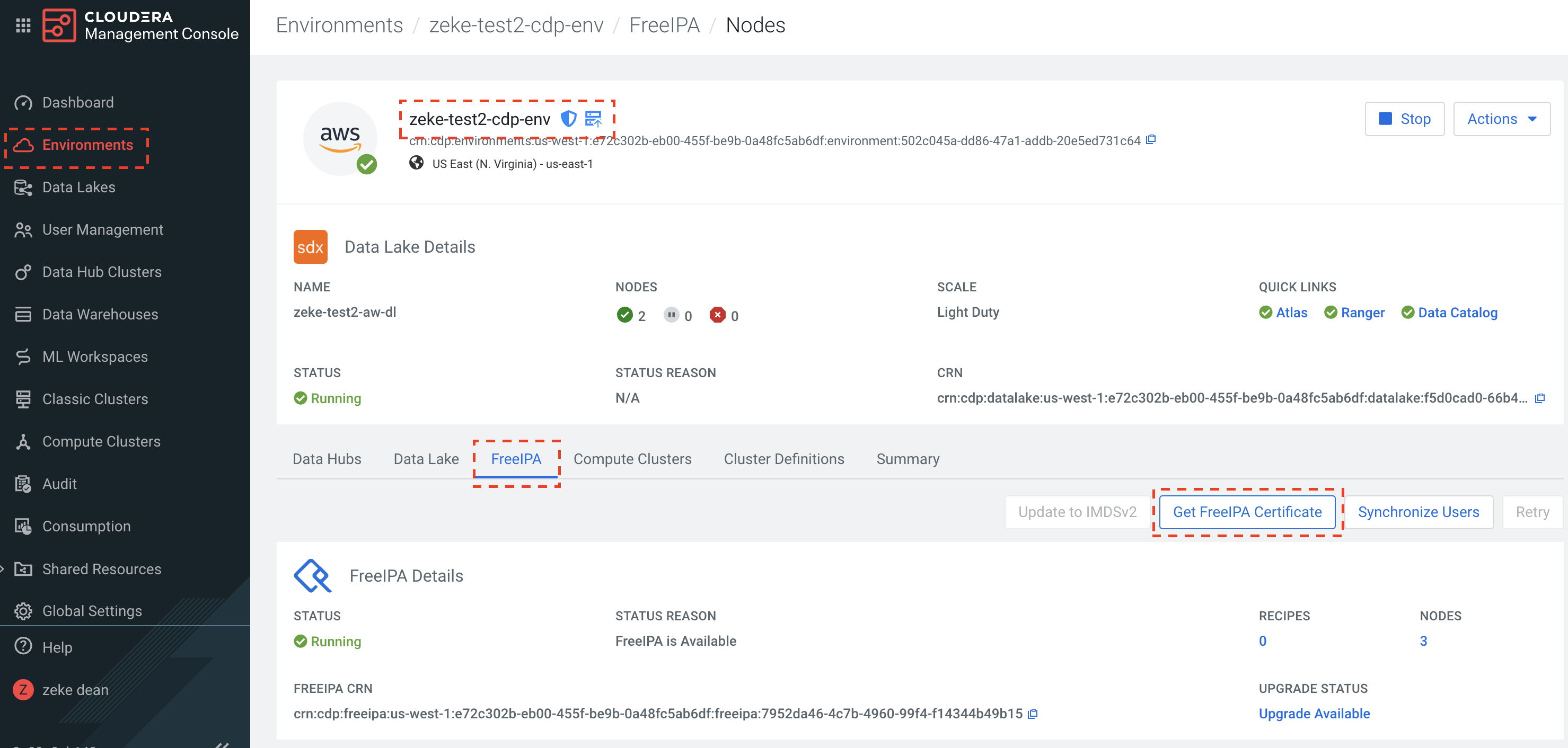 3. Convert CRT certificates to JKS format using Java keytool:
```bash theme={null}
keytool -import -keystore zeke-test2-cdp-env.jks -alias zeke-test2-cdp-env -file zeke-test2-cdp-env.crt
```
4. In Cloudera, open firewalls for Kafka brokers and Schema Registry
5. In Console, go to **Clusters**, select the Cloudera cluster, and upload the certificates
6. Configure the cluster using the workload username and password from step 1:
3. Convert CRT certificates to JKS format using Java keytool:
```bash theme={null}
keytool -import -keystore zeke-test2-cdp-env.jks -alias zeke-test2-cdp-env -file zeke-test2-cdp-env.crt
```
4. In Cloudera, open firewalls for Kafka brokers and Schema Registry
5. In Console, go to **Clusters**, select the Cloudera cluster, and upload the certificates
6. Configure the cluster using the workload username and password from step 1:
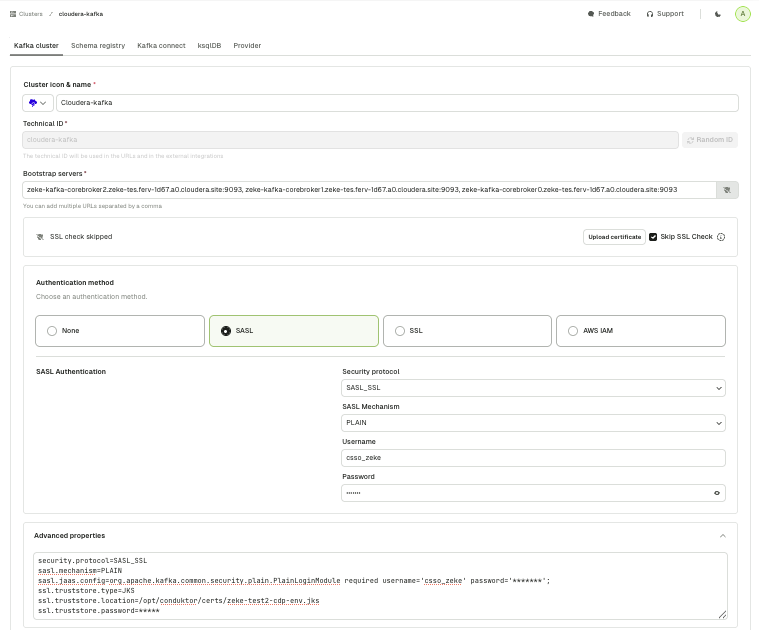 [Automated setup example](https://github.com/conduktor/conduktor-cloudera-quickstart-demo?tab=readme-ov-file#cloudera--conduktor)
## Connect to a Google Cloud cluster
Connect to Google Cloud Managed Service for Apache Kafka using **SASL\_SSL** protocol with **PLAIN** mechanism.
### Use a service account
[View Google Cloud documentation](https://cloud.google.com/managed-service-for-apache-kafka/docs/authentication-kafka#sasl-plain)
### Use an access token
1. Get an access token:
```bash theme={null}
gcloud auth login --no-launch-browser
gcloud auth print-access-token
```
2. Use the token with these parameters:
```bash theme={null}
security.protocol=SASL_SSL
sasl.mechanism=PLAIN
sasl.jaas.config=org.apache.kafka.common.security.plain.PlainLoginModule required \
username="PRINCIPAL_EMAIL_ADDRESS" \
password="ACCESS_TOKEN_VALUE";
```
Managed Service for Apache Kafka verifies that:
* The access token is valid and not expired
* The username matches the principal email associated with the access token
* The principal has the `managedkafka.clusters.connect` permission (included in `roles/managedkafka.client`)
## Related resources
* [Interactive cluster configuration guide](https://conduktor.navattic.com/cluster-configuration)
* [Feedback and feature requests](https://conduktor.io/roadmap)
[Automated setup example](https://github.com/conduktor/conduktor-cloudera-quickstart-demo?tab=readme-ov-file#cloudera--conduktor)
## Connect to a Google Cloud cluster
Connect to Google Cloud Managed Service for Apache Kafka using **SASL\_SSL** protocol with **PLAIN** mechanism.
### Use a service account
[View Google Cloud documentation](https://cloud.google.com/managed-service-for-apache-kafka/docs/authentication-kafka#sasl-plain)
### Use an access token
1. Get an access token:
```bash theme={null}
gcloud auth login --no-launch-browser
gcloud auth print-access-token
```
2. Use the token with these parameters:
```bash theme={null}
security.protocol=SASL_SSL
sasl.mechanism=PLAIN
sasl.jaas.config=org.apache.kafka.common.security.plain.PlainLoginModule required \
username="PRINCIPAL_EMAIL_ADDRESS" \
password="ACCESS_TOKEN_VALUE";
```
Managed Service for Apache Kafka verifies that:
* The access token is valid and not expired
* The username matches the principal email associated with the access token
* The principal has the `managedkafka.clusters.connect` permission (included in `roles/managedkafka.client`)
## Related resources
* [Interactive cluster configuration guide](https://conduktor.navattic.com/cluster-configuration)
* [Feedback and feature requests](https://conduktor.io/roadmap)