> ## Documentation Index
> Fetch the complete documentation index at: https://docs.conduktor.io/llms.txt
> Use this file to discover all available pages before exploring further.
# Kafka Terraform provider — Conduktor
> Manage Conduktor Console resources as code with the Conduktor Terraform provider. Declare topics, users, permissions, and Gateway configs in HCL.
## Conduktor Terraform overview
The Conduktor Terraform provider gives you the ability to perform some operations on Conduktor Console state directly from existing [Terraform Infrastructure-as-Code environment](https://developer.hashicorp.com/terraform/intro) .
The Conduktor Terraform provider may not include the latest features. [Check out all the supported resources](/guide/conduktor-in-production/automate).
## Install
The provider should be installed automatically with `terraform init`, however we recommend to pin a specific version or range of versions using the [required\_provider configurations](https://developer.hashicorp.com/terraform/language/providers/configuration) :
```hcl theme={null}
terraform {
required_providers {
conduktor = {
source = "conduktor/conduktor"
version = "~> X.Y" # where X.Y is the current major version and minor version
}
}
}
```
## Configure
To use the Conduktor Terraform Provider, you need to configure:
* the mode, since the provider can also be used for managing Conduktor Gateway resources,
* the URL of Conduktor Console,
* the authentication mechanism: either using an API key or the local user credentials (usually admin account)
[View the full configuration reference](https://registry.terraform.io/providers/conduktor/conduktor/latest/docs) .
### Authenticate using API Keys
```hcl theme={null}
# configure provider
provider "conduktor" {
mode = "console"
base_url = "http://localhost:8080"
api_token = "your-api-key"
}
```
There are two types of API Keys: **admin** and **Self-service application**.
Admin API Keys grant the maximum permissions on Console.
```bash theme={null}
# Generate a key named my-admin-key
$ conduktor token create admin my-admin-key
AWpw1sZZC20=.29Qb9KbyeQTrewMtnVDYAprxmYo7MUQats2KHzVhx+B/kGOBuIoH8CMsjOcvolUjLKFqbQNSvY0/98wb8mqxU4NwQTSgbSSAlLxau3caByHR6/X9EeqQdj3Lhf0xCzh87/GxYK5JG2DI1VWj55A6xcH++ottyG909PwuGe/GIwgfxX3FKaopg8hxgUmPJNRSWqX+75a8eQi014J4YxuTD7w+723kOQBTXOysfGUaYnfwCCjPPmSWXEEqy5wkH2NS+jXi3S6+fH0ts8CoqvV6Z8YLmBupdMgCtJ9MVBYeDarIzQw6XY7yNuypUqer0dcd9B3KyVR8ecNpFiF7ybvP4g==
```
Go to **Settings** > **API Keys** and select **New API Key**:
 Self-service Application API Key permissions are **limited to the scope of the ApplicationInstance** for which they have been generated. [Find out more about Self-service](/guide/use-cases/self-service).
```bash theme={null}
$ conduktor token create application-instance -i= my-app-instance-key
AWpw1sZZC20=.29Qb9KbyeQTrewMtnVDYAprxmYo7MUQats2KHzVhx+B/kGOBuIoH8CMsjOcvolUjLKFqbQNSvY0/98wb8mqxU4NwQTSgbSSAlLxau3caByHR6/X9EeqQdj3Lhf0xCzh87/GxYK5JG2DI1VWj55A6xcH++ottyG909PwuGe/GIwgfxX3FKaopg8hxgUmPJNRSWqX+75a8eQi014J4YxuTD7w+723kOQBTXOysfGUaYnfwCCjPPmSWXEEqy5wkH2NS+jXi3S6+fH0ts8CoqvV6Z8YLmBupdMgCtJ9MVBYeDarIzQw6XY7yNuypUqer0dcd9B3KyVR8ecNpFiF7ybvP4g==
```
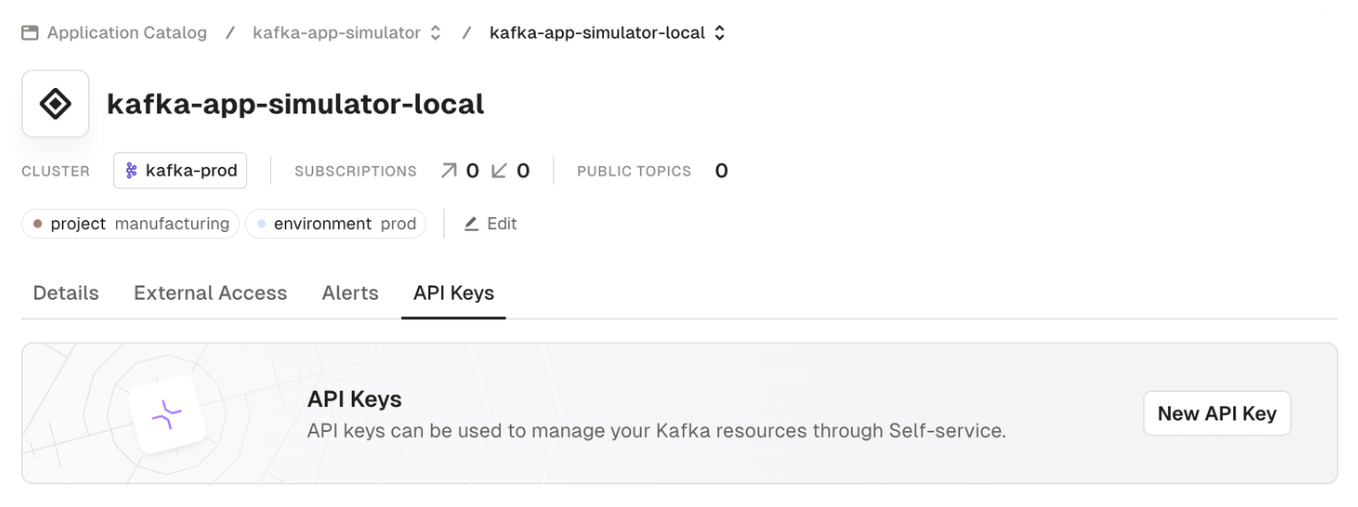
Go to **Applications**, pick your **Application** and under the **Application Instances** tab click **New API Key**:
Self-service Application API Key permissions are **limited to the scope of the ApplicationInstance** for which they have been generated. [Find out more about Self-service](/guide/use-cases/self-service).
```bash theme={null}
$ conduktor token create application-instance -i= my-app-instance-key
AWpw1sZZC20=.29Qb9KbyeQTrewMtnVDYAprxmYo7MUQats2KHzVhx+B/kGOBuIoH8CMsjOcvolUjLKFqbQNSvY0/98wb8mqxU4NwQTSgbSSAlLxau3caByHR6/X9EeqQdj3Lhf0xCzh87/GxYK5JG2DI1VWj55A6xcH++ottyG909PwuGe/GIwgfxX3FKaopg8hxgUmPJNRSWqX+75a8eQi014J4YxuTD7w+723kOQBTXOysfGUaYnfwCCjPPmSWXEEqy5wkH2NS+jXi3S6+fH0ts8CoqvV6Z8YLmBupdMgCtJ9MVBYeDarIzQw6XY7yNuypUqer0dcd9B3KyVR8ecNpFiF7ybvP4g==
```
Go to **Applications**, pick your **Application** and under the **Application Instances** tab click **New API Key**:
### Authenticate using short-lived user credentials
This type of API Key will have the permissions of the user who created it. It only works for **Local** and **LDAP** users.
Short-lived user API Keys will be valid for the same duration as the configured [session timeout](/guide/conduktor-in-production/admin/user-access/session-lifetime).
OIDC users can't be used.
```hcl theme={null}
# configure provider
provider "conduktor" {
mode = "console"
base_url = "http://localhost:8080"
admin_user = "console-admin@mycompany.io"
admin_password = "console-admin-password"
}
```
### Environment variables
The provider configuration also supports environment variables for all attributes except for `mode`.
| Environment variables | HCL value | Description |
| ---------------------- | ---------------- | ----------------------------------------------------------------------------- |
| n/a | `mode` | Terraform Provider mode: either `console` or `gateway` |
| `CDK_CONSOLE_BASE_URL` | `base_url` | Console base URL, e.g. `http://localhost:8080` |
| `CDK_API_KEY` | `api_token` | Console API key |
| `CDK_CONSOLE_USER` | `admin_user` | Console user login email |
| `CDK_CONSOLE_PASSWORD` | `admin_password` | Console user login password |
| `CDK_CONSOLE_CERT` | `cert` | Cert in PEM format to authenticate using client certificates |
| `CDK_CONSOLE_INSECURE` | `insecure` | Skip TLS verification flag. Defaults to `false` |
| `CDK_CONSOLE_CACERT` | `cacert` | Root CA certificate in PEM format to verify the Conduktor Console certificate |
| `CDK_CONSOLE_KEY` | `key` | Key in PEM format to authenticate using client certificates |
The configuration resolution is (in order of priority):
1. HCL values
2. Environment variables
3. Default values (if applicable)
## Provider usage
Once the provider is configured, all the [currently available resources](https://registry.terraform.io/providers/conduktor/conduktor/latest/docs) can be used in the Terraform definition.
### Usage example
A full example of user and group creation using Conduktor Console locally is available on port `8080` with default admin account credentials `admin@mycompany.io` / `adminP4ss!`.
```hcl title="conduktor-iac.tf" theme={null}
# Provider installation configuration
terraform {
required_providers {
conduktor = {
source = "conduktor/conduktor"
version = ">= 0.5.0"
}
}
}
# Provider configuration
provider "conduktor" {
mode = "console"
base_url = "http://localhost:8080"
admin_user = "admin@mycompany.io"
admin_password = "adminP4ss!"
}
# Create example_user, Bob
resource "conduktor_console_user_v2" "bob" {
name = "bob@mycompany.io"
spec = {
firstname = "Bob"
lastname = "Smith"
permissions = [
{
resource_type = "PLATFORM"
permissions = ["userView", "datamaskingView", "auditLogView"]
}
]
}
}
# Create a group with Bob as a member
resource "conduktor_console_group_v2" "team-a" {
name = "team-a"
spec = {
display_name = "team-a"
description = "The group of team-a"
members = [conduktor_console_user_v2.bob.name]
permissions = []
}
}
```
Then on a terminal with Terraform installed and in a directory containing `conduktor-iac.tf` file:
```shell theme={null}
# Initialize terraform project
terraform init
# Plan to preview the changes Terraform will make to match your configuration.
terraform plan
# Apply to make the planned changes.
terraform apply
```
Now if you navigate to the Conduktor UI, you will see a new user, Bob, and team-a's group created. Log in using an external SSO (LDAP or OIDC) with email `bob@mycompany.io` and you'll be recognized by Conduktor as being in the `team-a` group.
To revert the Conduktor state, you can destroy the created resources using `terraform destroy`. [Find out more about Terraform CLI commands](https://developer.hashicorp.com/terraform/cli/commands) .
#### Case of the `generic` resource
The `generic` resource leverages the YAML format used by the CLI to be used as resource definition in Terraform.
This is an experimental resource that has several [limitations](https://registry.terraform.io/providers/conduktor/conduktor/latest/docs/resources/generic#limitations) and is subject to breaking changes in future releases.
We recommend you don't use it in production workflows.
## Related resources
* [Conduktor Terraform provider](https://registry.terraform.io/providers/conduktor/conduktor/latest/docs)
* [Terraform introduction](https://developer.hashicorp.com/terraform/intro)
* [Full list of Terraform resources](https://registry.terraform.io/providers/conduktor/conduktor/latest/docs)
* [Terraform HCL docs](https://developer.hashicorp.com/terraform/language)
* [Terraform CLI docs](https://developer.hashicorp.com/terraform/cli/commands)
* [Give us feedback/request a feature](https://conduktor.io/roadmap)