> ## Documentation Index
> Fetch the complete documentation index at: https://docs.conduktor.io/llms.txt
> Use this file to discover all available pages before exploring further.
# Manage your Console license
> Obtain, apply, verify, renew and monitor usage of your Conduktor Console license.
## Obtain a license
How you obtain a license depends on the type:
* **Enterprise** — for production deployments running Console, Gateway or both. The same key applies to both products. [Contact Conduktor sales](https://conduktor.io/contact) to start the process.
* **Console Community Edition** — free, no license key needed. Console runs in Community Edition when no `CDK_LICENSE` environment variable is set. [See what's included in Console Community Edition](/guide/conduktor-in-production/manage-licenses/console-community-edition).
## Apply your license
We recommend applying your license to the environment variables. Alternatively, you can add it to your YAML config file.
```js title=".env" theme={null}
CDK_LICENSE=''
```
```yaml title="platform-config.yaml" theme={null}
license: ''
```
## Verify your license
Use Console to check that your license has been applied correctly. You can do this via the UI or by checking the logs.
### Use the UI
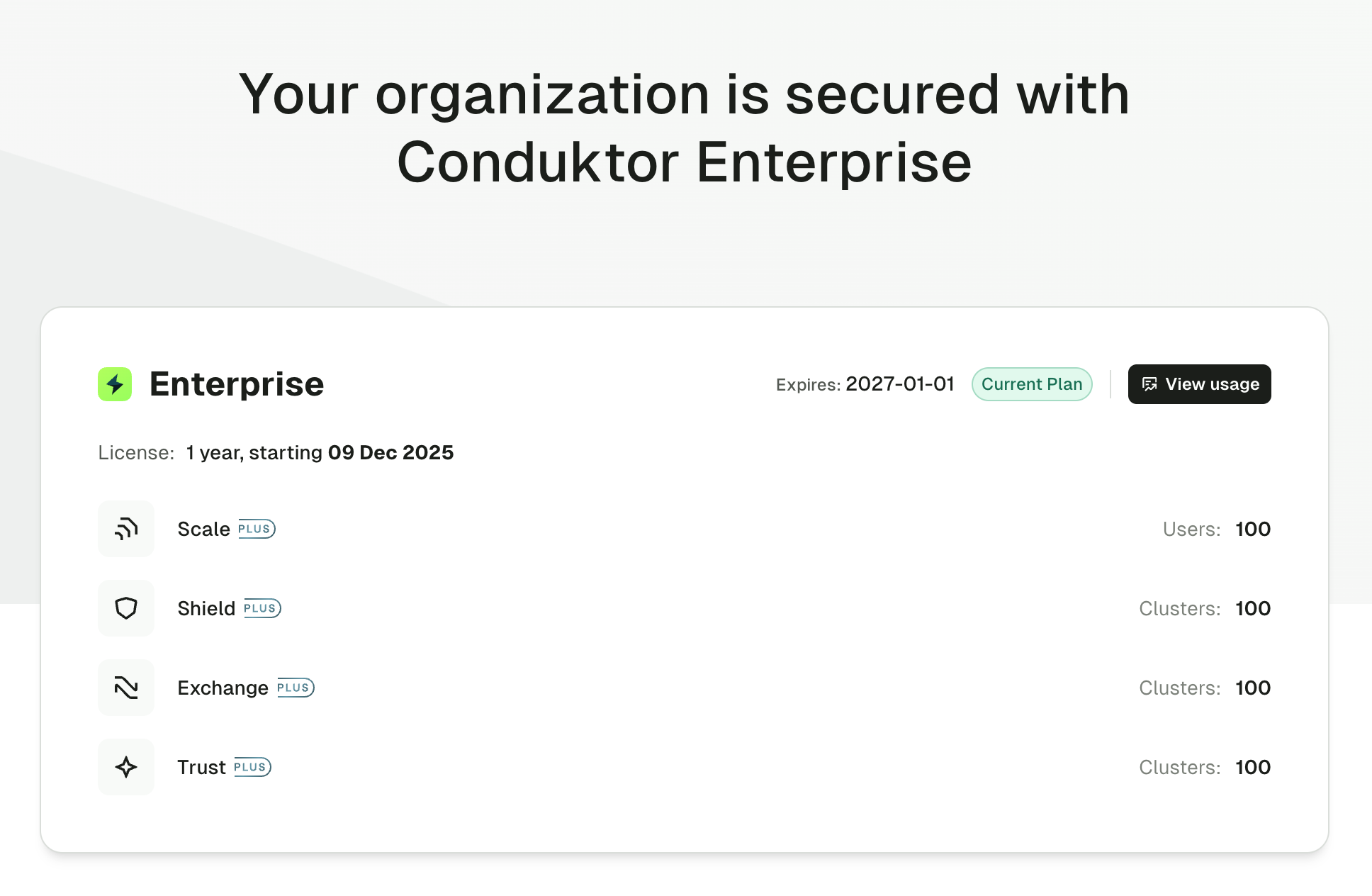
Log into Conduktor Console then go to **Settings** > **Plan**:
 ### Use the logs
Run Console then check the top of the startup logs: `License Enterprise is valid until 2026-01-01 00:00:00`.
## Renew or update your license
To renew an existing or apply a new license, change the `CDK_LICENSE` value in the environment variables (or the `license` value in the YAML file, depending on your setup) and re-deploy the Conduktor Console container.
## Monitor license expiration
Console exposes a Prometheus metric to track the number of days remaining before license expiration: `console_license_remaining_days`.
You can set up monitoring alerts on this metric to proactively manage license renewals. [Check out the metrics reference](/guide/reference/metric-reference).
## Track Console usage
Usage data allows you to monitor Console usage and license utilization.
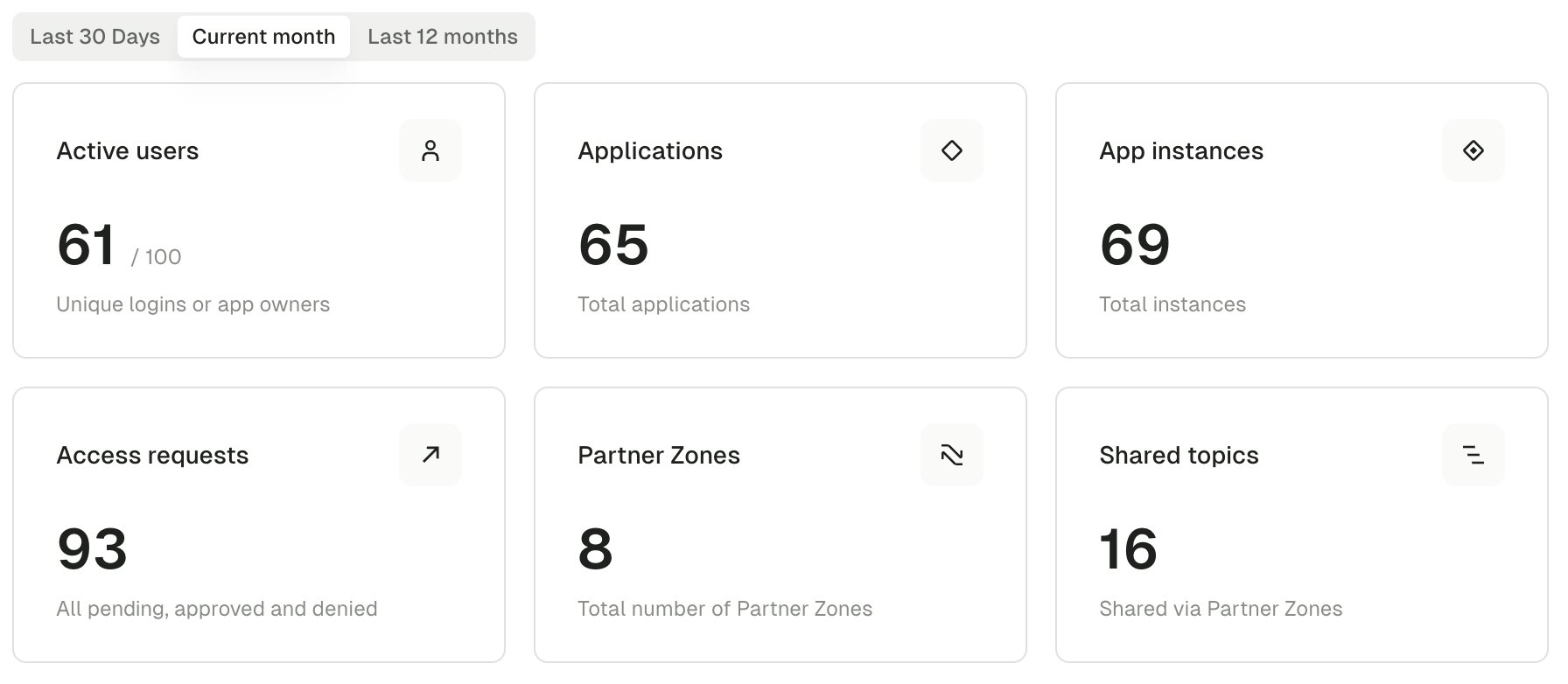
You can see all active users, view Self-service applications and instance usage, view access requests and see the total number of Partner Zones and shared topics.
Usage data is accessible to admin users only.
### View usage data
In Console, go to **Settings** > **Plan** to view your current license details.
Click **View usage** to open the usage dashboard.
### Tracked metrics
### Use the logs
Run Console then check the top of the startup logs: `License Enterprise is valid until 2026-01-01 00:00:00`.
## Renew or update your license
To renew an existing or apply a new license, change the `CDK_LICENSE` value in the environment variables (or the `license` value in the YAML file, depending on your setup) and re-deploy the Conduktor Console container.
## Monitor license expiration
Console exposes a Prometheus metric to track the number of days remaining before license expiration: `console_license_remaining_days`.
You can set up monitoring alerts on this metric to proactively manage license renewals. [Check out the metrics reference](/guide/reference/metric-reference).
## Track Console usage
Usage data allows you to monitor Console usage and license utilization.
You can see all active users, view Self-service applications and instance usage, view access requests and see the total number of Partner Zones and shared topics.
Usage data is accessible to admin users only.
### View usage data
In Console, go to **Settings** > **Plan** to view your current license details.
Click **View usage** to open the usage dashboard.
### Tracked metrics
 | Metric | What it counts |
| ------------------------- | ------------------------------------------------------------------------------------------------------------------------------------------------------------------------------------------------------------ |
| **Active users** | Users who logged in to Console (via local authentication or SSO) within the selected time period or three months prior, plus owners of a [Self-service](/guide/conduktor-concepts/self-service) application. |
| **Applications** | Total number of Self-service applications across all clusters. |
| **Application instances** | Total number of Self-service application instances across all clusters. |
| **Access requests** | Total number of application instance permission requests — pending, approved and denied — across all clusters. |
| **Partner Zones** | Total number of [Partner Zones](/guide/conduktor-concepts/partner-zones) created for sharing Kafka topics with external partners. |
| **Shared topics** | Total number of topics shared across Partner Zones. |
The active users graph displays monthly trends, showing how usage patterns change over time. When your license limit has been reached or surpassed, Console displays a warning indicator.
### Time periods
The graph provides a visual overview of how Console usage has changed over time, helping you identify trends and plan for license capacity.
* **Last 30 days**: rolling 30-day window from today
* **Current month**: month-to-date metrics
* **Last 12 months**: monthly aggregated data for the past year
Each data point represents the total count for that month, with the current month showing data up to today.
### Export usage data
Click **Export CSV** to download usage data for further analysis or reporting. The export includes metric names, values, time period information and a timestamp.
## Troubleshoot
Conduktor considers the user as being a distinct entry that's stored in the users database, regardless of whether they've ever logged in/are attached to any existing groups or not. Entries are created in the users database when: the first admin account(s) are created, users are added via basic authentication or users log in via SSO (or are added explicitly to the Conduktor UI prior to their first login via SSO). To manage users, go to **Settings** > **Users**.
Conduktor employs a soft limit to ensure that your service is not disrupted in cases where you onboard more users than expected. We understand it can be difficult to plan in advance and ask you get in touch with your customer success team if you exceed your user threshold. Please note this limit is a contractual agreement between Conduktor and your company, and may be subject to auditing from time to time.
In Console, go to **Settings** > **Users** to review the last login time of each user.
| Metric | What it counts |
| ------------------------- | ------------------------------------------------------------------------------------------------------------------------------------------------------------------------------------------------------------ |
| **Active users** | Users who logged in to Console (via local authentication or SSO) within the selected time period or three months prior, plus owners of a [Self-service](/guide/conduktor-concepts/self-service) application. |
| **Applications** | Total number of Self-service applications across all clusters. |
| **Application instances** | Total number of Self-service application instances across all clusters. |
| **Access requests** | Total number of application instance permission requests — pending, approved and denied — across all clusters. |
| **Partner Zones** | Total number of [Partner Zones](/guide/conduktor-concepts/partner-zones) created for sharing Kafka topics with external partners. |
| **Shared topics** | Total number of topics shared across Partner Zones. |
The active users graph displays monthly trends, showing how usage patterns change over time. When your license limit has been reached or surpassed, Console displays a warning indicator.
### Time periods
The graph provides a visual overview of how Console usage has changed over time, helping you identify trends and plan for license capacity.
* **Last 30 days**: rolling 30-day window from today
* **Current month**: month-to-date metrics
* **Last 12 months**: monthly aggregated data for the past year
Each data point represents the total count for that month, with the current month showing data up to today.
### Export usage data
Click **Export CSV** to download usage data for further analysis or reporting. The export includes metric names, values, time period information and a timestamp.
## Troubleshoot
Conduktor considers the user as being a distinct entry that's stored in the users database, regardless of whether they've ever logged in/are attached to any existing groups or not. Entries are created in the users database when: the first admin account(s) are created, users are added via basic authentication or users log in via SSO (or are added explicitly to the Conduktor UI prior to their first login via SSO). To manage users, go to **Settings** > **Users**.
Conduktor employs a soft limit to ensure that your service is not disrupted in cases where you onboard more users than expected. We understand it can be difficult to plan in advance and ask you get in touch with your customer success team if you exceed your user threshold. Please note this limit is a contractual agreement between Conduktor and your company, and may be subject to auditing from time to time.
In Console, go to **Settings** > **Users** to review the last login time of each user.