> ## Documentation Index
> Fetch the complete documentation index at: https://docs.conduktor.io/llms.txt
> Use this file to discover all available pages before exploring further.
# Kafka configuration risk analysis
> Identify Kafka topic configuration risks that impact reliability. Conduktor Insights flags replication, partition, and retention problems before outages.
Risk analysis is one of the sections in the [Insights dashboard](/guide/insights).
It identifies **topics with configuration issues** that could impact your Kafka cluster's reliability and performance.
 ## Overview
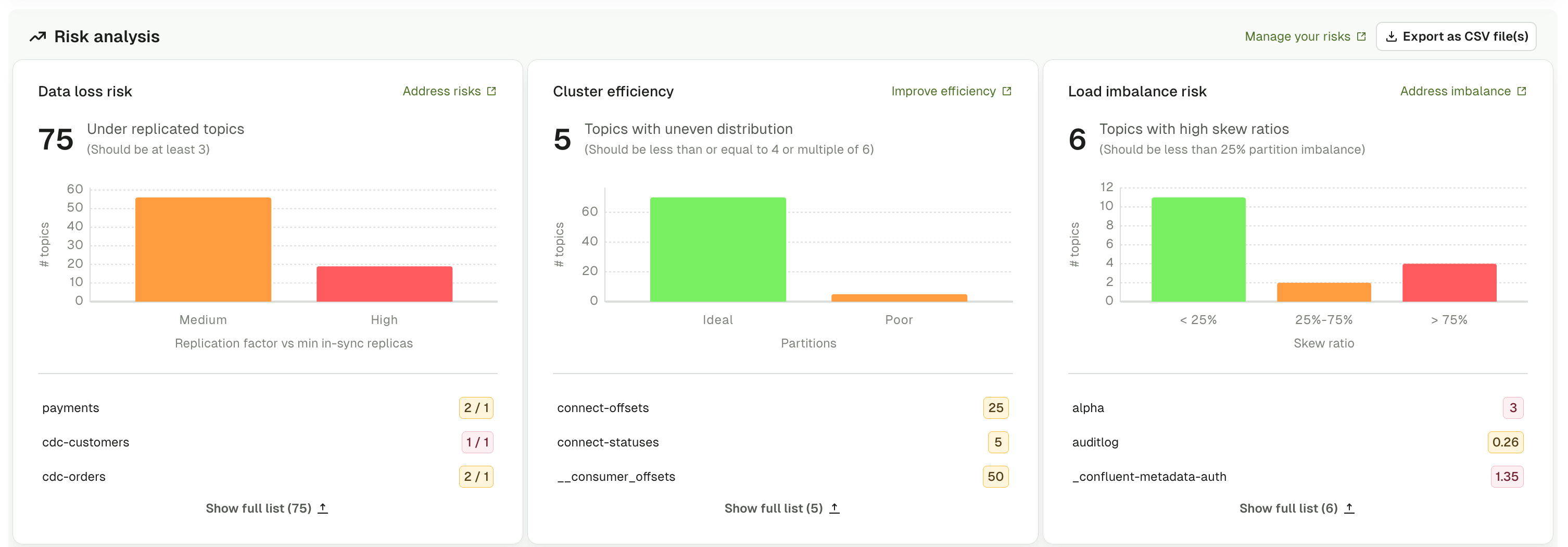
Risk analysis monitors three critical aspects of topic configuration:
* **Data loss risk**: topics with insufficient data redundancy based on replication factor (RF) and min in-sync replicas
* **Cluster efficiency**: topics with sub-optimal partition allocation across brokers
* **Load imbalance risk**: topics with uneven data distribution across partitions
Each graph uses color coding to indicate severity level:
* **Red**: high risk requiring immediate attention
* **Orange/Yellow**: medium risk that should be addressed
* **Green**: low risk or healthy configuration
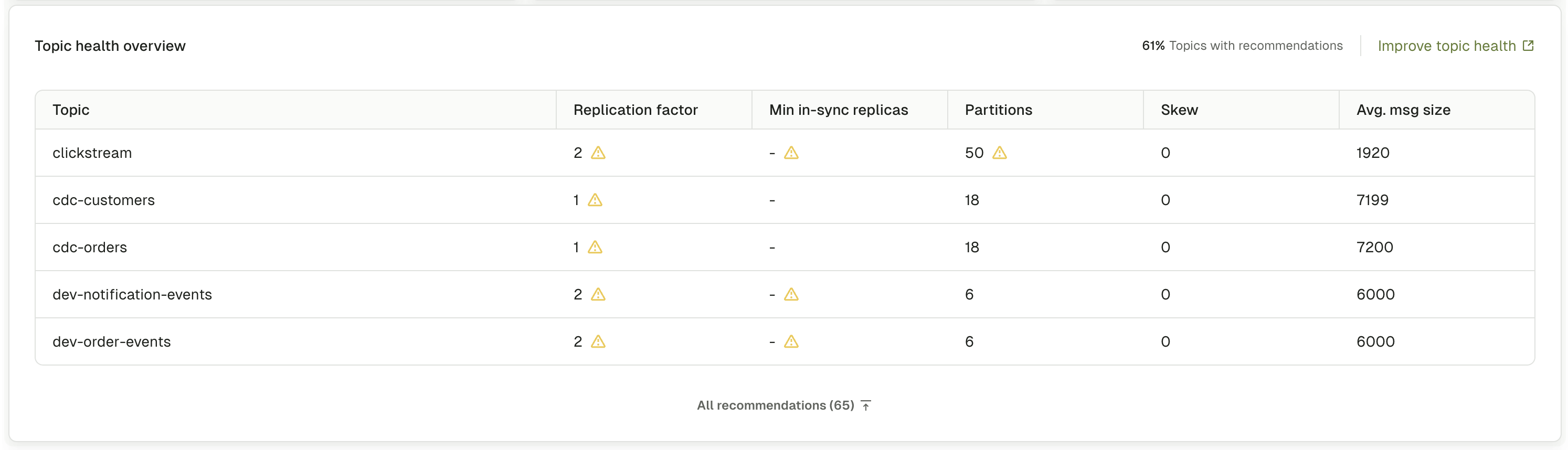
Below the graphs, a **Topic health overview** table shows topics with recommendations, displaying key metrics and warning indicators to help you prioritize remediation.
You can switch the view of data on the page between a graphs view and a table view using the "Graphs" toggle found at the top right of the page.
## What the graphs show
### Data loss risk
The data loss risk graph displays topics categorized by their vulnerability to data loss based on a combination of the replication factor (RF) and min in-sync replicas configuration.
Topics are classified into three risk levels:
* **High risk (red)**: topics with RF = 1 (no data redundancy). If the broker hosting the topic fails, all data becomes unavailable permanently.
* **Medium risk (orange)**: topics with RF = 2, or topics with RF > 2 but min.insync.replicas \< RF-1. Limited fault tolerance or insufficient write durability guarantees.
* **Low risk (green)**: topics with RF ≥ 3 and min.insync.replicas = RF-1. Provides adequate fault tolerance and write durability for production environments.
**RF = 3** with **min.insync.replicas = 2** is recommended for production environments. This provides the right balance between data safety and storage overhead, tolerating one broker failure without data loss while ensuring writes are acknowledged by multiple replicas.
#### Resolve data loss risk
Kafka does not allow changing the replication factor of an existing topic through configuration updates.
You have to use partition reassignment to add replicas or recreate the topic with the required replication factor.
**Identify the topic with low replication factor:**
1. **Go to the topic** - go to **Topics** from the main menu and select the topic shown in the graph.
2. **Review current configuration** - click the **Configuration** tab and note the replication factor shown at the top of the page to confirm the current value.
Replication factor is a topic-level setting that can't be changed after topic creation through normal configuration updates.
Partition reassignment allows you to add replicas to existing topics without recreating them. This operation requires Kafka administrative tools external to Console:
1. **Document current partition assignment** - in Console, go to the topic and click the **Partitions** tab. Document the current replica assignments for all partitions.
2. **Perform partition reassignment** - use Kafka administrative tools (such as `kafka-reassign-partitions`) to add additional replicas to the topic. This process replicates data across additional brokers in the background.
Partition reassignment requires creating a JSON file specifying new replica assignments and executing the reassignment using Kafka CLI tools. Set throttling limits to avoid impacting cluster performance during the operation.
3. **Verify completion in Console** - return to the **Partitions** tab in Console and verify all partitions now show the increased replication factor.
Works without downtime and preserves existing data. Best for production environments and topics with significant data.
For smaller topics or non-production environments, recreating the topic with the correct replication factor may be simpler:
1. **Create a new topic with RF = 3** - in Console, go to **Topics** and click **Create topic**. Set the replication factor to 3.
2. **Migrate data** - use Kafka Connect, Kafka Streams or a migration tool to copy data from the old topic to the new topic.
3. **Update applications** - update producer and consumer configurations to use the new topic name.
4. **Verify and clean up** - after confirming the migration is successful, delete the old topic.
Simpler approach for small topics or non-production environments. Requires data migration and application updates.
Set `default.replication.factor=3` in broker configuration and configure `min.insync.replicas=2` to ensure writes are acknowledged by at least two replicas.
Use [RBAC permissions](/guide/conduktor-in-production/admin/set-up-rbac) to prevent users from creating topics with RF \< 3.
### Cluster efficiency
The cluster efficiency graph displays topics categorized by partition allocation patterns that affect broker load distribution and resource utilization.
Topics are classified into two categories:
* **Ideal (green)**: topics with fewer partitions than the number of brokers in the cluster, or topics with partition counts which are a multiple of the number of brokers. These partition counts distribute evenly across typical broker configurations.
* **Poor (orange)**: topics with more partitions than there are borkers, and where the partition count is not divisible by the broker count. These configurations may create uneven distribution across brokers, leading to hotspots and suboptimal resource utilization.
Optimal partition distribution spreads partitions evenly across all brokers with balanced leadership. Ideal partition counts facilitate even distribution in your Kafak clusters.
#### Resolve cluster efficiency issues
**Analyze current distribution:**
1. **Go to the topic** - go to **Topics** and select the affected topic.
2. **Review partition distribution** - click the **Partitions** tab and examine the distribution across brokers.
3. **Switch views** - toggle between **Per partition** and **Per broker** views to understand the distribution pattern.
**Per broker view shows:**
* Which brokers lead which partitions
* Which brokers hold follower replicas
* Imbalances in partition leadership
4. **Identify rebalancing needs** - look for:
* Brokers with significantly more leader partitions than others
* Brokers with no partitions for critical topics
* Uneven distribution patterns that could cause hotspots
Use Kafka administrative tools to trigger preferred leader election, which reassigns leadership to each partition's preferred leader without moving data.
This lightweight operation is safe for production and should be run regularly.
Preferred leader election only changes which broker is the leader for each partition. It does not move data or change replica assignments.
For significant distribution issues, use Kafka administrative tools to reassign partition replicas.
Generate a reassignment plan that spreads partitions evenly across brokers, then execute with throttling to limit impact. Monitor progress until completion.
Partition reassignment moves data across brokers. Use throttling to limit replication bandwidth and schedule reassignments during low-traffic periods.
Add partitions directly in Console to improve distribution:
Choose partition counts that are multiples of your broker count (for example, 12 partitions for 3 brokers = 4 per broker). Monitor broker-level metrics in the [Monitoring](/guide/monitor-brokers-apps) dashboard to track distribution.
1. **Go to Topics in Console** - go to **Topics** and select the topic you want to modify.
2. **Open the partition menu** - click the **+ Add partitions** button.
3. **Enter new partition count** - specify the new total partition count. Choose a number that's a multiple of your broker count for optimal distribution.
4. **Confirm the operation** - review the changes and confirm. New partitions will be created and automatically distributed across available brokers.
Adding partitions changes partition assignment for keyed messages. New messages with the same key may be assigned to different partitions, impacting consumers that rely on partition-level ordering.
### Load imbalance risk
The load imbalance risk graph displays topics with uneven data distribution across partitions, measured by partition skew percentage.
High partition skew causes performance problems (hot partitions, consumer lag), resource inefficiency (wasted parallelism, uneven disk usage) and may indicate poor partition key selection or producer misconfiguration.
Topics are categorized by skew percentage:
* **\< 25% (green)**: slight imbalance with acceptable variation in partition sizes
* **25% - 75% (orange)**: moderate imbalance that should be monitored and investigated
* **> 75% (red)**: severe imbalance requiring immediate attention to prevent performance issues
The skew percentage represents the degree of imbalance in data distribution across partitions. Higher percentages indicate some partitions are significantly larger than others, which can create processing bottlenecks and uneven consumer load.
#### Possible causes
**Poor partition key selection** - keys with uneven distribution, too few unique keys, or clustering around certain values.
**Producer configuration issues** - manual partition assignment, custom partitioner with flawed logic, or null keys.
**Data model problems** - business logic creating natural hotspots, temporal patterns, or geographic clustering.
#### Resolve load imbalance
**Diagnose the skew:**
1. **Go to the topic** - go to **Topics** and select the affected topic.
2. **Review partition details** - click the **Partitions** tab and select the **Per partition** view.
3. **Identify imbalanced partitions** - compare the following columns across all partitions:
* **Total number of records** - Shows message count per partition
* **Partition size** - Shows disk space consumed
* **Begin offset** and **End offset** - Shows the range of messages
Look for partitions with significantly higher values than others.
4. **Document the pattern** - note which partitions are oversized and by how much. This will help identify the root cause.
**Analyze message keys:**
1. **Go to the Consume tab** - click the **Consume** tab for the topic.
2. **Configure consumer settings** - configure the consumer to read from **All partitions** to see the full data distribution.
3. **Review message keys** - examine the keys in the consumed data. Look for patterns:
* Are certain keys appearing far more frequently than others?
* Are many messages using null keys?
* Is there visible clustering in key values?
4. **Filter by partition** - use the partition filter to consume from specific partitions (especially the largest and smallest) to compare key distributions.
Kafka can't rebalance existing data in partitions. Focus on preventing future skew:
Choose keys with high cardinality and even distribution:
**Good choices:**
* User ID, Order ID, Transaction ID, Device ID
* Composite keys like `${region}-${customerId}`
* Any identifier with naturally even distribution
**Poor choices:**
* Status fields (limited values)
* Boolean values (only two values)
* Small enums (limited set of values)
* Dates without time component
* Null keys
Changing the partition key requires updating producer applications. Coordinate with your development team to implement the new key strategy.
Recommended approach. Choose better partition keys with high cardinality and even distribution to prevent future skew.
Add more partitions to spread the load. In Console, go to **Topics**, select the skewed topic, and click **+ Add partitions**.
Increase the partition count substantially (for example, 3x current count) to dilute the effect of skewed keys.
Adding partitions improves distribution for new messages only. Existing skewed data remains in its original partitions until it expires based on retention settings.
Adding partitions changes partition assignment for keyed messages. New messages with the same key may be assigned to different partitions, impacting consumers that rely on partition-level ordering.
Dilute the effect of skewed keys by adding more partitions. Improves distribution for new messages only.
For severe skew issues, create a replacement topic with more partitions and corrected partition key strategy.
Migrate producers and consumers to the new topic, then delete the old topic after verification.
1. **Create replacement topic** - in Console, create a new topic with:
* Substantially more partitions (2-3x current count)
* Same replication factor and retention settings
* Descriptive name indicating it's the replacement
2. **Update producers** - modify producer applications to:
* Use the new partition key strategy
* Write to the new topic
* Deploy and verify message production
3. **Migrate consumers** - update consumer applications to:
* Read from the new topic
* Handle any schema or key changes
* Deploy and verify consumption
4. **Verify and clean up** - after confirming successful migration:
* Monitor the new topic for skew in risk analysis
* Wait for retention period to expire on old topic
* Delete the old topic when no longer needed
Set up [alerts](/guide/monitor-brokers-apps/alerts) for partition size differences and review the Risk Analysis dashboard regularly. Monitor consumer lag by partition to identify performance impacts.
## Table view
The topic health overview table, seen when you toggle graphs off with the control at the top of the page, provides a detailed view of topics that need attention. It displays key configuration metrics and warning indicators.
* **Topic**: topic name with topic type label (internal, streams, or user) and any custom labels
* **Min in-sync replicas**: minimum number of replicas that have to acknowledge writes
* **Partitions**: total partition count for the topic
* **Avg. msg size**: average message size in bytes
* **Replication factor**: number of replicas for each partition
* **Skew**: partition imbalance percentage showing data distribution
## Overview
Risk analysis monitors three critical aspects of topic configuration:
* **Data loss risk**: topics with insufficient data redundancy based on replication factor (RF) and min in-sync replicas
* **Cluster efficiency**: topics with sub-optimal partition allocation across brokers
* **Load imbalance risk**: topics with uneven data distribution across partitions
Each graph uses color coding to indicate severity level:
* **Red**: high risk requiring immediate attention
* **Orange/Yellow**: medium risk that should be addressed
* **Green**: low risk or healthy configuration
Below the graphs, a **Topic health overview** table shows topics with recommendations, displaying key metrics and warning indicators to help you prioritize remediation.
You can switch the view of data on the page between a graphs view and a table view using the "Graphs" toggle found at the top right of the page.
## What the graphs show
### Data loss risk
The data loss risk graph displays topics categorized by their vulnerability to data loss based on a combination of the replication factor (RF) and min in-sync replicas configuration.
Topics are classified into three risk levels:
* **High risk (red)**: topics with RF = 1 (no data redundancy). If the broker hosting the topic fails, all data becomes unavailable permanently.
* **Medium risk (orange)**: topics with RF = 2, or topics with RF > 2 but min.insync.replicas \< RF-1. Limited fault tolerance or insufficient write durability guarantees.
* **Low risk (green)**: topics with RF ≥ 3 and min.insync.replicas = RF-1. Provides adequate fault tolerance and write durability for production environments.
**RF = 3** with **min.insync.replicas = 2** is recommended for production environments. This provides the right balance between data safety and storage overhead, tolerating one broker failure without data loss while ensuring writes are acknowledged by multiple replicas.
#### Resolve data loss risk
Kafka does not allow changing the replication factor of an existing topic through configuration updates.
You have to use partition reassignment to add replicas or recreate the topic with the required replication factor.
**Identify the topic with low replication factor:**
1. **Go to the topic** - go to **Topics** from the main menu and select the topic shown in the graph.
2. **Review current configuration** - click the **Configuration** tab and note the replication factor shown at the top of the page to confirm the current value.
Replication factor is a topic-level setting that can't be changed after topic creation through normal configuration updates.
Partition reassignment allows you to add replicas to existing topics without recreating them. This operation requires Kafka administrative tools external to Console:
1. **Document current partition assignment** - in Console, go to the topic and click the **Partitions** tab. Document the current replica assignments for all partitions.
2. **Perform partition reassignment** - use Kafka administrative tools (such as `kafka-reassign-partitions`) to add additional replicas to the topic. This process replicates data across additional brokers in the background.
Partition reassignment requires creating a JSON file specifying new replica assignments and executing the reassignment using Kafka CLI tools. Set throttling limits to avoid impacting cluster performance during the operation.
3. **Verify completion in Console** - return to the **Partitions** tab in Console and verify all partitions now show the increased replication factor.
Works without downtime and preserves existing data. Best for production environments and topics with significant data.
For smaller topics or non-production environments, recreating the topic with the correct replication factor may be simpler:
1. **Create a new topic with RF = 3** - in Console, go to **Topics** and click **Create topic**. Set the replication factor to 3.
2. **Migrate data** - use Kafka Connect, Kafka Streams or a migration tool to copy data from the old topic to the new topic.
3. **Update applications** - update producer and consumer configurations to use the new topic name.
4. **Verify and clean up** - after confirming the migration is successful, delete the old topic.
Simpler approach for small topics or non-production environments. Requires data migration and application updates.
Set `default.replication.factor=3` in broker configuration and configure `min.insync.replicas=2` to ensure writes are acknowledged by at least two replicas.
Use [RBAC permissions](/guide/conduktor-in-production/admin/set-up-rbac) to prevent users from creating topics with RF \< 3.
### Cluster efficiency
The cluster efficiency graph displays topics categorized by partition allocation patterns that affect broker load distribution and resource utilization.
Topics are classified into two categories:
* **Ideal (green)**: topics with fewer partitions than the number of brokers in the cluster, or topics with partition counts which are a multiple of the number of brokers. These partition counts distribute evenly across typical broker configurations.
* **Poor (orange)**: topics with more partitions than there are borkers, and where the partition count is not divisible by the broker count. These configurations may create uneven distribution across brokers, leading to hotspots and suboptimal resource utilization.
Optimal partition distribution spreads partitions evenly across all brokers with balanced leadership. Ideal partition counts facilitate even distribution in your Kafak clusters.
#### Resolve cluster efficiency issues
**Analyze current distribution:**
1. **Go to the topic** - go to **Topics** and select the affected topic.
2. **Review partition distribution** - click the **Partitions** tab and examine the distribution across brokers.
3. **Switch views** - toggle between **Per partition** and **Per broker** views to understand the distribution pattern.
**Per broker view shows:**
* Which brokers lead which partitions
* Which brokers hold follower replicas
* Imbalances in partition leadership
4. **Identify rebalancing needs** - look for:
* Brokers with significantly more leader partitions than others
* Brokers with no partitions for critical topics
* Uneven distribution patterns that could cause hotspots
Use Kafka administrative tools to trigger preferred leader election, which reassigns leadership to each partition's preferred leader without moving data.
This lightweight operation is safe for production and should be run regularly.
Preferred leader election only changes which broker is the leader for each partition. It does not move data or change replica assignments.
For significant distribution issues, use Kafka administrative tools to reassign partition replicas.
Generate a reassignment plan that spreads partitions evenly across brokers, then execute with throttling to limit impact. Monitor progress until completion.
Partition reassignment moves data across brokers. Use throttling to limit replication bandwidth and schedule reassignments during low-traffic periods.
Add partitions directly in Console to improve distribution:
Choose partition counts that are multiples of your broker count (for example, 12 partitions for 3 brokers = 4 per broker). Monitor broker-level metrics in the [Monitoring](/guide/monitor-brokers-apps) dashboard to track distribution.
1. **Go to Topics in Console** - go to **Topics** and select the topic you want to modify.
2. **Open the partition menu** - click the **+ Add partitions** button.
3. **Enter new partition count** - specify the new total partition count. Choose a number that's a multiple of your broker count for optimal distribution.
4. **Confirm the operation** - review the changes and confirm. New partitions will be created and automatically distributed across available brokers.
Adding partitions changes partition assignment for keyed messages. New messages with the same key may be assigned to different partitions, impacting consumers that rely on partition-level ordering.
### Load imbalance risk
The load imbalance risk graph displays topics with uneven data distribution across partitions, measured by partition skew percentage.
High partition skew causes performance problems (hot partitions, consumer lag), resource inefficiency (wasted parallelism, uneven disk usage) and may indicate poor partition key selection or producer misconfiguration.
Topics are categorized by skew percentage:
* **\< 25% (green)**: slight imbalance with acceptable variation in partition sizes
* **25% - 75% (orange)**: moderate imbalance that should be monitored and investigated
* **> 75% (red)**: severe imbalance requiring immediate attention to prevent performance issues
The skew percentage represents the degree of imbalance in data distribution across partitions. Higher percentages indicate some partitions are significantly larger than others, which can create processing bottlenecks and uneven consumer load.
#### Possible causes
**Poor partition key selection** - keys with uneven distribution, too few unique keys, or clustering around certain values.
**Producer configuration issues** - manual partition assignment, custom partitioner with flawed logic, or null keys.
**Data model problems** - business logic creating natural hotspots, temporal patterns, or geographic clustering.
#### Resolve load imbalance
**Diagnose the skew:**
1. **Go to the topic** - go to **Topics** and select the affected topic.
2. **Review partition details** - click the **Partitions** tab and select the **Per partition** view.
3. **Identify imbalanced partitions** - compare the following columns across all partitions:
* **Total number of records** - Shows message count per partition
* **Partition size** - Shows disk space consumed
* **Begin offset** and **End offset** - Shows the range of messages
Look for partitions with significantly higher values than others.
4. **Document the pattern** - note which partitions are oversized and by how much. This will help identify the root cause.
**Analyze message keys:**
1. **Go to the Consume tab** - click the **Consume** tab for the topic.
2. **Configure consumer settings** - configure the consumer to read from **All partitions** to see the full data distribution.
3. **Review message keys** - examine the keys in the consumed data. Look for patterns:
* Are certain keys appearing far more frequently than others?
* Are many messages using null keys?
* Is there visible clustering in key values?
4. **Filter by partition** - use the partition filter to consume from specific partitions (especially the largest and smallest) to compare key distributions.
Kafka can't rebalance existing data in partitions. Focus on preventing future skew:
Choose keys with high cardinality and even distribution:
**Good choices:**
* User ID, Order ID, Transaction ID, Device ID
* Composite keys like `${region}-${customerId}`
* Any identifier with naturally even distribution
**Poor choices:**
* Status fields (limited values)
* Boolean values (only two values)
* Small enums (limited set of values)
* Dates without time component
* Null keys
Changing the partition key requires updating producer applications. Coordinate with your development team to implement the new key strategy.
Recommended approach. Choose better partition keys with high cardinality and even distribution to prevent future skew.
Add more partitions to spread the load. In Console, go to **Topics**, select the skewed topic, and click **+ Add partitions**.
Increase the partition count substantially (for example, 3x current count) to dilute the effect of skewed keys.
Adding partitions improves distribution for new messages only. Existing skewed data remains in its original partitions until it expires based on retention settings.
Adding partitions changes partition assignment for keyed messages. New messages with the same key may be assigned to different partitions, impacting consumers that rely on partition-level ordering.
Dilute the effect of skewed keys by adding more partitions. Improves distribution for new messages only.
For severe skew issues, create a replacement topic with more partitions and corrected partition key strategy.
Migrate producers and consumers to the new topic, then delete the old topic after verification.
1. **Create replacement topic** - in Console, create a new topic with:
* Substantially more partitions (2-3x current count)
* Same replication factor and retention settings
* Descriptive name indicating it's the replacement
2. **Update producers** - modify producer applications to:
* Use the new partition key strategy
* Write to the new topic
* Deploy and verify message production
3. **Migrate consumers** - update consumer applications to:
* Read from the new topic
* Handle any schema or key changes
* Deploy and verify consumption
4. **Verify and clean up** - after confirming successful migration:
* Monitor the new topic for skew in risk analysis
* Wait for retention period to expire on old topic
* Delete the old topic when no longer needed
Set up [alerts](/guide/monitor-brokers-apps/alerts) for partition size differences and review the Risk Analysis dashboard regularly. Monitor consumer lag by partition to identify performance impacts.
## Table view
The topic health overview table, seen when you toggle graphs off with the control at the top of the page, provides a detailed view of topics that need attention. It displays key configuration metrics and warning indicators.
* **Topic**: topic name with topic type label (internal, streams, or user) and any custom labels
* **Min in-sync replicas**: minimum number of replicas that have to acknowledge writes
* **Partitions**: total partition count for the topic
* **Avg. msg size**: average message size in bytes
* **Replication factor**: number of replicas for each partition
* **Skew**: partition imbalance percentage showing data distribution
 ### Sort and search
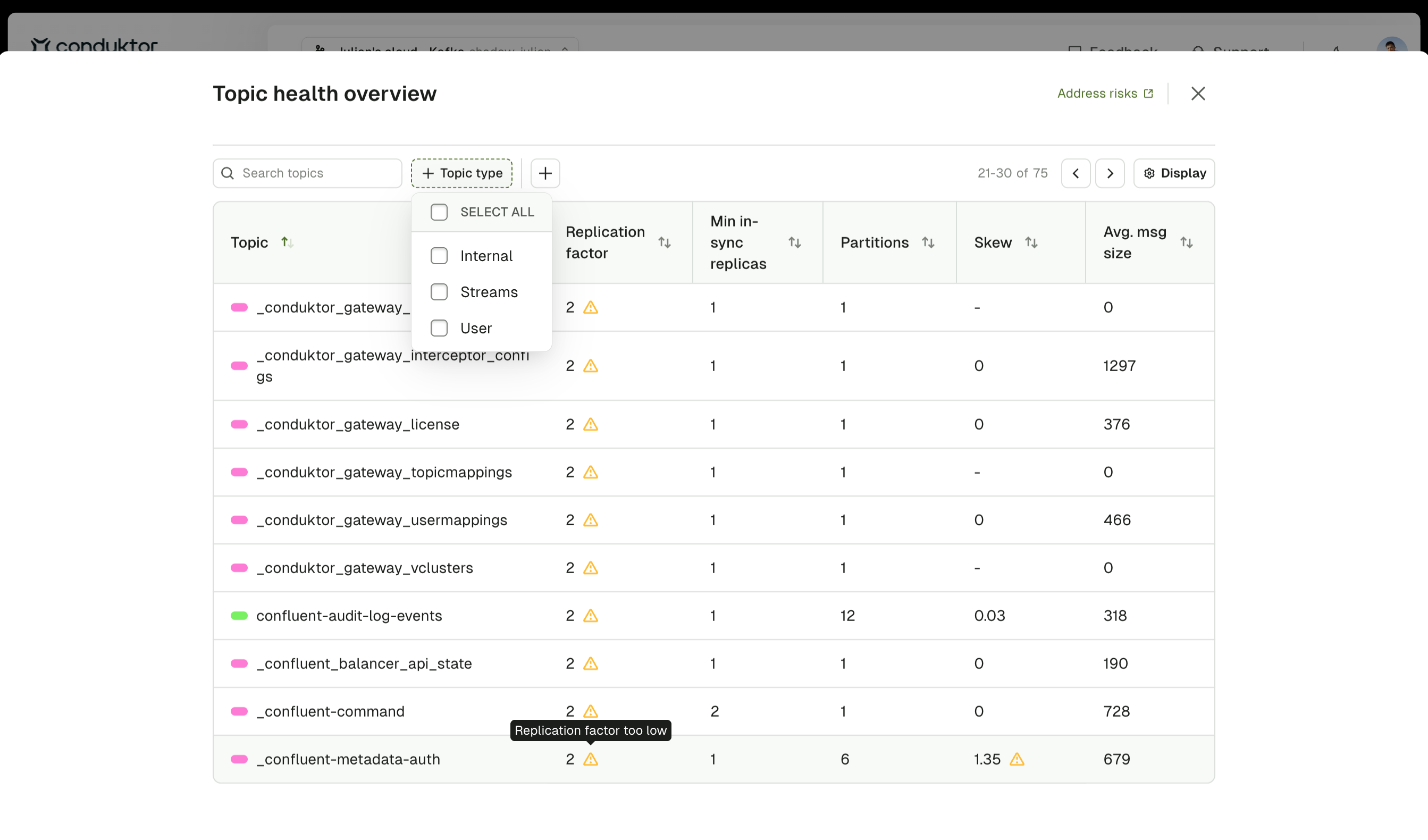
Use the search box to filter topics by name. Click any column header to sort the table by that column in ascending or descending order.
Clicking a topic type or label in the table applies it as a global filter across all Insights sections.
### Sort and search
Use the search box to filter topics by name. Click any column header to sort the table by that column in ascending or descending order.
Clicking a topic type or label in the table applies it as a global filter across all Insights sections.
 ### Warning indicators
Topics display warning indicators when they meet the following thresholds:
* **Average message size > 600KB** - Large messages that may cause performance issues
* **Replication factor \< 3** - Insufficient redundancy for production environments
* **Skew > 75%** with at least 1000 messages per partition - Severe partition imbalance requiring attention
Use this table to identify which topics need immediate remediation and understand the specific configuration issues affecting each topic.
## Troubleshoot
Several factors can cause imbalance even with well-designed partition keys:
* **Time-based patterns**: Temporal clustering (business hours vs. night) creates natural imbalance based on when data was produced
* **Compaction**: Log compacted topics retain more messages in partitions with higher key diversity
* **Retention**: Uneven produce rates over time mean partitions contain data from different periods
* **Producer failures**: Restarts or errors may temporarily cluster messages on specific partitions
* **Natural data distribution**: Some business scenarios naturally create imbalance (one customer generating 80% of orders)
Analyze imbalance trends over time (days or weeks) rather than point-in-time snapshots. If imbalance is transient and self-correcting, monitor but don't take action. Use retention-based cleanup to eventually age out historical imbalanced data.
Yes, use partition reassignment to add replicas to existing topics through Kafka administrative tools:
1. View current replica assignments in Console's **Partitions** tab
2. Create a reassignment plan specifying new replica assignments with additional broker IDs
3. Execute the reassignment using Kafka CLI tools (data replicates in the background)
4. Monitor progress and verify completion in Console
This approach increases replication without downtime or data loss.
**Key considerations:**
* **Throughput**: More partitions = more parallelism and higher potential throughput
* **Consumer count**: You need at least as many partitions as consumers for full parallelism
* **Broker count**: Choose a partition count that's a multiple of broker count for even distribution
* **Message ordering**: Ordering is only guaranteed within a single partition
* **Overhead**: Each partition adds metadata overhead. Tens of thousands of partitions can cause performance issues
**General guideline**: Use 4 or fewer partitions for low-volume topics. For topics requiring more partitions, use multiples of 6 (6, 12, 18, 24, etc.).
**Examples:**
* Low-volume topic: 1-4 partitions
* Standard topic: 6 or 12 partitions
* High-throughput topic: 18, 24, 30 or more partitions (multiples of 6)
This is normal and expected for newly created topics. Initial messages create imbalance as partitions receive different amounts of data before distribution stabilizes.
**Expected behavior:**
* First 100-1000 messages: High imbalance is normal
* After 1000+ messages: Imbalance should normalize if partition keys are well-distributed
* After 24-48 hours: Imbalance percentages should stabilize
Monitor load imbalance over 24-48 hours or after at least 10,000 messages before taking corrective action. If imbalance remains high (> 75%) after this period, investigate partition key selection.
Partition reassignment impacts network traffic, disk I/O, client latency, and broker CPU. Duration depends on data volume: small topics (\< 1 GB) complete in minutes; large topics (> 1 TB) can take hours or days.
**Best practices to minimize impact:**
* Schedule during low-traffic periods
* Use throttling to prevent saturating network bandwidth
* Monitor cluster metrics (CPU, disk I/O, network throughput, client latency) using Console
* For very large topics, reassign partitions in batches
* Adjust throttle dynamically based on traffic patterns
* Remove throttle after completion
Always set a throttle value when performing partition reassignment in production. Un-throttled reassignment can impact client operations and cause outages.
These are related but different conditions:
**Under-replicated partitions:**
* A partition has fewer in-sync replicas than its configured replication factor
* Caused by broker failures, network issues or replicas falling behind
* Reduces fault tolerance but doesn't immediately block writes
* Example: Topic with RF=3 but only 2 replicas are in-sync
**Under min ISR partitions:**
* The number of in-sync replicas falls below the `min.insync.replicas` setting
* Blocks producers configured with `acks=all` from writing
* More severe condition indicating immediate data durability risk
* Example: `min.insync.replicas=2` but only 1 replica is in-sync
A partition can be under-replicated without being under min ISR (if enough replicas remain in-sync to meet the minimum). However, under min ISR partitions are always also under-replicated.
## Related resources
* [View Insights overview](/guide/insights)
* [Configure and manage topics](/guide/manage-kafka/kafka-resources/topics)
* [Set up monitoring and alerts](/guide/monitor-brokers-apps)
* [Monitor and manage brokers](/guide/manage-kafka/kafka-resources/brokers)
* [Set up RBAC](/guide/conduktor-in-production/admin/set-up-rbac)
* [Learn about Self-service topic management](/guide/conduktor-concepts/self-service)
* [Give us feedback or request a feature](https://conduktor.io/roadmap)
### Warning indicators
Topics display warning indicators when they meet the following thresholds:
* **Average message size > 600KB** - Large messages that may cause performance issues
* **Replication factor \< 3** - Insufficient redundancy for production environments
* **Skew > 75%** with at least 1000 messages per partition - Severe partition imbalance requiring attention
Use this table to identify which topics need immediate remediation and understand the specific configuration issues affecting each topic.
## Troubleshoot
Several factors can cause imbalance even with well-designed partition keys:
* **Time-based patterns**: Temporal clustering (business hours vs. night) creates natural imbalance based on when data was produced
* **Compaction**: Log compacted topics retain more messages in partitions with higher key diversity
* **Retention**: Uneven produce rates over time mean partitions contain data from different periods
* **Producer failures**: Restarts or errors may temporarily cluster messages on specific partitions
* **Natural data distribution**: Some business scenarios naturally create imbalance (one customer generating 80% of orders)
Analyze imbalance trends over time (days or weeks) rather than point-in-time snapshots. If imbalance is transient and self-correcting, monitor but don't take action. Use retention-based cleanup to eventually age out historical imbalanced data.
Yes, use partition reassignment to add replicas to existing topics through Kafka administrative tools:
1. View current replica assignments in Console's **Partitions** tab
2. Create a reassignment plan specifying new replica assignments with additional broker IDs
3. Execute the reassignment using Kafka CLI tools (data replicates in the background)
4. Monitor progress and verify completion in Console
This approach increases replication without downtime or data loss.
**Key considerations:**
* **Throughput**: More partitions = more parallelism and higher potential throughput
* **Consumer count**: You need at least as many partitions as consumers for full parallelism
* **Broker count**: Choose a partition count that's a multiple of broker count for even distribution
* **Message ordering**: Ordering is only guaranteed within a single partition
* **Overhead**: Each partition adds metadata overhead. Tens of thousands of partitions can cause performance issues
**General guideline**: Use 4 or fewer partitions for low-volume topics. For topics requiring more partitions, use multiples of 6 (6, 12, 18, 24, etc.).
**Examples:**
* Low-volume topic: 1-4 partitions
* Standard topic: 6 or 12 partitions
* High-throughput topic: 18, 24, 30 or more partitions (multiples of 6)
This is normal and expected for newly created topics. Initial messages create imbalance as partitions receive different amounts of data before distribution stabilizes.
**Expected behavior:**
* First 100-1000 messages: High imbalance is normal
* After 1000+ messages: Imbalance should normalize if partition keys are well-distributed
* After 24-48 hours: Imbalance percentages should stabilize
Monitor load imbalance over 24-48 hours or after at least 10,000 messages before taking corrective action. If imbalance remains high (> 75%) after this period, investigate partition key selection.
Partition reassignment impacts network traffic, disk I/O, client latency, and broker CPU. Duration depends on data volume: small topics (\< 1 GB) complete in minutes; large topics (> 1 TB) can take hours or days.
**Best practices to minimize impact:**
* Schedule during low-traffic periods
* Use throttling to prevent saturating network bandwidth
* Monitor cluster metrics (CPU, disk I/O, network throughput, client latency) using Console
* For very large topics, reassign partitions in batches
* Adjust throttle dynamically based on traffic patterns
* Remove throttle after completion
Always set a throttle value when performing partition reassignment in production. Un-throttled reassignment can impact client operations and cause outages.
These are related but different conditions:
**Under-replicated partitions:**
* A partition has fewer in-sync replicas than its configured replication factor
* Caused by broker failures, network issues or replicas falling behind
* Reduces fault tolerance but doesn't immediately block writes
* Example: Topic with RF=3 but only 2 replicas are in-sync
**Under min ISR partitions:**
* The number of in-sync replicas falls below the `min.insync.replicas` setting
* Blocks producers configured with `acks=all` from writing
* More severe condition indicating immediate data durability risk
* Example: `min.insync.replicas=2` but only 1 replica is in-sync
A partition can be under-replicated without being under min ISR (if enough replicas remain in-sync to meet the minimum). However, under min ISR partitions are always also under-replicated.
## Related resources
* [View Insights overview](/guide/insights)
* [Configure and manage topics](/guide/manage-kafka/kafka-resources/topics)
* [Set up monitoring and alerts](/guide/monitor-brokers-apps)
* [Monitor and manage brokers](/guide/manage-kafka/kafka-resources/brokers)
* [Set up RBAC](/guide/conduktor-in-production/admin/set-up-rbac)
* [Learn about Self-service topic management](/guide/conduktor-concepts/self-service)
* [Give us feedback or request a feature](https://conduktor.io/roadmap)