> ## Documentation Index
> Fetch the complete documentation index at: https://docs.conduktor.io/llms.txt
> Use this file to discover all available pages before exploring further.
# Run Flink SQL on Confluent Cloud from Conduktor Console
> Run Flink SQL statements on Confluent Cloud from Conduktor Console. Register your Confluent organization, grant Run Flink and control topic access with RBAC.
The Flink SQL workbench lets you write and run Flink SQL statements on Confluent Cloud compute pools from Console, browse the topics you can query and export results. It's a preview feature: find it under **Flink** (with a **PREVIEW** badge) in the sidebar.
Statements run in Confluent Cloud with your organization's API key, so Console applies its own access control: before it submits a statement, Console checks that the user can run Flink on the compute pool and has the right permission on every topic the statement touches.
Flink statements bypass [data masking policies](/guide/conduktor-in-production/admin/data-masking): Console reads the results from Confluent Cloud and doesn't mask them. Before you grant Flink access, check that your users are allowed to see the unmasked data in the topics they can query.
## Prerequisites
| Requirement | Details |
| -------------------------------------- | ------------------------------------------------------------------------------------------------------------------------------------------------------------------------------------------------------------------------------- |
| **Confluent Cloud Flink compute pool** | A compute pool in the same cloud region as the Kafka clusters you want to query. |
| **Global Cloud API key** | A Confluent Cloud API key with the **Global** key scope. See [set up Flink](#set-up-flink). |
| **Kafka clusters in Console** | Each Confluent Cloud cluster you want to query has to be [configured in Console as a Confluent cluster](/guide/conduktor-in-production/admin/configure-clusters#connect-to-a-confluent-cloud-cluster), with its environment ID. |
| **Console permission** | To register the organization: Console admin, or the **Can manage confluent cloud organization** permission. |
## Set up Flink
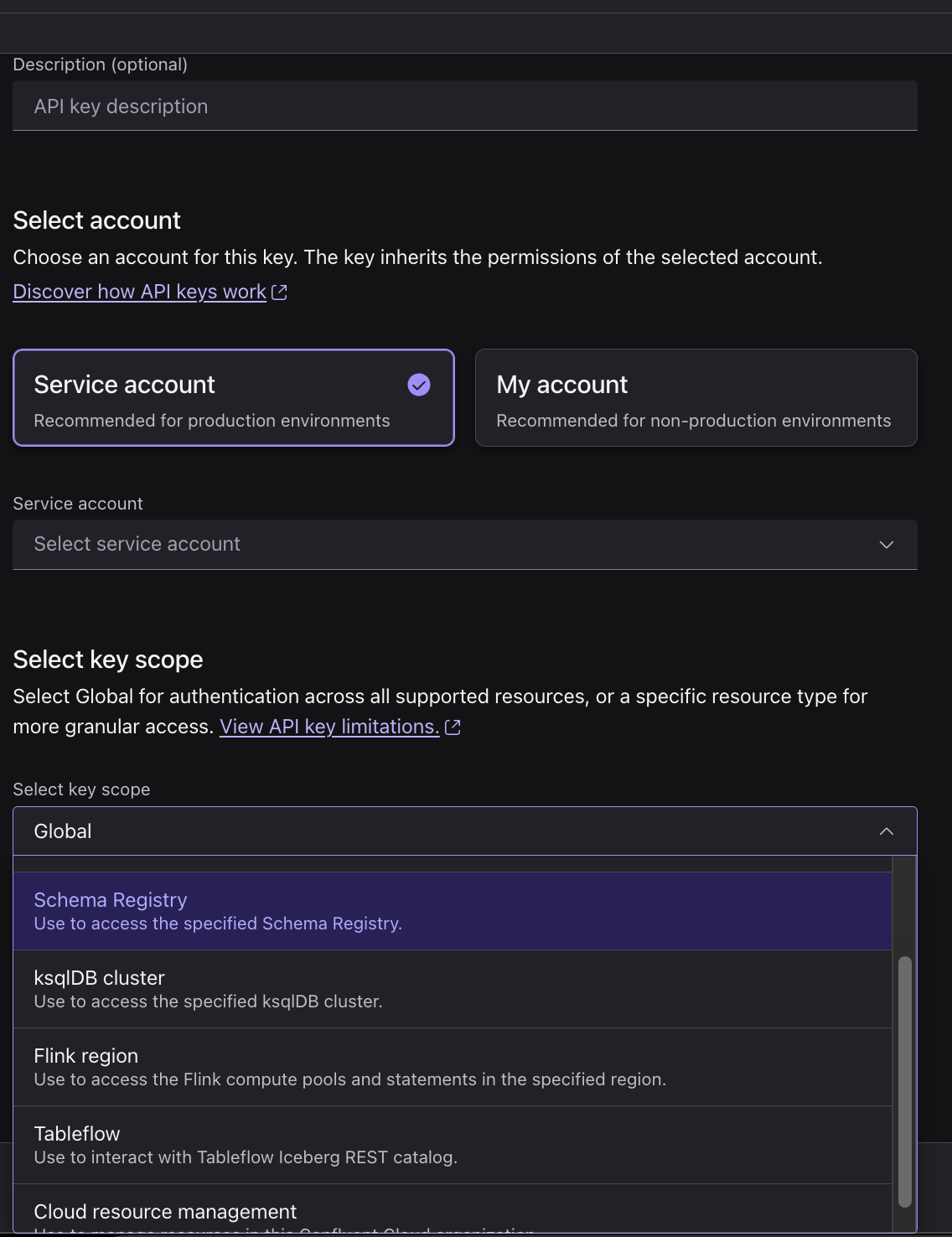
In Confluent Cloud, create an API key and set **Select key scope** to **Global**.
Console calls both the Confluent Cloud control plane (organization, environments, compute pools and Kafka clusters) and the regional Flink SQL endpoints with this key. Only a Global key authenticates on both: a key scoped to a single resource type, such as **Flink region** or **Cloud resource management**, doesn't. The key's principal also needs access to the environments, compute pools and topics your users will query in Confluent Cloud.
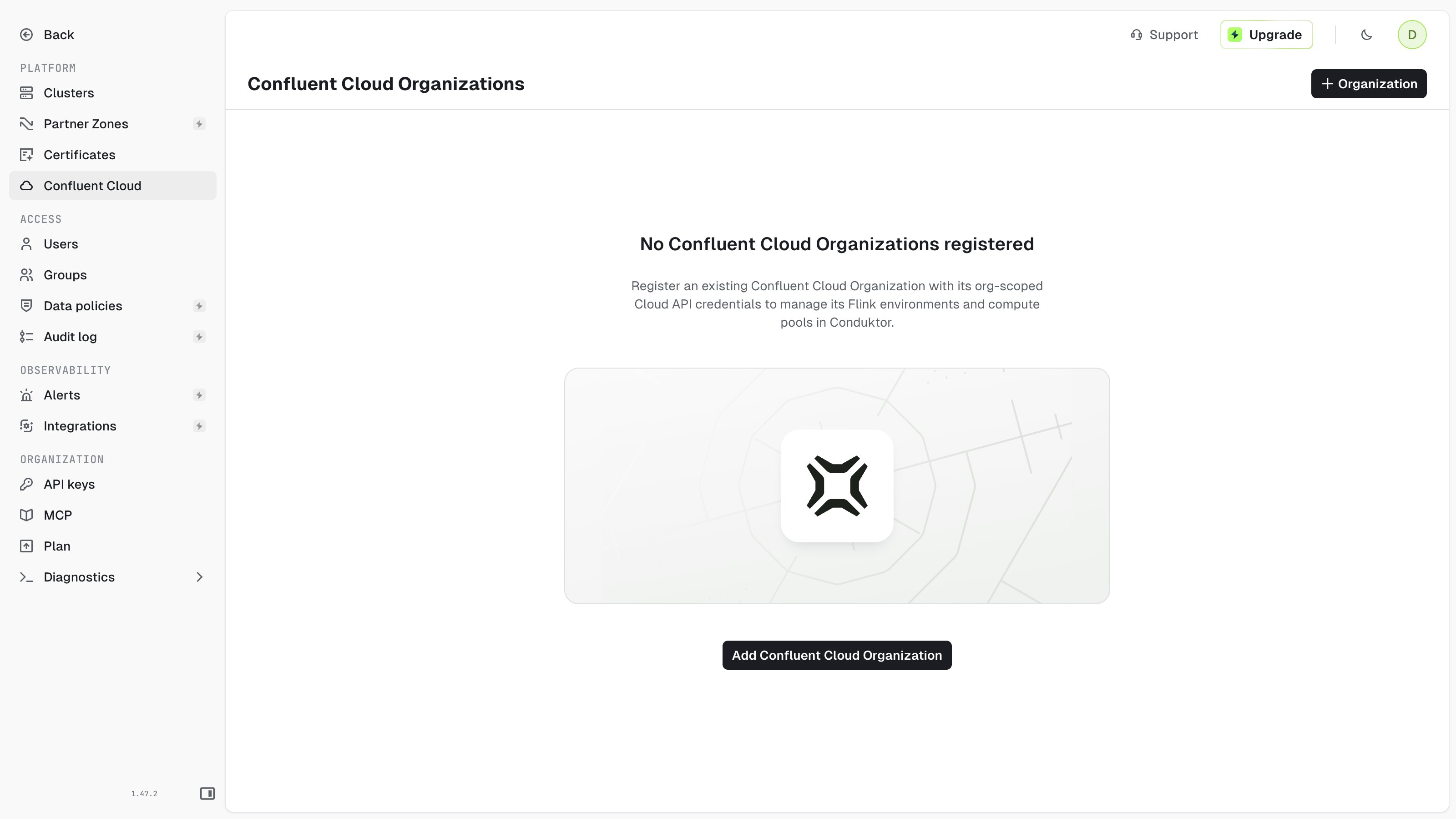
 In Console, go to **Settings** > **Confluent Cloud** and click **+ Organization**.
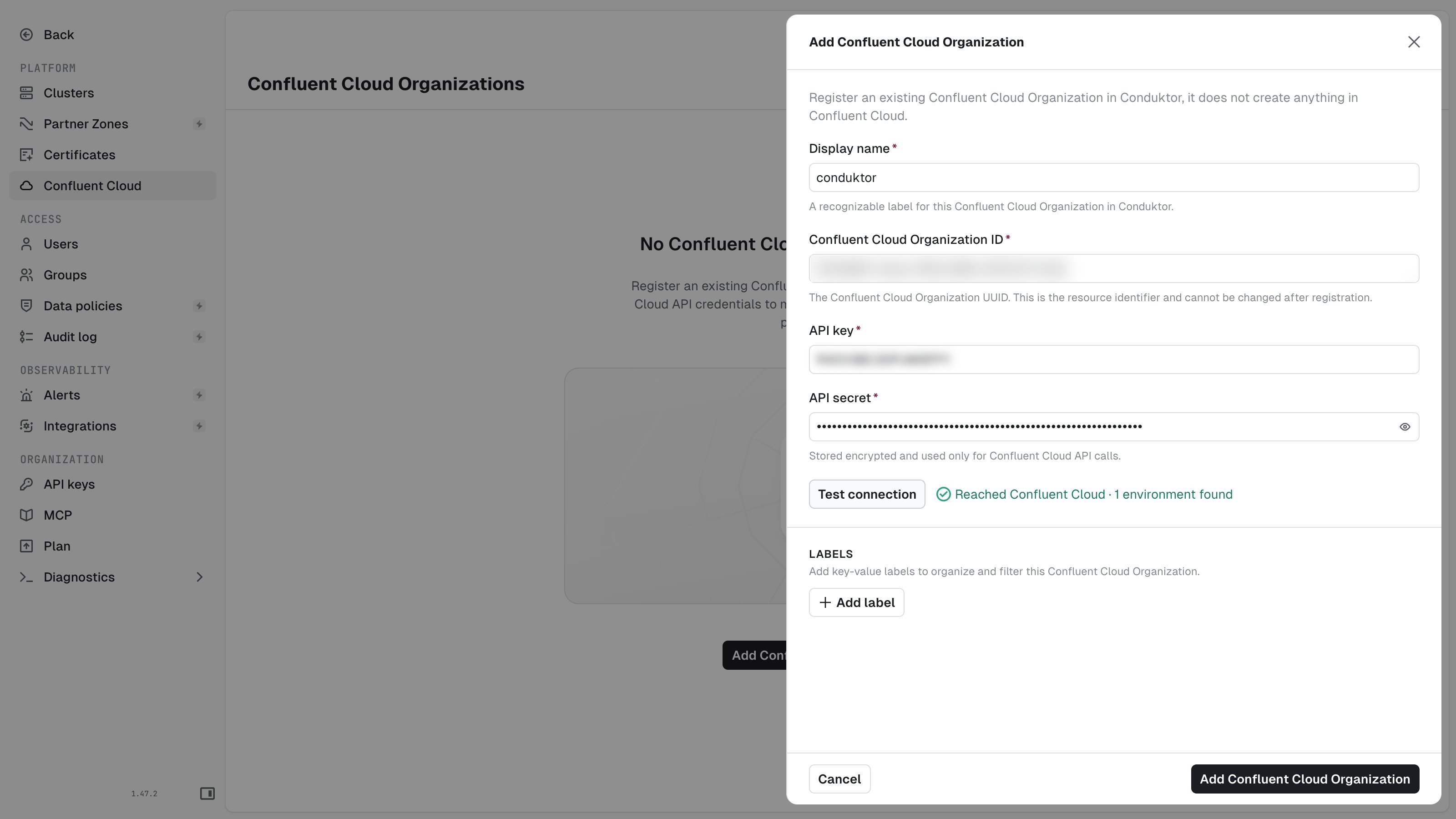
 Fill in the form:
* **Display name**: a label for this organization in Console.
* **Confluent Cloud Organization ID**: the organization UUID, from your Confluent Cloud organization settings. You can't change it after registration.
* **API key** and **API secret**: the Global key from the previous step. Console stores the secret encrypted.
Click **Test connection**. Console confirms it reached Confluent Cloud and shows how many environments it found. Then click **Add Confluent Cloud Organization**.
Fill in the form:
* **Display name**: a label for this organization in Console.
* **Confluent Cloud Organization ID**: the organization UUID, from your Confluent Cloud organization settings. You can't change it after registration.
* **API key** and **API secret**: the Global key from the previous step. Console stores the secret encrypted.
Click **Test connection**. Console confirms it reached Confluent Cloud and shows how many environments it found. Then click **Add Confluent Cloud Organization**.
 **Test connection** only checks the organization and its environments. If statements later fail with `Confluent Cloud denied access with these credentials`, check that the key has the Global scope.
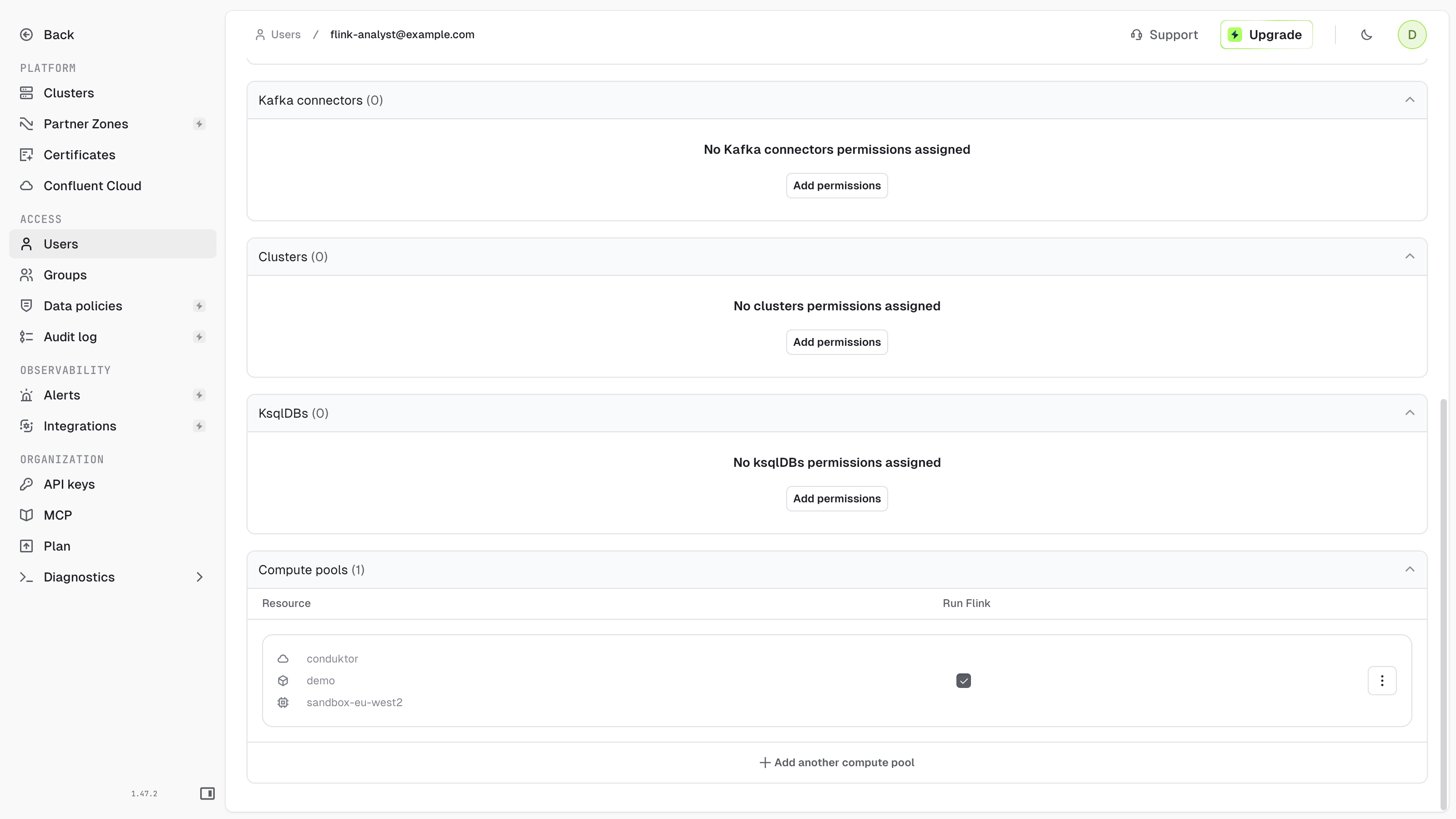
Admins can run Flink on every compute pool. For other users and groups:
1. Open the user or group, then the **Resource access** tab.
2. Under **Compute pools**, click **Add permissions** and pick the organization, the environment and a compute pool (or **All compute pools**).
3. Select **Run Flink**, then click **Save changes**.
**Test connection** only checks the organization and its environments. If statements later fail with `Confluent Cloud denied access with these credentials`, check that the key has the Global scope.
Admins can run Flink on every compute pool. For other users and groups:
1. Open the user or group, then the **Resource access** tab.
2. Under **Compute pools**, click **Add permissions** and pick the organization, the environment and a compute pool (or **All compute pools**).
3. Select **Run Flink**, then click **Save changes**.
 Users also need permissions on the topics they query: see [topic permissions](#topic-permissions). To let a user register or edit Confluent organizations, grant **Can manage confluent cloud organization** in their **Service access** tab.
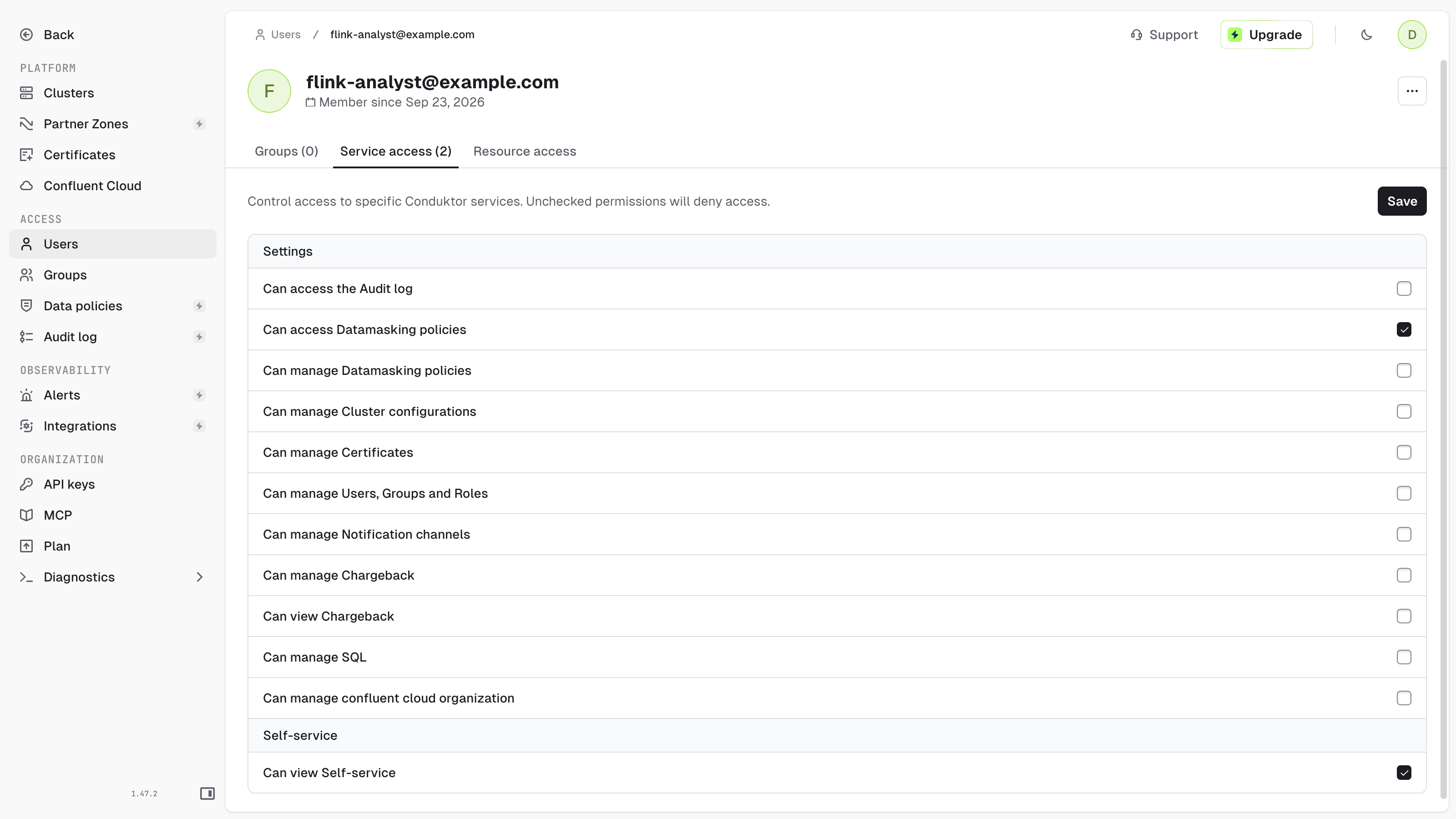 You can't grant **Run Flink** with the Console API or CLI yet: use the Console UI.
## Run a statement
Go to **Flink**, click **+ New statement**, then:
1. Pick the **Catalog** (your Confluent Cloud environment) and the **Compute pool**. Check the compute pool before you run: Console preselects a default compute pool, which can be in a different region from the cluster you query.
2. Write your statement. The **Catalog** panel lists the clusters and topics you can query, with the columns of each topic's value schema.
3. Pick the **Result mode**, then click **Run**.
You can't grant **Run Flink** with the Console API or CLI yet: use the Console UI.
## Run a statement
Go to **Flink**, click **+ New statement**, then:
1. Pick the **Catalog** (your Confluent Cloud environment) and the **Compute pool**. Check the compute pool before you run: Console preselects a default compute pool, which can be in a different region from the cluster you query.
2. Write your statement. The **Catalog** panel lists the clusters and topics you can query, with the columns of each topic's value schema.
3. Pick the **Result mode**, then click **Run**.
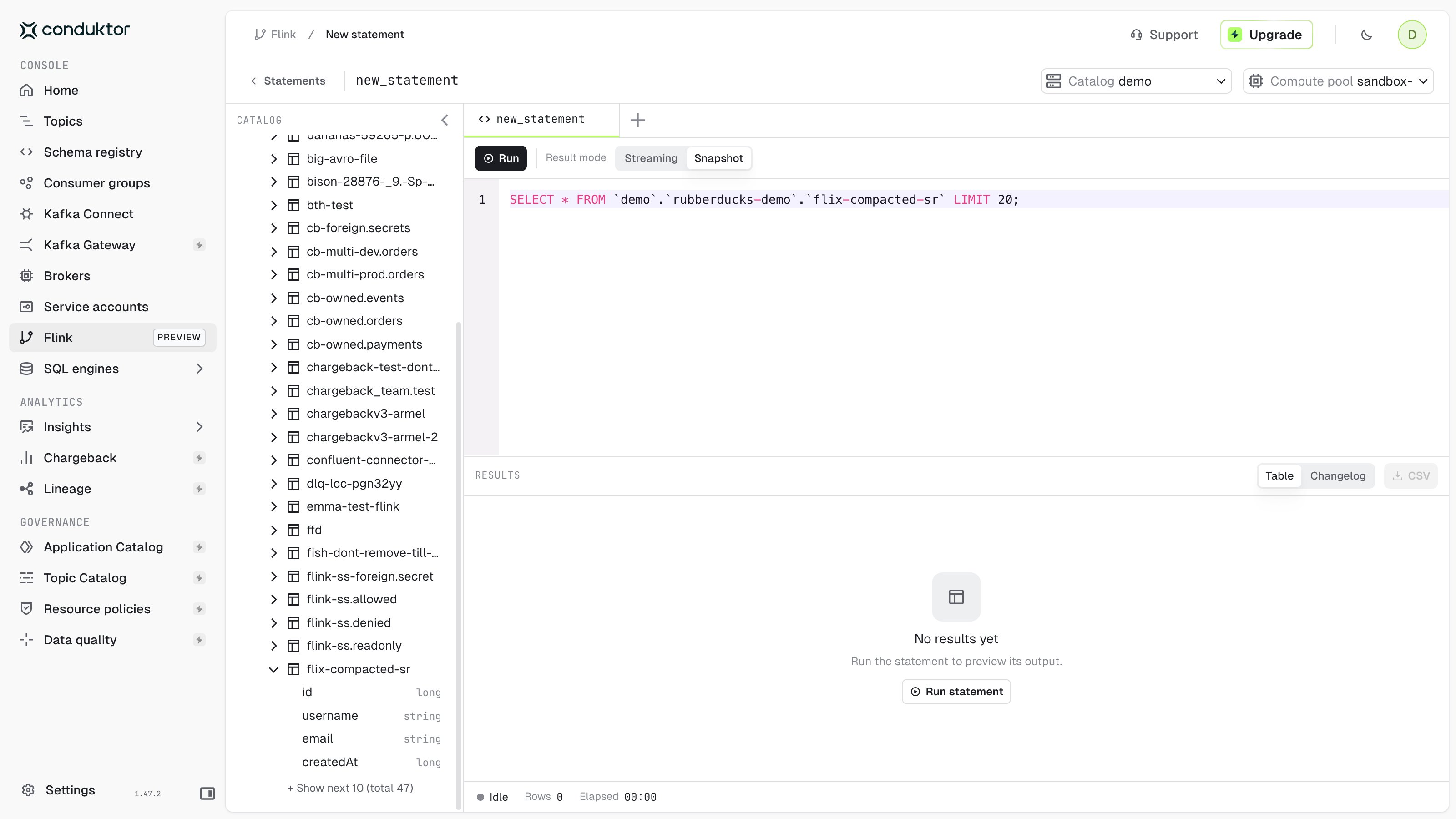 Name every table with its cluster: `` ``.``.`` `` or `` ``.`` ``, where the cluster is its Confluent display name or its `lkc-` ID. For example:
```sql theme={null}
SELECT * FROM `demo`.`orders-cluster`.`orders` LIMIT 20;
```
### Result modes
* **Streaming** (default) shows rows as the statement produces them, until you click **Stop**. Switch between the **Table** view and the **Changelog** view, which adds the change type of each row.
* **Snapshot** runs a bounded query on the current data and shows the result when it completes.
Name every table with its cluster: `` ``.``.`` `` or `` ``.`` ``, where the cluster is its Confluent display name or its `lkc-` ID. For example:
```sql theme={null}
SELECT * FROM `demo`.`orders-cluster`.`orders` LIMIT 20;
```
### Result modes
* **Streaming** (default) shows rows as the statement produces them, until you click **Stop**. Switch between the **Table** view and the **Changelog** view, which adds the change type of each row.
* **Snapshot** runs a bounded query on the current data and shows the result when it completes.
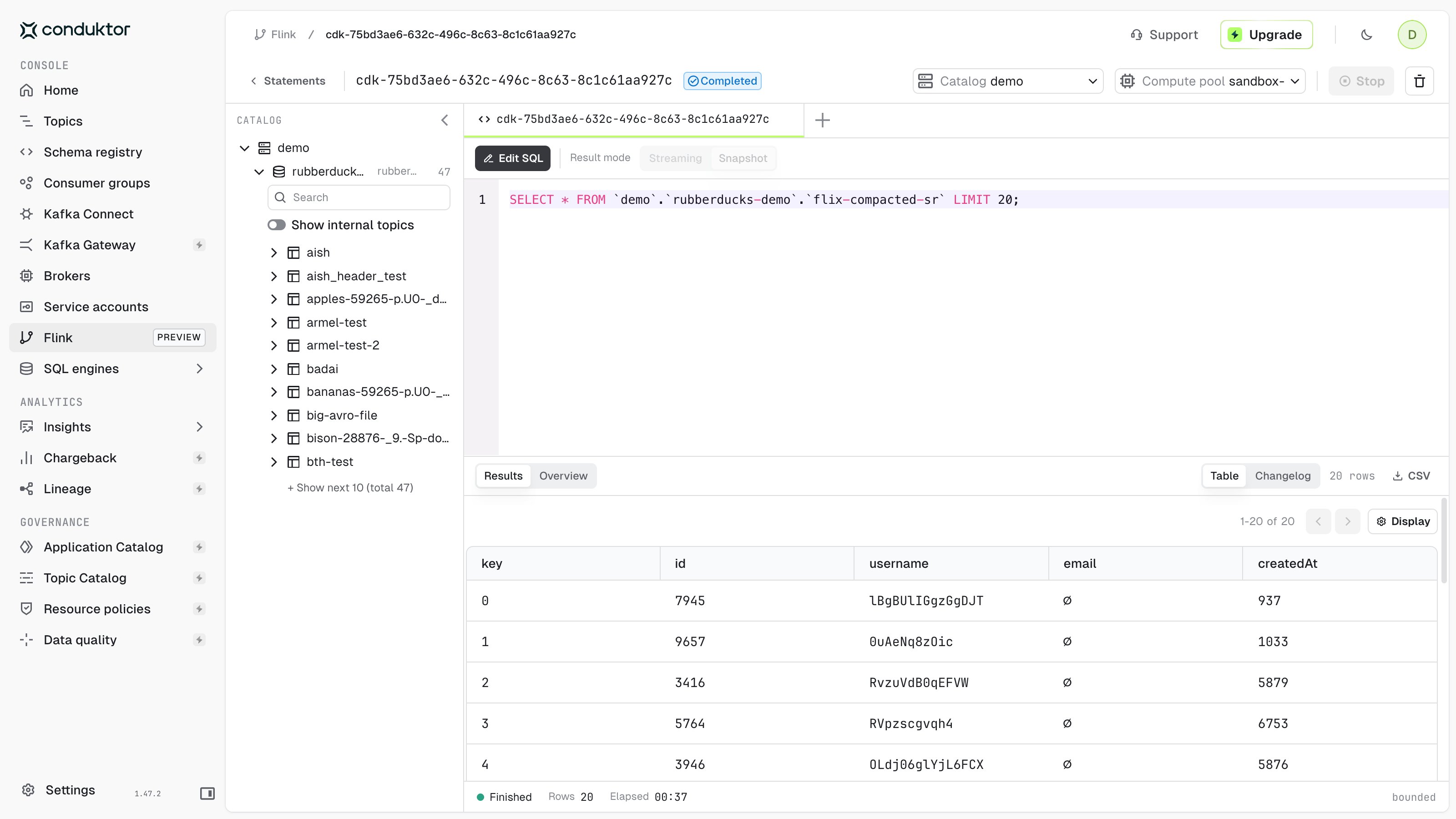
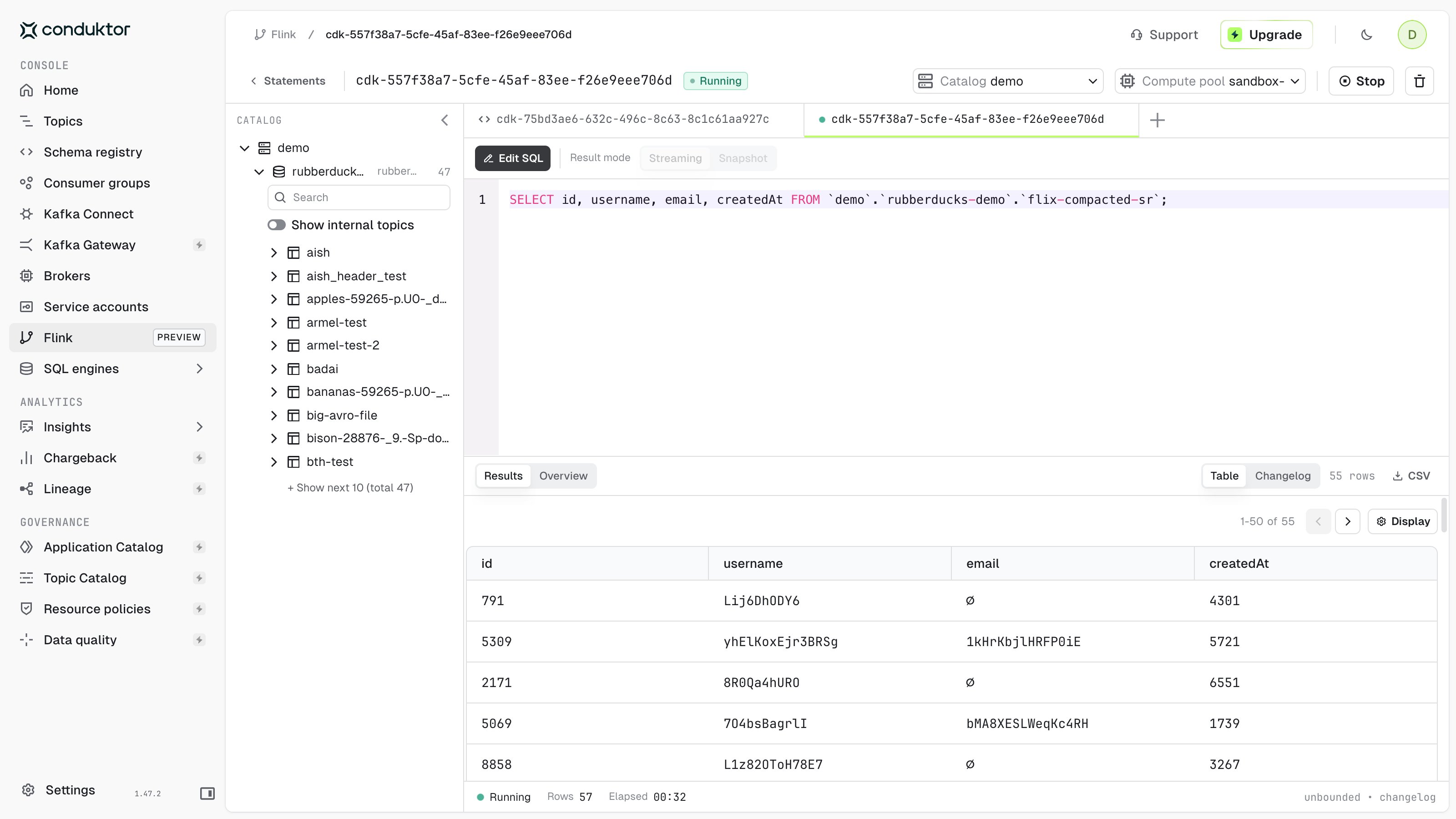 Click **CSV** to export the rows shown in the workbench. The workbench keeps up to 2,000 rows in the **Table** view and 500 in the **Changelog** view, so the export can be incomplete for larger results: Console warns you when that's the case.
Leaving the workbench doesn't stop a streaming statement: it keeps running in Confluent Cloud, and consuming compute pool resources, until you stop it.
### Write and DDL statements
`INSERT`, `CREATE TABLE`, `CREATE VIEW` and `DROP` statements don't return rows: the results pane shows **No result set**. `CREATE TABLE` creates the topic and its value schema in Confluent Cloud.
Click **CSV** to export the rows shown in the workbench. The workbench keeps up to 2,000 rows in the **Table** view and 500 in the **Changelog** view, so the export can be incomplete for larger results: Console warns you when that's the case.
Leaving the workbench doesn't stop a streaming statement: it keeps running in Confluent Cloud, and consuming compute pool resources, until you stop it.
### Write and DDL statements
`INSERT`, `CREATE TABLE`, `CREATE VIEW` and `DROP` statements don't return rows: the results pane shows **No result set**. `CREATE TABLE` creates the topic and its value schema in Confluent Cloud.
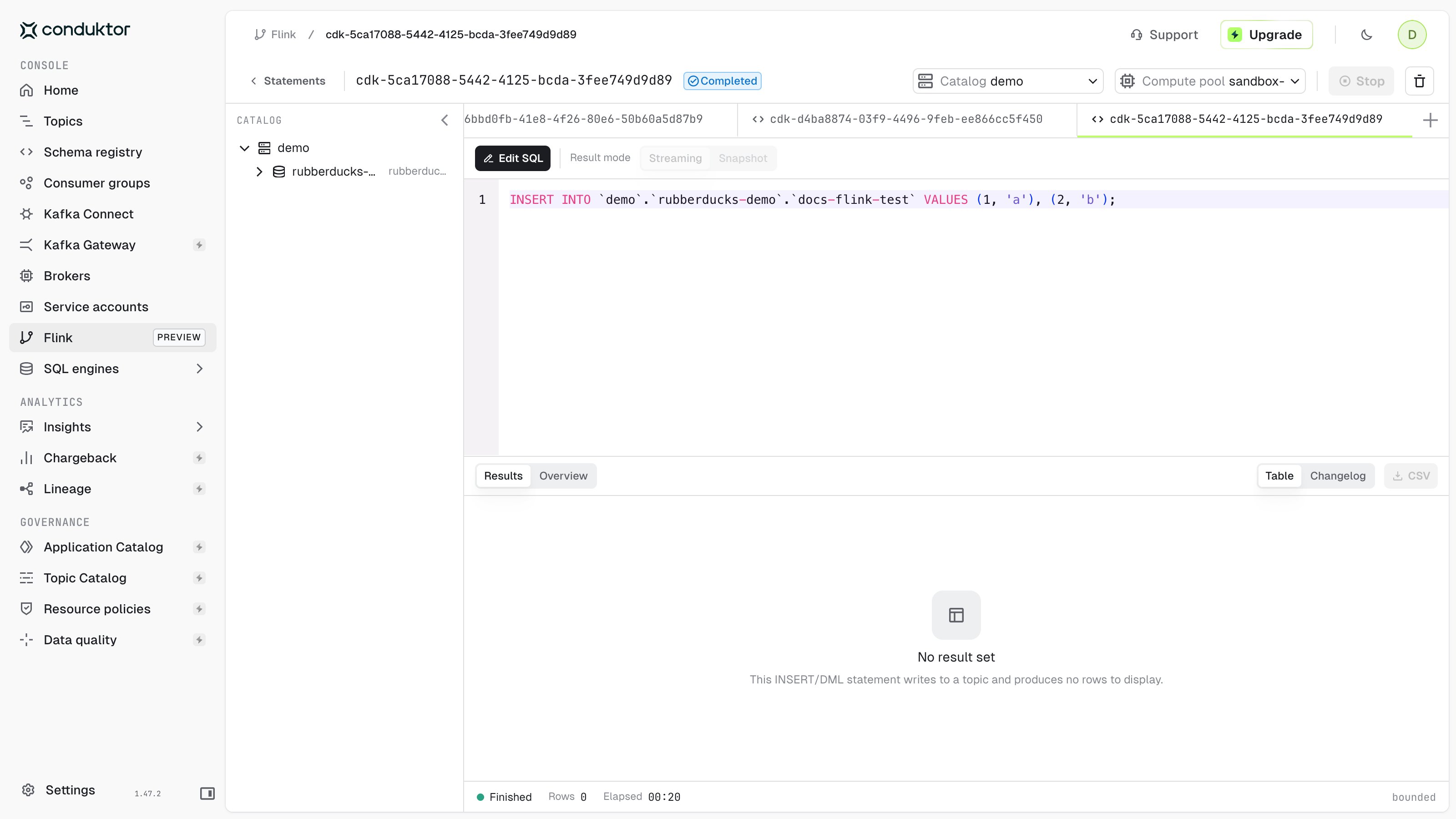 * **`CREATE TABLE AS` and `INSERT INTO ... SELECT` keep running** until you stop them, like any statement that reads a topic continuously. Check the status badge next to the statement name: the footer of the results pane can show **Finished** as soon as the statement is submitted, while the statement is still running.
* **`DROP TABLE` soft-deletes the Schema Registry subjects** of the table. Delete them permanently in Schema Registry if you want to reuse the name with a different schema.
* **The output of `SHOW CREATE TABLE` can't be run as is**: it contains `WITH` options, such as `connector` or `kafka.retention.time`, that Console refuses. See [statements Console refuses](#statements-console-refuses).
## Manage statements
The **Flink statements** page lists the statements running in the selected organization and catalog, with their status, creation date, compute pool and account. You only see statements on compute pools where you have **Run Flink**, and only if you have every topic permission they require.
* **`CREATE TABLE AS` and `INSERT INTO ... SELECT` keep running** until you stop them, like any statement that reads a topic continuously. Check the status badge next to the statement name: the footer of the results pane can show **Finished** as soon as the statement is submitted, while the statement is still running.
* **`DROP TABLE` soft-deletes the Schema Registry subjects** of the table. Delete them permanently in Schema Registry if you want to reuse the name with a different schema.
* **The output of `SHOW CREATE TABLE` can't be run as is**: it contains `WITH` options, such as `connector` or `kafka.retention.time`, that Console refuses. See [statements Console refuses](#statements-console-refuses).
## Manage statements
The **Flink statements** page lists the statements running in the selected organization and catalog, with their status, creation date, compute pool and account. You only see statements on compute pools where you have **Run Flink**, and only if you have every topic permission they require.
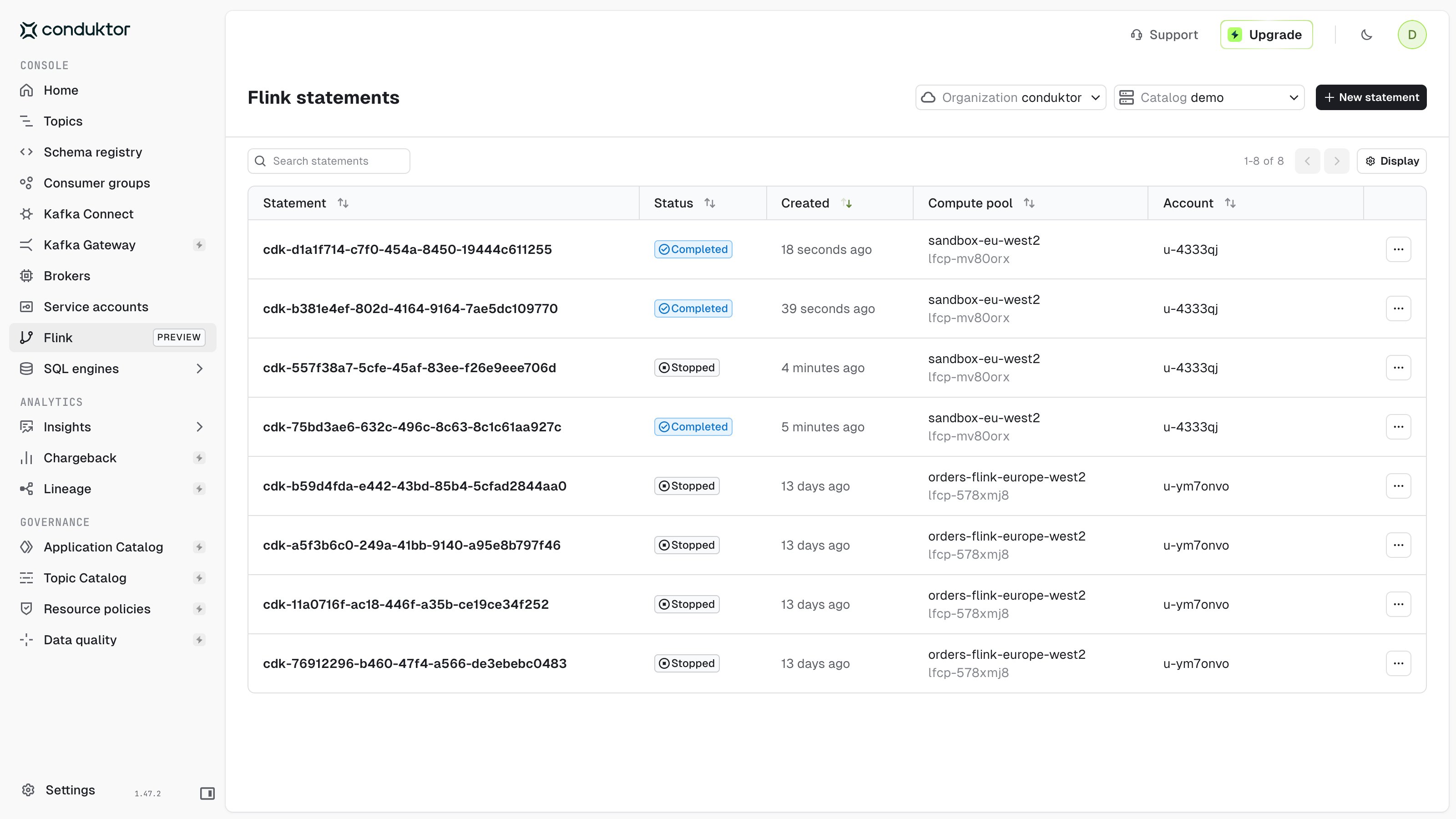 The **Account** column shows the Confluent Cloud principal that owns the organization API key, for every statement submitted from Console, not the Console user who ran it.
From the statement page or the **...** menu of the list:
* **Stop** a running statement. You can't resume it.
* **Delete** a statement. This is permanent: type `DELETE` to confirm.
## Topic permissions
Console parses each statement and checks the user's topic permissions before it submits it to Confluent Cloud. In the **Resource access** tab, read is the **Consume** permission, write is **Produce**, create is **Create** and delete is **Delete**:
| Statement | Permissions needed |
| --------------------------------------------------- | ---------------------------------------------------- |
| `SELECT`, `DESCRIBE`, `SHOW COLUMNS`, `SHOW CREATE` | Read on each topic |
| `INSERT`, `STATEMENT SET`, `EXECUTE` | Write on the target topic, read on the source topics |
| `CREATE TABLE` | Create |
| `CREATE TABLE AS`, `CREATE MATERIALIZED TABLE` | Create, write and read |
| `CREATE VIEW` | Create and read |
| `ALTER MATERIALIZED TABLE` | Write |
| `DROP` | Delete |
| `EXPLAIN` | The permissions of the statement it explains |
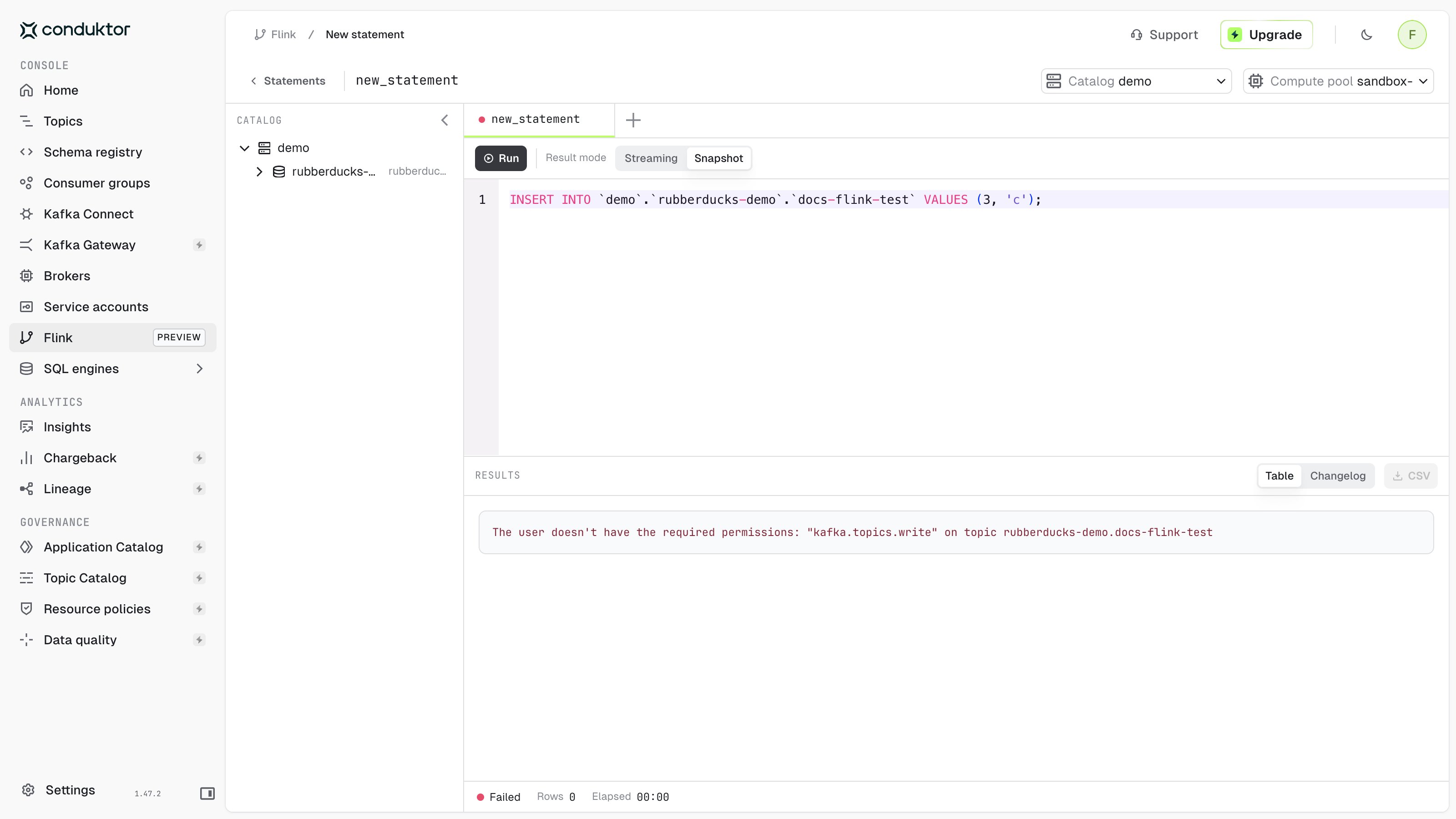
If permissions are missing, Console lists them all, for example `The user doesn't have the required permissions: "kafka.topics.write" on topic orders-cluster.orders`. To let users create tables, grant **Create** on a topic prefix, such as `team-a-*`. This prefix doesn't cover a topic named `team-a`.
The **Account** column shows the Confluent Cloud principal that owns the organization API key, for every statement submitted from Console, not the Console user who ran it.
From the statement page or the **...** menu of the list:
* **Stop** a running statement. You can't resume it.
* **Delete** a statement. This is permanent: type `DELETE` to confirm.
## Topic permissions
Console parses each statement and checks the user's topic permissions before it submits it to Confluent Cloud. In the **Resource access** tab, read is the **Consume** permission, write is **Produce**, create is **Create** and delete is **Delete**:
| Statement | Permissions needed |
| --------------------------------------------------- | ---------------------------------------------------- |
| `SELECT`, `DESCRIBE`, `SHOW COLUMNS`, `SHOW CREATE` | Read on each topic |
| `INSERT`, `STATEMENT SET`, `EXECUTE` | Write on the target topic, read on the source topics |
| `CREATE TABLE` | Create |
| `CREATE TABLE AS`, `CREATE MATERIALIZED TABLE` | Create, write and read |
| `CREATE VIEW` | Create and read |
| `ALTER MATERIALIZED TABLE` | Write |
| `DROP` | Delete |
| `EXPLAIN` | The permissions of the statement it explains |
If permissions are missing, Console lists them all, for example `The user doesn't have the required permissions: "kafka.topics.write" on topic orders-cluster.orders`. To let users create tables, grant **Create** on a topic prefix, such as `team-a-*`. This prefix doesn't cover a topic named `team-a`.
 ## Statements Console refuses
Console refuses statements when it can't determine which topics they touch. The statement fails in Console and isn't sent to Confluent Cloud:
| Statement | Message |
| ----------------------------------------------------------------------------------------------------------------------------------- | -------------------------------------------------------------------------------------------------------- |
| A table name without its cluster, such as `` `orders` `` | `the table reference orders does not name a cluster` |
| `SHOW TABLES`, `USE`, `SET` and other statements without topics | `SHOW TABLES is not a statement whose topics Console can determine` |
| A cluster that isn't configured in Console | `names database 'orders-cluster', which is not a Confluent cluster registered in environment env-xxxxxx` |
| A catalog other than the selected environment | `names catalog 'other-env', which is not the environment this statement is submitted to` |
| An `OPTIONS` hint | `table reference carrying an OPTIONS hint is not a statement whose topics Console can determine` |
| `WITH` options other than `value.format`, `key.format`, `key.fields`, `changelog.mode`, `scan.startup.mode` and `scan.bounded.mode` | `CREATE TABLE with Flink SQL options connector is not a statement whose topics Console can determine` |
## Statements Console refuses
Console refuses statements when it can't determine which topics they touch. The statement fails in Console and isn't sent to Confluent Cloud:
| Statement | Message |
| ----------------------------------------------------------------------------------------------------------------------------------- | -------------------------------------------------------------------------------------------------------- |
| A table name without its cluster, such as `` `orders` `` | `the table reference orders does not name a cluster` |
| `SHOW TABLES`, `USE`, `SET` and other statements without topics | `SHOW TABLES is not a statement whose topics Console can determine` |
| A cluster that isn't configured in Console | `names database 'orders-cluster', which is not a Confluent cluster registered in environment env-xxxxxx` |
| A catalog other than the selected environment | `names catalog 'other-env', which is not the environment this statement is submitted to` |
| An `OPTIONS` hint | `table reference carrying an OPTIONS hint is not a statement whose topics Console can determine` |
| `WITH` options other than `value.format`, `key.format`, `key.fields`, `changelog.mode`, `scan.startup.mode` and `scan.bounded.mode` | `CREATE TABLE with Flink SQL options connector is not a statement whose topics Console can determine` |
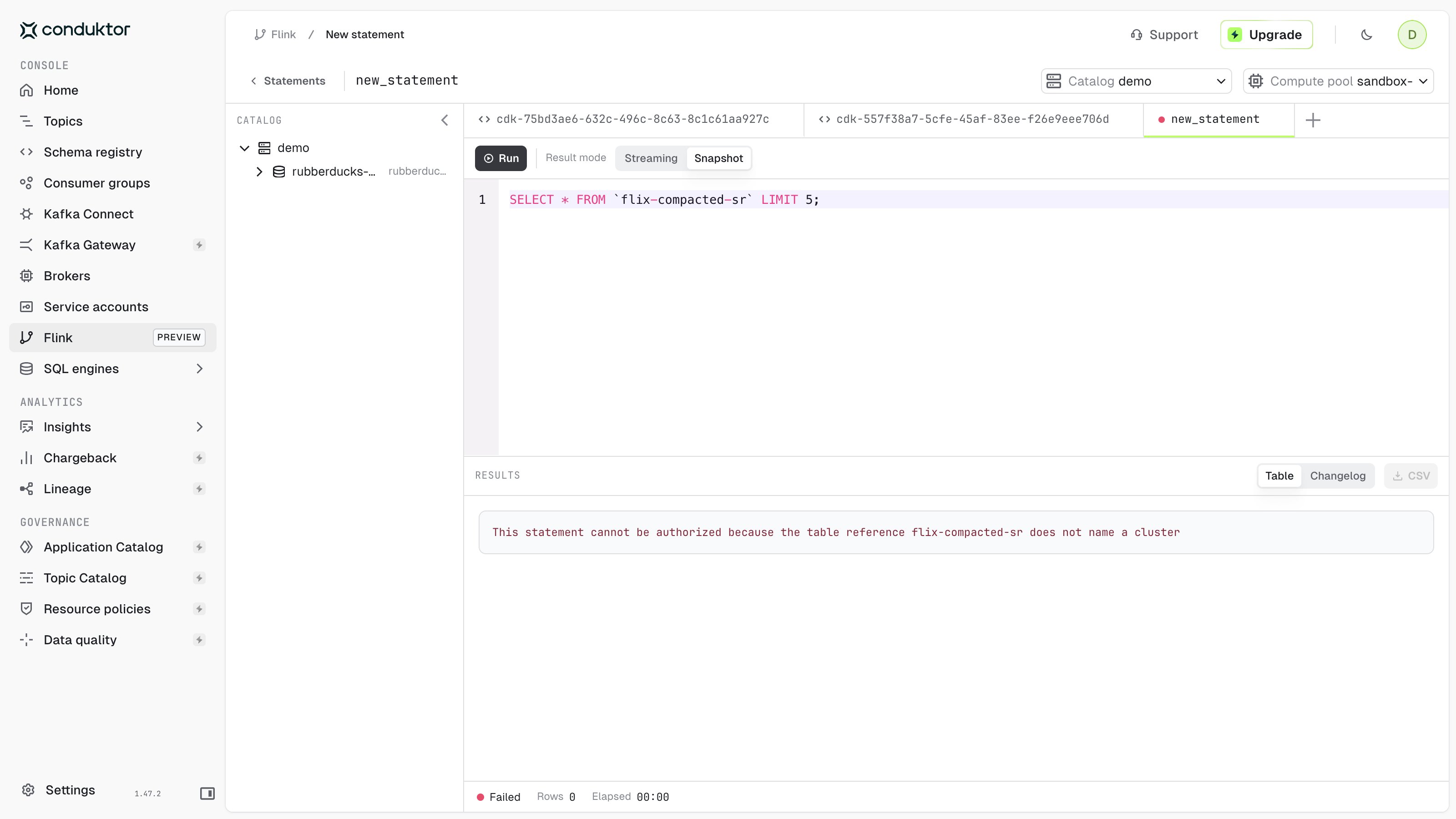 Console also doesn't check that the compute pool and the cluster are in the same region: a cross-region statement fails in Confluent Cloud.
## Related resources
* [Configure Kafka clusters in Console](/guide/conduktor-in-production/admin/configure-clusters)
* [Manage data masking policies](/guide/conduktor-in-production/admin/data-masking)
* [Flink SQL reference on Confluent Cloud](https://docs.confluent.io/cloud/current/flink/reference/overview.html)
Console also doesn't check that the compute pool and the cluster are in the same region: a cross-region statement fails in Confluent Cloud.
## Related resources
* [Configure Kafka clusters in Console](/guide/conduktor-in-production/admin/configure-clusters)
* [Manage data masking policies](/guide/conduktor-in-production/admin/data-masking)
* [Flink SQL reference on Confluent Cloud](https://docs.confluent.io/cloud/current/flink/reference/overview.html)