> ## Documentation Index
> Fetch the complete documentation index at: https://docs.conduktor.io/llms.txt
> Use this file to discover all available pages before exploring further.
# Configure Conduktor Chargeback
> Enable and configure Conduktor Chargeback to track Kafka costs across storage, partitions, ingress, egress and Kafka Connect.
## Overview
This tutorial sets up Chargeback in Console, including the optional sources required for ingress and egress metrics:
* **Confluent Cloud throughput** — calls the Confluent Cloud Metrics API hourly
* **Gateway throughput** — relies on the observability Interceptor deployed on Gateway
For background on the cost axes and the metrics available per cluster type, see [Chargeback concepts](/guide/conduktor-concepts/chargeback).
**From our blog:** [Chargeback: attribute and map Kafka costs to your business](https://conduktor.io/blog/chargeback-attribute-map-kafka-costs-to-your-business) Practical strategies to tag, trace, and report Kafka spending by team and application.
## Prerequisites
| Requirement | Details |
| ------------------------------ | ----------------------------------------------------------------------------- |
| **Console** | v1.45.0 or above (v1.46.0 or above for Kafka Connect cost attribution) |
| **Gateway** (optional) | v3.4.0 or above, required only for Gateway throughput |
| **Confluent Cloud** (optional) | API key with Metrics API access, required only for Confluent Cloud throughput |
| **Permissions** | `PlatformChargebackManage` to set cost rates and configure Chargeback Labels |
## Environment variables
Set these on Console before starting it.
| Environment variable | Type | Default | Description |
| ---------------------------------------------- | -------------- | ------- | ------------------------------------------------------------------------------------------------ |
| `CDK_CHARGEBACKV2_ENABLED` | Boolean | `true` | Chargeback is enabled by default from Console v1.46.0. Set to `false` to disable it |
| `CDK_CHARGEBACKV2_METRICSUPDATEFREQUENCY` | Long (seconds) | `3600` | How often Console snapshots topic storage and partition counts |
| `CDK_CHARGEBACK_FLUSHMETRICSEVERYSECONDS` | Long (seconds) | `300` | How often Gateway throughput is flushed from the observability stream into the Chargeback tables |
| `CDK_CHARGEBACK_CCTHROUGHPUT_ENABLED` | Boolean | `true` | Set to `false` to skip Confluent Cloud throughput collection |
| `CDK_CHARGEBACK_CCTHROUGHPUT_FREQUENCYSECONDS` | Long (seconds) | `3600` | How often the Confluent Cloud Metrics API is queried for throughput |
The same `CDK_CHARGEBACKV2_ENABLED` flag is used by the Chargeback feature regardless of cluster type.
## Enable Chargeback in Console
From Console v1.46.0, Chargeback is enabled by default, and **Chargeback** appears in the left navigation. To turn it off, set `CDK_CHARGEBACKV2_ENABLED` to `false`:
```bash theme={null}
export CDK_CHARGEBACKV2_ENABLED=false
```
```yaml theme={null}
services:
console:
image: conduktor/conduktor-console:latest
environment:
CDK_CHARGEBACKV2_ENABLED: "false"
```
The first time an administrator opens the **Chargeback** page, an onboarding wizard guides you through:
1. Setting the per-cluster unit costs (storage, partitions, ingress, egress and the default connector task hour cost, plus any per-connector-class overrides)
2. Selecting which label keys are eligible as Chargeback Labels
Both steps can be revisited later from the settings (cog) icon on the **Chargeback** page. After the first collection tick, the **Chargeback** page begins displaying data.
## Collect Gateway throughput
Ingress and egress for Gateway clusters are produced by the observability Interceptor running on Gateway. If you only need storage and partition metrics for Gateway clusters, you can skip this section.
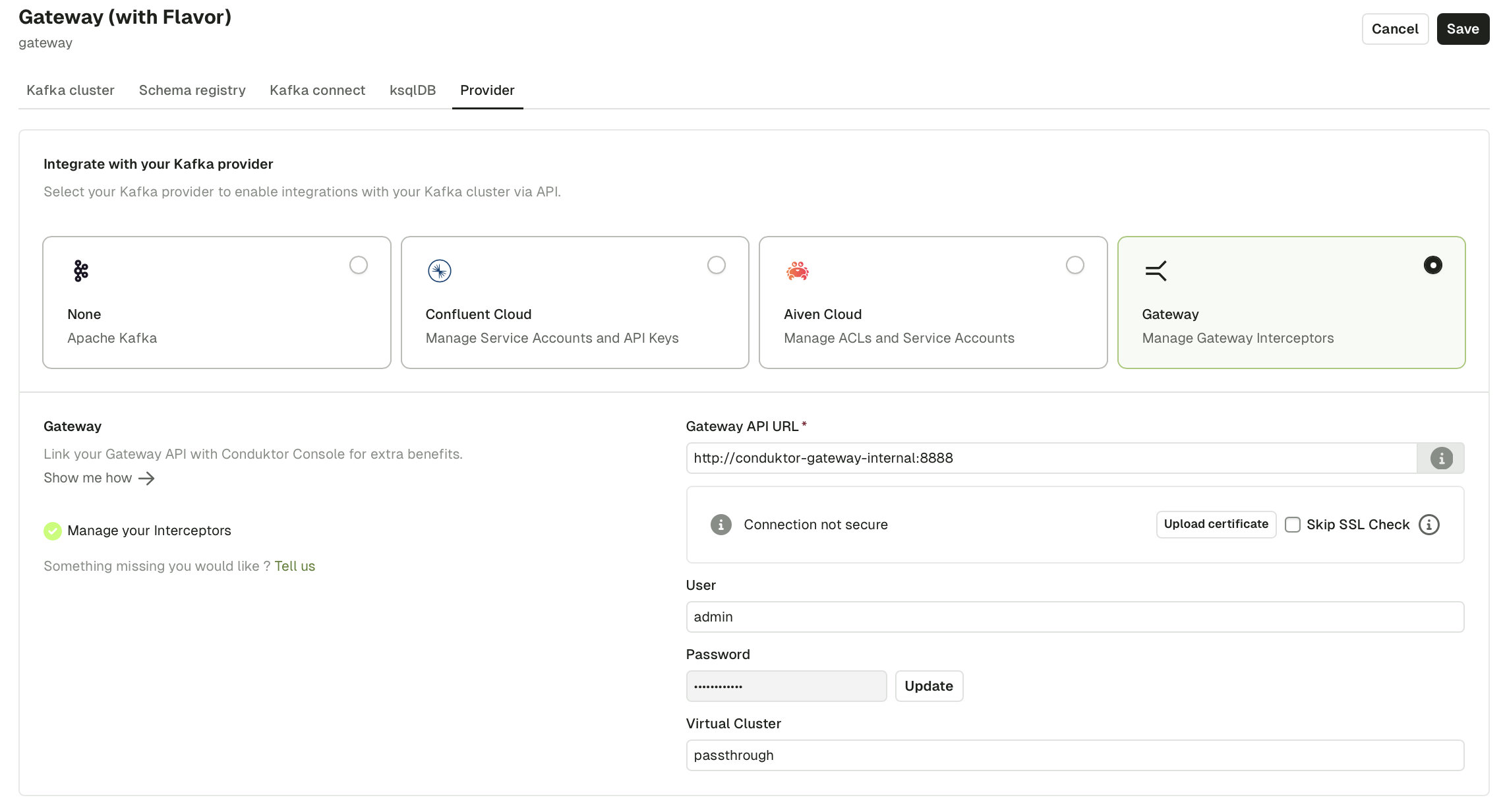
In Console, go to **Settings** > **Clusters** and select your cluster. In the **Provider** tab, select **Gateway** and enter the Gateway API details with the Virtual Cluster value of `passthrough`.
 ```bash theme={null}
curl \
--request PUT \
--url 'http://localhost:8888/gateway/v2/interceptor' \
--header 'Authorization: Basic YWRtaW46Y29uZHVrdG9y' \
--header 'Content-Type: application/json' \
--data-raw '{
"name": "observability-interceptor",
"pluginClass": "io.conduktor.gateway.interceptor.observability.ObservabilityPlugin",
"priority": 100,
"config": {
"topicName": "_conduktor_observability",
"replicationFactor": 3,
"flushIntervalInSecond": 300
}
}'
```
```yaml theme={null}
apiVersion: gateway/v2
kind: Interceptor
metadata:
name: observability-interceptor
scope:
vCluster: passthrough
spec:
pluginClass: io.conduktor.gateway.interceptor.observability.ObservabilityPlugin
priority: 100
config:
topicName: _conduktor_observability
replicationFactor: 3
flushIntervalInSecond: 300
```
Apply with:
```bash theme={null}
conduktor apply -f observability-interceptor.yaml
```
### Observability Interceptor reference
| Name | Type | Default | Description |
| ----------------------- | ------ | ------- | ----------------------------------------------------------------------------------------------------------------------------------------------- |
| `topicName` | String | | Topic used to store observability metrics. If the topic exists, it has to have **only one partition**. If it doesn't exist, Gateway creates it. |
| `replicationFactor` | Int | | Replication factor used when Gateway creates the topic. |
| `flushIntervalInSecond` | Int | `300` | Frequency at which metrics are flushed to the topic. |
## Collect Confluent Cloud throughput
Confluent Cloud ingress and egress are pulled hourly through the Confluent Cloud Metrics API. Collection is on by default.
To enable collection on a cluster, configure the cluster in Console with API credentials that include Metrics API access. No further setup is needed.
To turn collection off globally, set:
```bash theme={null}
export CDK_CHARGEBACK_CCTHROUGHPUT_ENABLED=false
```
## Verify
Storage and partition metrics appear after the first snapshot (default: one hour). Confluent Cloud throughput appears after the first hourly tick. Gateway throughput appears once the observability Interceptor has flushed to the metrics topic (default: every five minutes).
Cluster rows show non-zero values for the axes that match the cluster type.
Click the settings (cog) icon at the top right of the **Chargeback** page. Confirm that all clusters that should appear are listed with the expected unit costs.
Console begins collecting metrics immediately after the feature flag is set, but data only appears after the first collection interval.
## Related resources
* [Use Chargeback](/guide/use-cases/chargeback)
* [Chargeback concepts](/guide/conduktor-concepts/chargeback)
* [Give us feedback/request a feature](https://conduktor.io/roadmap)
```bash theme={null}
curl \
--request PUT \
--url 'http://localhost:8888/gateway/v2/interceptor' \
--header 'Authorization: Basic YWRtaW46Y29uZHVrdG9y' \
--header 'Content-Type: application/json' \
--data-raw '{
"name": "observability-interceptor",
"pluginClass": "io.conduktor.gateway.interceptor.observability.ObservabilityPlugin",
"priority": 100,
"config": {
"topicName": "_conduktor_observability",
"replicationFactor": 3,
"flushIntervalInSecond": 300
}
}'
```
```yaml theme={null}
apiVersion: gateway/v2
kind: Interceptor
metadata:
name: observability-interceptor
scope:
vCluster: passthrough
spec:
pluginClass: io.conduktor.gateway.interceptor.observability.ObservabilityPlugin
priority: 100
config:
topicName: _conduktor_observability
replicationFactor: 3
flushIntervalInSecond: 300
```
Apply with:
```bash theme={null}
conduktor apply -f observability-interceptor.yaml
```
### Observability Interceptor reference
| Name | Type | Default | Description |
| ----------------------- | ------ | ------- | ----------------------------------------------------------------------------------------------------------------------------------------------- |
| `topicName` | String | | Topic used to store observability metrics. If the topic exists, it has to have **only one partition**. If it doesn't exist, Gateway creates it. |
| `replicationFactor` | Int | | Replication factor used when Gateway creates the topic. |
| `flushIntervalInSecond` | Int | `300` | Frequency at which metrics are flushed to the topic. |
## Collect Confluent Cloud throughput
Confluent Cloud ingress and egress are pulled hourly through the Confluent Cloud Metrics API. Collection is on by default.
To enable collection on a cluster, configure the cluster in Console with API credentials that include Metrics API access. No further setup is needed.
To turn collection off globally, set:
```bash theme={null}
export CDK_CHARGEBACK_CCTHROUGHPUT_ENABLED=false
```
## Verify
Storage and partition metrics appear after the first snapshot (default: one hour). Confluent Cloud throughput appears after the first hourly tick. Gateway throughput appears once the observability Interceptor has flushed to the metrics topic (default: every five minutes).
Cluster rows show non-zero values for the axes that match the cluster type.
Click the settings (cog) icon at the top right of the **Chargeback** page. Confirm that all clusters that should appear are listed with the expected unit costs.
Console begins collecting metrics immediately after the feature flag is set, but data only appears after the first collection interval.
## Related resources
* [Use Chargeback](/guide/use-cases/chargeback)
* [Chargeback concepts](/guide/conduktor-concepts/chargeback)
* [Give us feedback/request a feature](https://conduktor.io/roadmap)