> ## Documentation Index
> Fetch the complete documentation index at: https://docs.conduktor.io/llms.txt
> Use this file to discover all available pages before exploring further.
# Kafka crypto shredding — encryption key deletion in Gateway
> Implement crypto shredding in Conduktor Gateway: delete encryption keys to make Kafka records unreadable.
## Overview
Conduktor offers **crypto shredding**: a cost-efficient and scalable solution for securely deleting encryption keys.
Keys are centrally managed and securely stored, which ensures that deleting a key instantly makes all associated data unreadable, without the complexity of self-managed vaults, expensive per-user encryption or additional infrastructure overhead.
Crypto shredding is like throwing away the *only* key to a locked safe. Without the key, the contents are inaccessible forever.
It's the process of making encrypted data *permanently* unreadable by securely deleting the encryption keys.
Conduktor's crypto shredding solution allows you to honor deletion requests and maintain compliance with regulations like GDPR (General Data Protection Regulation) and CCPA (California Consumer Privacy Act).
It's particularly valuable for organizations that need to operate at scale across large user bases or high-volume data sets, offering both **substantial cost savings** and **improved performance** compared to managing individual keys directly in an external KMS such as AWS.
**From our blog:** [Crypto shredding in Kafka: a cost-effective way to ensure compliance](https://conduktor.io/blog/crypto-shredding-in-kafka-a-cost-effective-way-to-ensure-compliance) How key deletion makes data permanently unreadable without touching the records themselves.
### Benefits
Our solution:
* stores only a **single master key** in your external KMS
* securely manages every **individual encryption key** in Gateway's internal key store
* allows individual **encryption keys** to be deleted when needed, rendering the associated data permanently inaccessible
## How does it work?
* Gateway can encrypt a combination of the record key, the record headers and the record value.
* It can encrypt the entire key and record value, or individual fields.
* It does this using an encryption key with an ID derived from a property of each record (e.g., a field or key value that uniquely identifies the associated user)
* This encryption key is called a `DEK` (short for **Data Encryption Key**) and is how we will refer to it for the rest of the tutorial.
* The `DEK` is securely and configurably generated by Gateway using the [TINK AEAD cryptographic library](https://developers.google.com/tink/supported-key-types#aead)
* Gateway encrypts the `DEK` before storing it using a single master encryption key provided by an external **KMS** (e.g., **AWS KMS**).
* The master encryption key is called a `KEK` (short for **Key Encryption Key**) and is how we will refer to it for the rest of the tutorial.
* The encrypted `DEK` is called an `EDEK` (short for **Encrypted Data Encryption Key**) and is how we will refer to it for the rest of the tutorial.
* The `EDEK` is stored in a dedicated compacted Kafka topic called the **Encryption Keys Store**.
* This store is secure because an `EDEK` cannot be decrypted without the `KEK` from the KMS.
* Overwriting an `EDEK` in the **Encryption Keys Store** makes the associated encrypted data permanently undecryptable via Gateway.
[Find out more about Gateway's encryption](/guide/use-cases/kafka-encryption#how-it-works).
### Key rotation security
Gateway supports multiple encryption algorithms with `AES128_GCM` as the default.
When using AES-GCM algorithms, be aware that the same DEK (Data Encryption Key) should not be used to encrypt more than approximately 4 billion (2³²) messages due to security limitations.
For high-traffic scenarios, consider:
* using alternative algorithms like `XCHACHA20_POLY1305` which supports \~2⁸⁰ messages
* implementing DEK rotation by using unique `keySecretId` values
* rotating your KEK (Key Encryption Key) through your KMS provider according to your security policies
**KEK rotation is your responsibility**: KEK rotation has be performed by you through your KMS provider (AWS KMS, Azure Key Vault, HashiCorp Vault, GCP KMS).
Gateway does not automatically rotate KEKs. [Find out about key rotation](/guide/reference/data-security#key-rotation).
## Sample use case
This tutorial will show how to:
1. Set up a local Gateway to encrypt sensitive user data sent to a Kafka topic, using the Gateway KMS.
2. Decrypt data read from the same Kafka topic via Gateway (in order to demonstrate normal working conditions).
3. Apply crypto shredding to an `EDEK` so that associated data can no longer be decrypted by Gateway.
We'll configure Gateway to encrypt sensitive customer data (`password`, `visa`) using a `DEK` derived from a unique customer identifier (`userId`).
Other data (e.g., `name`) will be left unencrypted. All of the data will come from the same simple json payload. For example, we might expect to see
```json theme={null}
{
"userId" : 101,
"name" : "Joe Smith",
"password" : "admin123",
"visa" : 4111111145551142
}
```
encrypted as:
```json theme={null}
{
"userId" : 101,
"name" : "Joe Smith",
"password" : "AAAABQAAAAKNxgtetTtIBLsCuCd5LJ7kYDspZqsfUhWRY7lDlVIWF2UgALxI8WEzcXAxEjuuWFiq+Kb8K6pTA5IPeg==",
"visa" : "AAAAAgAAAAKNxgtetTtIBLsCuCd5LJ7k5Dab7pJ9dEQtf5TjHM1ZasVGOEeYI5Vna/HyDGQTZqYT0KWAAjsoe17+F8nPbFlX5Ms7n6ryCyTPyYPLi/hKMd5JDQAJAdfg/2FRtpHui3MaUjsipuo+7gdnU7HKEd64Hi/+hH2jQxQVJOoujxg="
}
```
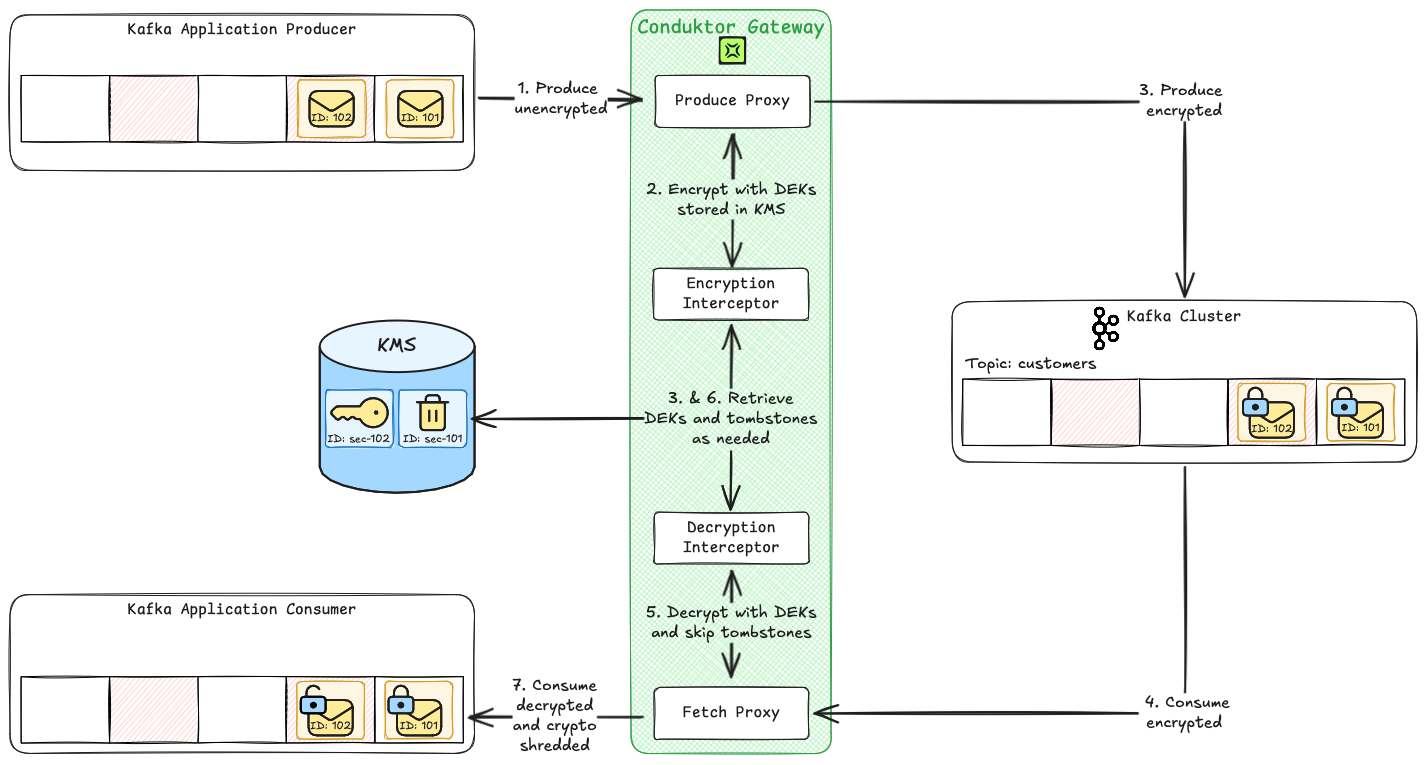
Here's a high-level visualization of the crypto shredding process:
 ### 1. Setup an environment
The following Docker Compose file will setup Kafka, the Conduktor platform and a Vault KMS instance to work together.
It will then create a single Kafka topic called `customers` that the rest of the tutorial will instruct you how to make use of for the encryption and crypto shredding use case.
```bash theme={null}
docker compose -f docker-compose.yaml up -d
```
```yaml title="docker-compose.yml" theme={null}
services:
zookeeper:
image: "confluentinc/cp-zookeeper:7.9.2"
container_name: crypto-shredding-howto-zookeeper
restart: always
ports:
- "22181:2181"
environment:
ZOOKEEPER_CLIENT_PORT: 2181
healthcheck:
test: echo srvr | nc zookeeper 2181 || exit 1
retries: 20
interval: 10s
kafka-1:
image: "confluentinc/cp-kafka:7.9.2"
container_name: crypto-shredding-howto-kafka-1
restart: always
ports:
- "19092:19092"
environment:
KAFKA_ZOOKEEPER_CONNECT: "zookeeper:2181"
KAFKA_LISTENERS: "INTERNAL://kafka-1:9092,EXTERNAL://:19092"
KAFKA_ADVERTISED_LISTENERS: "INTERNAL://kafka-1:9092,EXTERNAL://localhost:19092"
KAFKA_LISTENER_SECURITY_PROTOCOL_MAP: "INTERNAL:PLAINTEXT,EXTERNAL:PLAINTEXT"
KAFKA_INTER_BROKER_LISTENER_NAME: INTERNAL
KAFKA_BROKER_ID: 1
healthcheck:
test: nc -zv kafka-1 9092 || exit 1
interval: 10s
retries: 25
start_period: 20s
depends_on:
zookeeper:
condition: service_healthy
kafka-2:
image: "confluentinc/cp-kafka:7.9.2"
container_name: crypto-shredding-howto-kafka-2
hostname: kafka-2
ports:
- 19093:19093
environment:
KAFKA_ZOOKEEPER_CONNECT: "zookeeper:2181"
KAFKA_LISTENERS: "INTERNAL://kafka-2:9093,EXTERNAL://:19093"
KAFKA_ADVERTISED_LISTENERS: "INTERNAL://kafka-2:9093,EXTERNAL://localhost:19093"
KAFKA_LISTENER_SECURITY_PROTOCOL_MAP: "INTERNAL:PLAINTEXT,EXTERNAL:PLAINTEXT"
KAFKA_INTER_BROKER_LISTENER_NAME: INTERNAL
KAFKA_BROKER_ID: 2
healthcheck:
test: nc -zv kafka-2 9093 || exit 1
interval: 10s
retries: 25
start_period: 20s
depends_on:
zookeeper:
condition: service_healthy
kafka-3:
image: "confluentinc/cp-kafka:7.9.2"
container_name: crypto-shredding-howto-kafka-3
hostname: kafka-3
ports:
- 19094:19094
environment:
KAFKA_ZOOKEEPER_CONNECT: "zookeeper:2181"
KAFKA_LISTENERS: "INTERNAL://kafka-3:9094,EXTERNAL://:19094"
KAFKA_ADVERTISED_LISTENERS: "INTERNAL://kafka-3:9094,EXTERNAL://localhost:19094"
KAFKA_LISTENER_SECURITY_PROTOCOL_MAP: "INTERNAL:PLAINTEXT,EXTERNAL:PLAINTEXT"
KAFKA_INTER_BROKER_LISTENER_NAME: INTERNAL
KAFKA_BROKER_ID: 3
healthcheck:
test: nc -zv kafka-3 9094 || exit 1
interval: 10s
retries: 25
start_period: 20s
depends_on:
zookeeper:
condition: service_healthy
vault:
image: hashicorp/vault
container_name: crypto-shredding-howto-vault
healthcheck:
test: nc -zv 0.0.0.0 8200
interval: 5s
retries: 25
hostname: vault
environment:
VAULT_ADDR: http://0.0.0.0:8200
VAULT_DEV_ROOT_TOKEN_ID: vault-plaintext-root-token
ports:
- 8200:8200
command:
- sh
- -c
- (while ! nc -z 127.0.0.1 8200; do sleep 1; echo 'waiting for vault service ...';
done; export VAULT_ADDR='http://0.0.0.0:8200';vault secrets enable transit;
vault secrets enable -version=1 kv; vault secrets enable totp ) & vault server
-dev -dev-listen-address=0.0.0.0:8200
conduktor-gateway:
image: conduktor/conduktor-gateway:3.12.0
hostname: conduktor-gateway
container_name: crypto-shredding-howto-conduktor-gateway
environment:
KAFKA_BOOTSTRAP_SERVERS: kafka-1:9092,kafka-2:9093,kafka-3:9094
VAULT_TOKEN: vault-plaintext-root-token
GATEWAY_ADMIN_API_USERS: "[{username: admin, password: conduktor, admin: true}]"
GATEWAY_ACL_ENABLED: false
GATEWAY_MIN_BROKERID: 1
ports:
- "8888:8888"
- "6969:6969"
healthcheck:
test: curl localhost:8888/health
interval: 5s
retries: 25
volumes:
- ./driver-gateway/deploy/ssd-deployment/templates:/templates:ro
depends_on:
kafka-1:
condition: service_healthy
kafka-2:
condition: service_healthy
kafka-3:
condition: service_healthy
kafka-client:
image: "confluentinc/cp-kafka:7.9.2"
hostname: kafka-client
container_name: crypto-shredding-howto-kafka-client
command: sleep infinity
conduktor-console:
image: conduktor/conduktor-console:1.36.2
container_name: crypto-shredding-howto-conduktor-console
ports:
- "8080:8080"
volumes:
- conduktor_data:/var/conduktor
environment:
CDK_DATABASE_URL: "postgresql://conduktor:change_me@postgresql:5432/conduktor-console"
CDK_KAFKASQL_DATABASE_URL: "postgresql://conduktor:change_me@postgresql-sql:5432/conduktor-sql"
CDK_ORGANIZATION_NAME: "getting-started"
CDK_CLUSTERS_0_ID: "local-kafka"
CDK_CLUSTERS_0_NAME: "local-kafka"
CDK_CLUSTERS_0_BOOTSTRAPSERVERS: "kafka-1:9092"
CDK_CLUSTERS_0_COLOR: "#6A57C8"
CDK_CLUSTERS_0_ICON: "kafka"
CDK_CLUSTERS_1_ID: "cdk-gateway"
CDK_CLUSTERS_1_NAME: "cdk-gateway"
CDK_CLUSTERS_1_BOOTSTRAPSERVERS: "conduktor-gateway:6969"
CDK_CLUSTERS_1_KAFKAFLAVOR_URL: "http://conduktor-gateway:8888"
CDK_CLUSTERS_1_KAFKAFLAVOR_USER: "admin"
CDK_CLUSTERS_1_KAFKAFLAVOR_PASSWORD: "conduktor"
CDK_CLUSTERS_1_KAFKAFLAVOR_VIRTUALCLUSTER: "passthrough"
CDK_CLUSTERS_1_KAFKAFLAVOR_TYPE: "Gateway"
CDK_CLUSTERS_1_COLOR: "#6A57C8"
CDK_CLUSTERS_1_ICON: "key"
CDK_MONITORING_CORTEX-URL: http://conduktor-monitoring:9009/
CDK_MONITORING_ALERT-MANAGER-URL: http://conduktor-monitoring:9010/
CDK_MONITORING_CALLBACK-URL: http://conduktor-console:8080/monitoring/api/
CDK_MONITORING_NOTIFICATIONS-CALLBACK-URL: http://localhost:8080
CDK_ADMIN_EMAIL: "admin@demo.dev"
CDK_ADMIN_PASSWORD: "adminP4ss!"
depends_on:
conduktor-gateway:
condition: service_healthy
postgresql:
condition: service_healthy
postgresql-2:
condition: service_healthy
conduktor-ctl:
image: conduktor/conduktor-ctl:v0.6.1
container_name: crypto-shredding-howto-conduktor-ctl
volumes:
- ./:/conduktor-ctl
environment:
CDK_BASE_URL: "http://conduktor-console:8080"
CDK_USER: "admin@demo.dev"
CDK_PASSWORD: "adminP4ss!"
CDK_GATEWAY_BASE_URL: "http://conduktor-gateway:8888"
CDK_GATEWAY_USER: "admin"
CDK_GATEWAY_PASSWORD: "conduktor"
entrypoint: |
sh -c "
cat > /tmp/topic-customers.yaml << 'EOF'
apiVersion: kafka/v2
kind: Topic
metadata:
cluster: cdk-gateway
name: customers
labels:
encrypted: \"true\"
spec:
replicationFactor: 3
partitions: 1
configs: {}
EOF
conduktor apply -f /tmp/topic-customers.yaml
sleep infinity
"
depends_on:
conduktor-console:
condition: service_healthy
# Conduktor stores its metadata in PostgreSQL.
# Consider using an external managed database for production usage.
# https://docs.conduktor.io/platform/get-started/configuration/database/
postgresql:
image: postgres:14
hostname: postgresql
container_name: crypto-shredding-howto-postgresql-metadata
volumes:
- pg_data:/var/lib/postgresql/data
environment:
PGDATA: "/var/lib/postgresql/data"
POSTGRES_DB: "conduktor-console"
POSTGRES_USER: "conduktor"
POSTGRES_PASSWORD: "change_me"
POSTGRES_HOST_AUTH_METHOD: "scram-sha-256"
healthcheck:
test: ["CMD-SHELL", "pg_isready -U conduktor -d conduktor-console"]
interval: 10s
timeout: 5s
retries: 5
# Conduktor depends on a separate db for storing Kafka data for SQL querying
# It is optional, but required if you wish to use SQL functionality
# Separate db ensures continued operation of the core Console experience if the SQL db becomes unavailable
# https://docs.conduktor.io/guide/tutorials/configure-sql-topics
postgresql-2:
image: postgres:14
hostname: postgresql-sql
container_name: crypto-shredding-howto-postgresql-data
volumes:
- pg_data_sql:/var/lib/postgresql/data
environment:
PGDATA: "/var/lib/postgresql/data"
POSTGRES_DB: "conduktor-sql"
POSTGRES_USER: "conduktor"
POSTGRES_PASSWORD: "change_me"
POSTGRES_HOST_AUTH_METHOD: "scram-sha-256"
healthcheck:
test: ["CMD-SHELL", "pg_isready -U conduktor -d conduktor-sql"]
interval: 10s
timeout: 5s
retries: 5
# Conduktor uses Cortex to store Kafka and applications metrics as well as alerting.
# It is optional.
# https://docs.conduktor.io/platform/get-started/configuration/cortex/
conduktor-monitoring:
image: conduktor/conduktor-console-cortex:1.36.2
container_name: crypto-shredding-howto-conduktor-monitoring
environment:
CDK_CONSOLE-URL: "http://conduktor-console:8080"
volumes:
pg_data: {}
pg_data_sql: {}
conduktor_data: {}
```
### 2. Configure the encryption Interceptor
We'll use the following encryption Interceptor configuration for this use case. Note that:
* Encryption will only be applied to the `customers` topic (already automatically created).
* Gateway will use (and create if necessary) a single Vault KMS key called `/transit/keys/master-key` as the `KEK`.
* Each record will associate with an **Encryption Keys Store Entry** derived from the record value `userId` (as templated in the configuration).
* Each **Encryption Keys Store Entry** will have a `DEK` generated by Gateway and stored as an `EDEK` generated by the KMS using the `KEK`.
* Each `DEK` will be used by Gateway to encrypt the `password` and `visa` fields. For example, the sample JSON from earlier would have an **Encryption Keys Store Entry** with id `sec-12345678` and the associated `DEK` would be used to encrypt both the `password` field `admin123` and the `visa` field `4111111145551142`.
* This configuration requires raw JSON, AVRO or Protobuf record values to be sent. We'll send JSON.
The Interceptor configuration can be applied to Gateway via the Conduktor CLI or Console UI. Choose your preferred format:
```yaml title="encryption-interceptor.yaml" theme={null}
apiVersion: gateway/v2
kind: Interceptor
metadata:
name: sensitive customer data encryption
spec:
pluginClass: io.conduktor.gateway.interceptor.EncryptPlugin
priority: 100
config:
topic: customers
kmsConfig:
vault:
uri: http://vault:8200
token: "vault-plaintext-root-token"
version: 1
gateway:
masterKeyId: vault-kms://vault:8200/transit/keys/master-key
fields:
- fieldName: password
keySecretId: gateway-kms://sec-{{record.value.userId}}
algorithm: AES128_GCM
- fieldName: visa
keySecretId: gateway-kms://sec-{{record.value.userId}}
algorithm: AES128_GCM
```
To deploy this Interceptor configuration, paste it into a file called `encryption-interceptor.yaml` in the same directory as your `docker-compose.yaml` and run the following command:
```bash theme={null}
docker compose exec -it conduktor-ctl conduktor apply -f /conduktor-ctl/encryption-interceptor.yaml
```
You should see the following output:
```
Interceptor/sensitive customer data encryption: Created
```
```json theme={null}
{
"name": "sensitive customer data encryption",
"pluginClass": "io.conduktor.gateway.interceptor.EncryptPlugin",
"priority": 100,
"config": {
"topic": "customers",
"kmsConfig": {
"vault": {
"uri": "http://vault:8200",
"token": "vault-plaintext-root-token",
"version": 1
},
"gateway": {
"masterKeyId": "vault-kms://vault:8200/transit/keys/master-key"
}
},
"fields": [
{
"fieldName": "password",
"keySecretId": "gateway-kms://sec-{{record.value.userId}}",
"algorithm": "AES128_GCM"
},
{
"fieldName": "visa",
"keySecretId": "gateway-kms://sec-{{record.value.userId}}",
"algorithm": "AES128_GCM"
}
]
}
}
```
To apply this configuration:
1. [Log into Console](http://localhost:8080) with
* username: `admin@demo.dev`
* password: `adminP4ss!`
2. Select `cdk-gateway` as your working cluster (in the top left-hand corner).
3. Click **Kafka Gateway** in the left hand menu.
4. Click **Create my first Interceptor**.
5. Type `Encrypt` into the search bar and select `Encrypt on produce specific record fields or the entire payload`.
6. Paste the above JSON into the text box (replacing the existing JSON) and click **Deploy Interceptor** at the bottom of the screen.
You should now be back on the `Kafka Gateway` page with a single Interceptor (*sensitive customer data encryption*) configured.
[Find out more about configuring encryption in Gateway](/guide/reference/data-security#encryption-configuration).
### 3. Produce encrypted data
With encryption configured, we can now produce records via Gateway that will be encrypted at rest on disk in the backing Kafka cluster (and when re-reading via Kafka or Gateway).
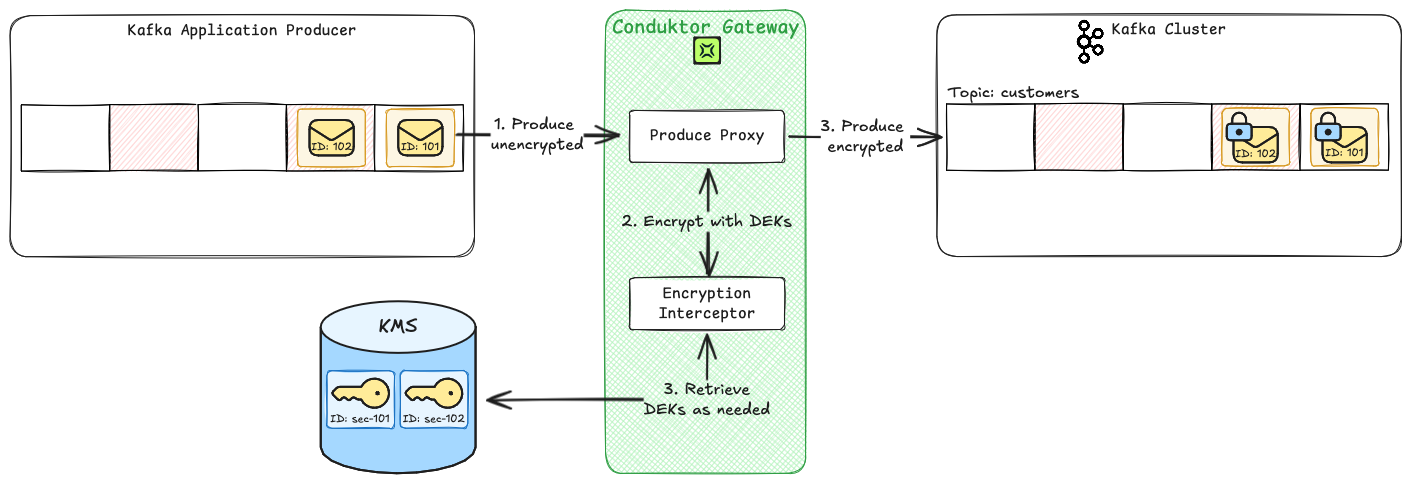
Here's a high-level visualization of the produce process:
### 1. Setup an environment
The following Docker Compose file will setup Kafka, the Conduktor platform and a Vault KMS instance to work together.
It will then create a single Kafka topic called `customers` that the rest of the tutorial will instruct you how to make use of for the encryption and crypto shredding use case.
```bash theme={null}
docker compose -f docker-compose.yaml up -d
```
```yaml title="docker-compose.yml" theme={null}
services:
zookeeper:
image: "confluentinc/cp-zookeeper:7.9.2"
container_name: crypto-shredding-howto-zookeeper
restart: always
ports:
- "22181:2181"
environment:
ZOOKEEPER_CLIENT_PORT: 2181
healthcheck:
test: echo srvr | nc zookeeper 2181 || exit 1
retries: 20
interval: 10s
kafka-1:
image: "confluentinc/cp-kafka:7.9.2"
container_name: crypto-shredding-howto-kafka-1
restart: always
ports:
- "19092:19092"
environment:
KAFKA_ZOOKEEPER_CONNECT: "zookeeper:2181"
KAFKA_LISTENERS: "INTERNAL://kafka-1:9092,EXTERNAL://:19092"
KAFKA_ADVERTISED_LISTENERS: "INTERNAL://kafka-1:9092,EXTERNAL://localhost:19092"
KAFKA_LISTENER_SECURITY_PROTOCOL_MAP: "INTERNAL:PLAINTEXT,EXTERNAL:PLAINTEXT"
KAFKA_INTER_BROKER_LISTENER_NAME: INTERNAL
KAFKA_BROKER_ID: 1
healthcheck:
test: nc -zv kafka-1 9092 || exit 1
interval: 10s
retries: 25
start_period: 20s
depends_on:
zookeeper:
condition: service_healthy
kafka-2:
image: "confluentinc/cp-kafka:7.9.2"
container_name: crypto-shredding-howto-kafka-2
hostname: kafka-2
ports:
- 19093:19093
environment:
KAFKA_ZOOKEEPER_CONNECT: "zookeeper:2181"
KAFKA_LISTENERS: "INTERNAL://kafka-2:9093,EXTERNAL://:19093"
KAFKA_ADVERTISED_LISTENERS: "INTERNAL://kafka-2:9093,EXTERNAL://localhost:19093"
KAFKA_LISTENER_SECURITY_PROTOCOL_MAP: "INTERNAL:PLAINTEXT,EXTERNAL:PLAINTEXT"
KAFKA_INTER_BROKER_LISTENER_NAME: INTERNAL
KAFKA_BROKER_ID: 2
healthcheck:
test: nc -zv kafka-2 9093 || exit 1
interval: 10s
retries: 25
start_period: 20s
depends_on:
zookeeper:
condition: service_healthy
kafka-3:
image: "confluentinc/cp-kafka:7.9.2"
container_name: crypto-shredding-howto-kafka-3
hostname: kafka-3
ports:
- 19094:19094
environment:
KAFKA_ZOOKEEPER_CONNECT: "zookeeper:2181"
KAFKA_LISTENERS: "INTERNAL://kafka-3:9094,EXTERNAL://:19094"
KAFKA_ADVERTISED_LISTENERS: "INTERNAL://kafka-3:9094,EXTERNAL://localhost:19094"
KAFKA_LISTENER_SECURITY_PROTOCOL_MAP: "INTERNAL:PLAINTEXT,EXTERNAL:PLAINTEXT"
KAFKA_INTER_BROKER_LISTENER_NAME: INTERNAL
KAFKA_BROKER_ID: 3
healthcheck:
test: nc -zv kafka-3 9094 || exit 1
interval: 10s
retries: 25
start_period: 20s
depends_on:
zookeeper:
condition: service_healthy
vault:
image: hashicorp/vault
container_name: crypto-shredding-howto-vault
healthcheck:
test: nc -zv 0.0.0.0 8200
interval: 5s
retries: 25
hostname: vault
environment:
VAULT_ADDR: http://0.0.0.0:8200
VAULT_DEV_ROOT_TOKEN_ID: vault-plaintext-root-token
ports:
- 8200:8200
command:
- sh
- -c
- (while ! nc -z 127.0.0.1 8200; do sleep 1; echo 'waiting for vault service ...';
done; export VAULT_ADDR='http://0.0.0.0:8200';vault secrets enable transit;
vault secrets enable -version=1 kv; vault secrets enable totp ) & vault server
-dev -dev-listen-address=0.0.0.0:8200
conduktor-gateway:
image: conduktor/conduktor-gateway:3.12.0
hostname: conduktor-gateway
container_name: crypto-shredding-howto-conduktor-gateway
environment:
KAFKA_BOOTSTRAP_SERVERS: kafka-1:9092,kafka-2:9093,kafka-3:9094
VAULT_TOKEN: vault-plaintext-root-token
GATEWAY_ADMIN_API_USERS: "[{username: admin, password: conduktor, admin: true}]"
GATEWAY_ACL_ENABLED: false
GATEWAY_MIN_BROKERID: 1
ports:
- "8888:8888"
- "6969:6969"
healthcheck:
test: curl localhost:8888/health
interval: 5s
retries: 25
volumes:
- ./driver-gateway/deploy/ssd-deployment/templates:/templates:ro
depends_on:
kafka-1:
condition: service_healthy
kafka-2:
condition: service_healthy
kafka-3:
condition: service_healthy
kafka-client:
image: "confluentinc/cp-kafka:7.9.2"
hostname: kafka-client
container_name: crypto-shredding-howto-kafka-client
command: sleep infinity
conduktor-console:
image: conduktor/conduktor-console:1.36.2
container_name: crypto-shredding-howto-conduktor-console
ports:
- "8080:8080"
volumes:
- conduktor_data:/var/conduktor
environment:
CDK_DATABASE_URL: "postgresql://conduktor:change_me@postgresql:5432/conduktor-console"
CDK_KAFKASQL_DATABASE_URL: "postgresql://conduktor:change_me@postgresql-sql:5432/conduktor-sql"
CDK_ORGANIZATION_NAME: "getting-started"
CDK_CLUSTERS_0_ID: "local-kafka"
CDK_CLUSTERS_0_NAME: "local-kafka"
CDK_CLUSTERS_0_BOOTSTRAPSERVERS: "kafka-1:9092"
CDK_CLUSTERS_0_COLOR: "#6A57C8"
CDK_CLUSTERS_0_ICON: "kafka"
CDK_CLUSTERS_1_ID: "cdk-gateway"
CDK_CLUSTERS_1_NAME: "cdk-gateway"
CDK_CLUSTERS_1_BOOTSTRAPSERVERS: "conduktor-gateway:6969"
CDK_CLUSTERS_1_KAFKAFLAVOR_URL: "http://conduktor-gateway:8888"
CDK_CLUSTERS_1_KAFKAFLAVOR_USER: "admin"
CDK_CLUSTERS_1_KAFKAFLAVOR_PASSWORD: "conduktor"
CDK_CLUSTERS_1_KAFKAFLAVOR_VIRTUALCLUSTER: "passthrough"
CDK_CLUSTERS_1_KAFKAFLAVOR_TYPE: "Gateway"
CDK_CLUSTERS_1_COLOR: "#6A57C8"
CDK_CLUSTERS_1_ICON: "key"
CDK_MONITORING_CORTEX-URL: http://conduktor-monitoring:9009/
CDK_MONITORING_ALERT-MANAGER-URL: http://conduktor-monitoring:9010/
CDK_MONITORING_CALLBACK-URL: http://conduktor-console:8080/monitoring/api/
CDK_MONITORING_NOTIFICATIONS-CALLBACK-URL: http://localhost:8080
CDK_ADMIN_EMAIL: "admin@demo.dev"
CDK_ADMIN_PASSWORD: "adminP4ss!"
depends_on:
conduktor-gateway:
condition: service_healthy
postgresql:
condition: service_healthy
postgresql-2:
condition: service_healthy
conduktor-ctl:
image: conduktor/conduktor-ctl:v0.6.1
container_name: crypto-shredding-howto-conduktor-ctl
volumes:
- ./:/conduktor-ctl
environment:
CDK_BASE_URL: "http://conduktor-console:8080"
CDK_USER: "admin@demo.dev"
CDK_PASSWORD: "adminP4ss!"
CDK_GATEWAY_BASE_URL: "http://conduktor-gateway:8888"
CDK_GATEWAY_USER: "admin"
CDK_GATEWAY_PASSWORD: "conduktor"
entrypoint: |
sh -c "
cat > /tmp/topic-customers.yaml << 'EOF'
apiVersion: kafka/v2
kind: Topic
metadata:
cluster: cdk-gateway
name: customers
labels:
encrypted: \"true\"
spec:
replicationFactor: 3
partitions: 1
configs: {}
EOF
conduktor apply -f /tmp/topic-customers.yaml
sleep infinity
"
depends_on:
conduktor-console:
condition: service_healthy
# Conduktor stores its metadata in PostgreSQL.
# Consider using an external managed database for production usage.
# https://docs.conduktor.io/platform/get-started/configuration/database/
postgresql:
image: postgres:14
hostname: postgresql
container_name: crypto-shredding-howto-postgresql-metadata
volumes:
- pg_data:/var/lib/postgresql/data
environment:
PGDATA: "/var/lib/postgresql/data"
POSTGRES_DB: "conduktor-console"
POSTGRES_USER: "conduktor"
POSTGRES_PASSWORD: "change_me"
POSTGRES_HOST_AUTH_METHOD: "scram-sha-256"
healthcheck:
test: ["CMD-SHELL", "pg_isready -U conduktor -d conduktor-console"]
interval: 10s
timeout: 5s
retries: 5
# Conduktor depends on a separate db for storing Kafka data for SQL querying
# It is optional, but required if you wish to use SQL functionality
# Separate db ensures continued operation of the core Console experience if the SQL db becomes unavailable
# https://docs.conduktor.io/guide/tutorials/configure-sql-topics
postgresql-2:
image: postgres:14
hostname: postgresql-sql
container_name: crypto-shredding-howto-postgresql-data
volumes:
- pg_data_sql:/var/lib/postgresql/data
environment:
PGDATA: "/var/lib/postgresql/data"
POSTGRES_DB: "conduktor-sql"
POSTGRES_USER: "conduktor"
POSTGRES_PASSWORD: "change_me"
POSTGRES_HOST_AUTH_METHOD: "scram-sha-256"
healthcheck:
test: ["CMD-SHELL", "pg_isready -U conduktor -d conduktor-sql"]
interval: 10s
timeout: 5s
retries: 5
# Conduktor uses Cortex to store Kafka and applications metrics as well as alerting.
# It is optional.
# https://docs.conduktor.io/platform/get-started/configuration/cortex/
conduktor-monitoring:
image: conduktor/conduktor-console-cortex:1.36.2
container_name: crypto-shredding-howto-conduktor-monitoring
environment:
CDK_CONSOLE-URL: "http://conduktor-console:8080"
volumes:
pg_data: {}
pg_data_sql: {}
conduktor_data: {}
```
### 2. Configure the encryption Interceptor
We'll use the following encryption Interceptor configuration for this use case. Note that:
* Encryption will only be applied to the `customers` topic (already automatically created).
* Gateway will use (and create if necessary) a single Vault KMS key called `/transit/keys/master-key` as the `KEK`.
* Each record will associate with an **Encryption Keys Store Entry** derived from the record value `userId` (as templated in the configuration).
* Each **Encryption Keys Store Entry** will have a `DEK` generated by Gateway and stored as an `EDEK` generated by the KMS using the `KEK`.
* Each `DEK` will be used by Gateway to encrypt the `password` and `visa` fields. For example, the sample JSON from earlier would have an **Encryption Keys Store Entry** with id `sec-12345678` and the associated `DEK` would be used to encrypt both the `password` field `admin123` and the `visa` field `4111111145551142`.
* This configuration requires raw JSON, AVRO or Protobuf record values to be sent. We'll send JSON.
The Interceptor configuration can be applied to Gateway via the Conduktor CLI or Console UI. Choose your preferred format:
```yaml title="encryption-interceptor.yaml" theme={null}
apiVersion: gateway/v2
kind: Interceptor
metadata:
name: sensitive customer data encryption
spec:
pluginClass: io.conduktor.gateway.interceptor.EncryptPlugin
priority: 100
config:
topic: customers
kmsConfig:
vault:
uri: http://vault:8200
token: "vault-plaintext-root-token"
version: 1
gateway:
masterKeyId: vault-kms://vault:8200/transit/keys/master-key
fields:
- fieldName: password
keySecretId: gateway-kms://sec-{{record.value.userId}}
algorithm: AES128_GCM
- fieldName: visa
keySecretId: gateway-kms://sec-{{record.value.userId}}
algorithm: AES128_GCM
```
To deploy this Interceptor configuration, paste it into a file called `encryption-interceptor.yaml` in the same directory as your `docker-compose.yaml` and run the following command:
```bash theme={null}
docker compose exec -it conduktor-ctl conduktor apply -f /conduktor-ctl/encryption-interceptor.yaml
```
You should see the following output:
```
Interceptor/sensitive customer data encryption: Created
```
```json theme={null}
{
"name": "sensitive customer data encryption",
"pluginClass": "io.conduktor.gateway.interceptor.EncryptPlugin",
"priority": 100,
"config": {
"topic": "customers",
"kmsConfig": {
"vault": {
"uri": "http://vault:8200",
"token": "vault-plaintext-root-token",
"version": 1
},
"gateway": {
"masterKeyId": "vault-kms://vault:8200/transit/keys/master-key"
}
},
"fields": [
{
"fieldName": "password",
"keySecretId": "gateway-kms://sec-{{record.value.userId}}",
"algorithm": "AES128_GCM"
},
{
"fieldName": "visa",
"keySecretId": "gateway-kms://sec-{{record.value.userId}}",
"algorithm": "AES128_GCM"
}
]
}
}
```
To apply this configuration:
1. [Log into Console](http://localhost:8080) with
* username: `admin@demo.dev`
* password: `adminP4ss!`
2. Select `cdk-gateway` as your working cluster (in the top left-hand corner).
3. Click **Kafka Gateway** in the left hand menu.
4. Click **Create my first Interceptor**.
5. Type `Encrypt` into the search bar and select `Encrypt on produce specific record fields or the entire payload`.
6. Paste the above JSON into the text box (replacing the existing JSON) and click **Deploy Interceptor** at the bottom of the screen.
You should now be back on the `Kafka Gateway` page with a single Interceptor (*sensitive customer data encryption*) configured.
[Find out more about configuring encryption in Gateway](/guide/reference/data-security#encryption-configuration).
### 3. Produce encrypted data
With encryption configured, we can now produce records via Gateway that will be encrypted at rest on disk in the backing Kafka cluster (and when re-reading via Kafka or Gateway).
Here's a high-level visualization of the produce process:
 Choose the Conduktor CLI or Console UI to produce and check the records for yourself:
```bash theme={null}
# 1. Produce a record with '101' to topic 'customers' (we'll crypto shred this later)
echo '{ "userId" : 101, "name" : "Joe Smith", "password" : "admin123", "visa" : 4111111145551142 }' | \
docker compose exec -T kafka-client \
kafka-console-producer --bootstrap-server conduktor-gateway:6969 \
--topic customers
# 2. Produce a record with '102' to topic 'customers' (we'll compare this to our crypto shredded record later)
echo '{ "userId" : 102, "name" : "Mary Brown", "password" : "abc123", "visa" : 4111111111111111 }' | \
docker compose exec -T kafka-client \
kafka-console-producer --bootstrap-server conduktor-gateway:6969 \
--topic customers
# 3. Consume all the records in the 'customers' topic (use command 'ctrl-c' to exit)
docker compose exec kafka-client kafka-console-consumer \
--bootstrap-server conduktor-gateway:6969 --topic customers --from-beginning
```
1. In the *customers* topic detail page open the **Produce** tab.
2. Copy the following text into the **Value** box:
`{ "userId" : 101, "name" : "Joe Smith", "password" : "admin123", "visa" : 4111111145551142 }`.
3. Click **Produce** at the bottom of the table. The record should appear on the right hand side. We'll crypto shred the sensitive data in this record later.
4. Repeat steps **2** and **3** with the following:
`{ "userId" : 102, "name" : "Mary Brown", "password" : "abc123", "visa" : 4111111111111111 }`. We'll compare this to our crypto shredded record.
5. Open the **Consume** tab.
You should see a final output for the customer data stored in Kafka similar to below.
Both `password` and `visa` are encrypted as configured, while other fields (e.g., `name`) remain unencrypted.
```
{"userId":101,"name":"Joe Smith","password":"AAAABQAAAAKNxgtetTtIBLsCuCd5LJ7kIuzPa+/h6sm+fwHPmDhhMEF3qViBjD4LgxVExq8ct4wZ+DMxJKC86bFgUQ==","visa":"AAAAAgAAAAKNxgtetTtIBLsCuCd5LJ7kK9me1JMK6wuH4r9e30JS43cSY/7QRxy8pxT0zTIUWzxeoc5XigVmIEJLstrf361SVmZq8PCy5qg7tLM92uO9o+TrTFJIa/dxZHj4pgRcUg12ZjKku+3BTXBXPjP77DCyCsW48rUxBDK67dp6RBc="}
{"userId":102,"name":"Mary Brown","password":"AAAABQAAAAJJLWtew1NLwZdoDS87B0qSV8/MdZ9sTWj2EVN1c3j+yXHX0FVx8fOEcA9A/flr7RwONuByQ9GeuZA=","visa":"AAAAAgAAAAJJLWtew1NLwZdoDS87B0qS/3NEgLjPO/32aD5LFN56FmpyRCZzfJ4HN8cgHxTCorNdBup5pnlbi8tFgKKWnqrUnRNTBq5haKXsbJm4/mcd3XFWSSJeIkXtuxb1Lb2SUOVQQiZDmbk3o3p9nVcPCRYR7sx04+++S3Sj6VqM7n8="}
```
### 4. Inspect the created keys
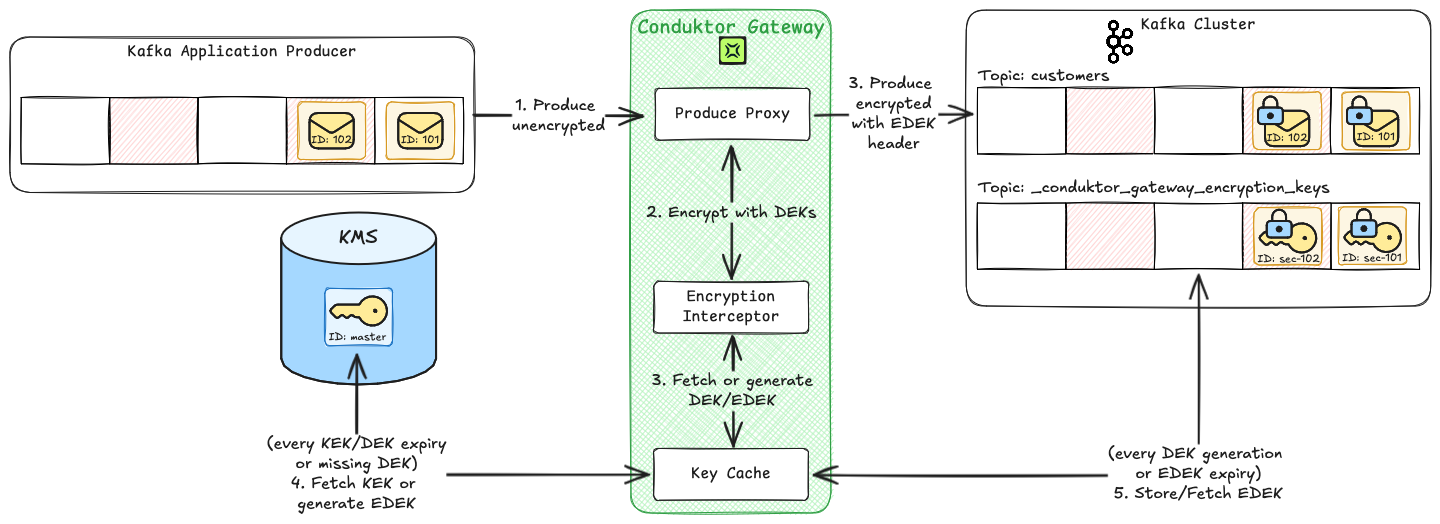
Gateway creates keys on demand, so now that we've produced two messages with different `secretIds` (`sec-101` and `sec-102`), we'd expect to see the associated **EDEKs** persisted in a keystore.
Because we are using the **Gateway KMS** we would also expect the two **EDEKs** to be persisted in a Kafka topic, so that we can later crypto shred them.
The Vault KMS should only contain the master key (`/transit/keys/master-key`) which was used to encrypt each **EDEK**.
The following diagram visualizes how the produce process works, including the caches which prevent either KMS being overwhelmed by high traffic.
Choose the Conduktor CLI or Console UI to produce and check the records for yourself:
```bash theme={null}
# 1. Produce a record with '101' to topic 'customers' (we'll crypto shred this later)
echo '{ "userId" : 101, "name" : "Joe Smith", "password" : "admin123", "visa" : 4111111145551142 }' | \
docker compose exec -T kafka-client \
kafka-console-producer --bootstrap-server conduktor-gateway:6969 \
--topic customers
# 2. Produce a record with '102' to topic 'customers' (we'll compare this to our crypto shredded record later)
echo '{ "userId" : 102, "name" : "Mary Brown", "password" : "abc123", "visa" : 4111111111111111 }' | \
docker compose exec -T kafka-client \
kafka-console-producer --bootstrap-server conduktor-gateway:6969 \
--topic customers
# 3. Consume all the records in the 'customers' topic (use command 'ctrl-c' to exit)
docker compose exec kafka-client kafka-console-consumer \
--bootstrap-server conduktor-gateway:6969 --topic customers --from-beginning
```
1. In the *customers* topic detail page open the **Produce** tab.
2. Copy the following text into the **Value** box:
`{ "userId" : 101, "name" : "Joe Smith", "password" : "admin123", "visa" : 4111111145551142 }`.
3. Click **Produce** at the bottom of the table. The record should appear on the right hand side. We'll crypto shred the sensitive data in this record later.
4. Repeat steps **2** and **3** with the following:
`{ "userId" : 102, "name" : "Mary Brown", "password" : "abc123", "visa" : 4111111111111111 }`. We'll compare this to our crypto shredded record.
5. Open the **Consume** tab.
You should see a final output for the customer data stored in Kafka similar to below.
Both `password` and `visa` are encrypted as configured, while other fields (e.g., `name`) remain unencrypted.
```
{"userId":101,"name":"Joe Smith","password":"AAAABQAAAAKNxgtetTtIBLsCuCd5LJ7kIuzPa+/h6sm+fwHPmDhhMEF3qViBjD4LgxVExq8ct4wZ+DMxJKC86bFgUQ==","visa":"AAAAAgAAAAKNxgtetTtIBLsCuCd5LJ7kK9me1JMK6wuH4r9e30JS43cSY/7QRxy8pxT0zTIUWzxeoc5XigVmIEJLstrf361SVmZq8PCy5qg7tLM92uO9o+TrTFJIa/dxZHj4pgRcUg12ZjKku+3BTXBXPjP77DCyCsW48rUxBDK67dp6RBc="}
{"userId":102,"name":"Mary Brown","password":"AAAABQAAAAJJLWtew1NLwZdoDS87B0qSV8/MdZ9sTWj2EVN1c3j+yXHX0FVx8fOEcA9A/flr7RwONuByQ9GeuZA=","visa":"AAAAAgAAAAJJLWtew1NLwZdoDS87B0qS/3NEgLjPO/32aD5LFN56FmpyRCZzfJ4HN8cgHxTCorNdBup5pnlbi8tFgKKWnqrUnRNTBq5haKXsbJm4/mcd3XFWSSJeIkXtuxb1Lb2SUOVQQiZDmbk3o3p9nVcPCRYR7sx04+++S3Sj6VqM7n8="}
```
### 4. Inspect the created keys
Gateway creates keys on demand, so now that we've produced two messages with different `secretIds` (`sec-101` and `sec-102`), we'd expect to see the associated **EDEKs** persisted in a keystore.
Because we are using the **Gateway KMS** we would also expect the two **EDEKs** to be persisted in a Kafka topic, so that we can later crypto shred them.
The Vault KMS should only contain the master key (`/transit/keys/master-key`) which was used to encrypt each **EDEK**.
The following diagram visualizes how the produce process works, including the caches which prevent either KMS being overwhelmed by high traffic.
 Pick the preferred option for inspecting the Vault tokens.
The following `curl` command should return `master-key`:
```bash theme={null}
curl \
--header "X-Vault-Token: vault-plaintext-root-token" \
--request LIST \
http://localhost:8200/v1/transit/keys/
```
The following command should return exactly two **EDEKs** from the `_conduktor_gateway_encryption_keys` topic that Gateway uses as its **Encryption Keys Store**.
```bash theme={null}
# (use command 'ctrl-c' to exit)
docker compose exec kafka-client kafka-console-consumer \
--bootstrap-server conduktor-gateway:6969 --topic _conduktor_gateway_encryption_keys \
--from-beginning --property print.key=true --property key.separator="|"
```
1. [Log into the Vault](http://localhost:8200) with:
* method: `Token` (should be pre-selected)
* password: `vault-plaintext-root-token`
2. Navigate to **Secrets engines** > **transit/**.
3. There should be one key: `master-key`.
In [Console](http://localhost:8080):
1. Click **Topics** in the left hand menu. No topics should be shown.
2. There should be just the one topic *customers* that we created earlier. The **Encryption Keys Store** topic is hidden by default.
3. Use the **Internal topics** selector above the topics table to select `Show`. More topics should now appear.
4. Type `encryption` into the search bar next to the `Internal topics` selector.
5. Click the *\_conduktor\_gateway\_encryption\_keys*. This is the default **Encryption Keys Store** topic.
You should see something like this:
| Key | Value |
| ---------------------------------------------------------------------------------------------------------- | -------------------------------------------------------------------------------------- |
| `{"algorithm":"AES128_GCM","keyId":"gateway-kms://sec-101","uuid":"8dc60b5e-b53b-4804-bb02-b827792c9ee4"}` | `{"edek":"vault:v1:5FWLvI/AcXn5ABTBPGONK5yqNVEdnxDfU6FWN8hvIb5aKy3lsXxgFF9LfLr6Og=="}` |
| `{"algorithm":"AES128_GCM","keyId":"gateway-kms://sec-102","uuid":"492d6b5e-c353-4bc1-9768-0d2f3b074a92"}` | `{"edek":"vault:v1:5RALxs8+0z4w9Xu9ZlEhdTzrti3Laj5JD+5oF06TafLAg+0qHLPjGog3T+jSTA=="}` |
There are two records (one for each `EDEK`) that match the two `keyIds`.
As the number of records with different `keyIds` grows, this can lead to **substantial cost savings** and **improved performance** compared to storing the same keys in the KMS.
The record **Key** is composed of:
* `algorithm`: hardcoded in the configuration and then used to generate the associated `DEK` in this record
* `keyId`: templated in the configuration and evaluated using data from the associated record (the `userId` field)
* `uuid`: uniquely generated per inserted record
The record **Value** is composed of:
* `edek`: the `DEK` generated by Gateway and encrypted using the Gateway `KMS`.
The `uuid` field is necessary because it's possible for two different Gateway nodes to process a record with the same `userId` for the first time at the same time.
In such a scenario two **Encryption Keys Store** records with the same `keyId` but a different `uuid` would be created (thus avoiding a race condition).
This means that it's possible (although relatively rare) for the same `keyId` to have multiple `EDEKs` (i.e., multiple `EDEKs` to be assigned to the same user).
Make a copy of the UUID returned for `"keyId":"gateway-kms://sec-101"` as we'll need it for crypto shredding the associated `EDEK` in [step 7: Crypto shredding](#7-crypto-shredding).
### 5. Configure Gateway decryption Interceptor
The decryption Interceptor configuration mirrors the encryption Interceptor configuration that we added earlier.
As before, pick the preferred method:
```yaml title="decryption-interceptor.yaml" theme={null}
apiVersion: gateway/v2
kind: Interceptor
metadata:
name: sensitive customer data decryption
spec:
pluginClass: io.conduktor.gateway.interceptor.DecryptPlugin
priority: 100
config:
topic: customers
kmsConfig:
vault:
uri: http://vault:8200
token: vault-plaintext-root-token
version: 1
gateway:
masterKeyId: vault-kms://vault:8200/transit/keys/master-key
```
To deploy this Interceptor configuration, paste the yaml into a file called `decryption-interceptor.yaml` in the same directory as your `docker-compose.yaml` and run the following command:
```bash theme={null}
docker compose exec -it conduktor-ctl conduktor apply -f /conduktor-ctl/decryption-interceptor.yaml
```
You should see the following output:
```
Interceptor/sensitive customer data decryption: Created
```
```json theme={null}
{
"name": "sensitive customer data decryption",
"pluginClass": "io.conduktor.gateway.interceptor.DecryptPlugin",
"priority": 100,
"config": {
"topic": "customers",
"kmsConfig": {
"vault": {
"uri": "http://vault:8200",
"token": "vault-plaintext-root-token",
"version": 1
},
"gateway": {
"masterKeyId": "vault-kms://vault:8200/transit/keys/master-key"
}
}
}
}
```
To apply this configuration:
1. In [Console](http://localhost:8080) click **Kafka Gateway** on the left.
2. Click **+ New Interceptor** on the right-hand side.
3. Type `Decrypt` into the search bar and select *Decrypt on consume any record fields encrypted by the gateway or the entire payload* (the only available Interceptor).
4. Paste the JSON above into the text box (replacing the existing JSON) and click `Deploy Interceptor` at the bottom of the screen.
You should now be back on the **Kafka Gateway** page with two Interceptors configured: *sensitive customer data encryption* and the newly created *sensitive customer data decryption*.
### 6. Consume and decrypt data
With a decryption Interceptor configured on consumption (from the same topic we've been encrypting data), it's now possible to decrypt and read the records.
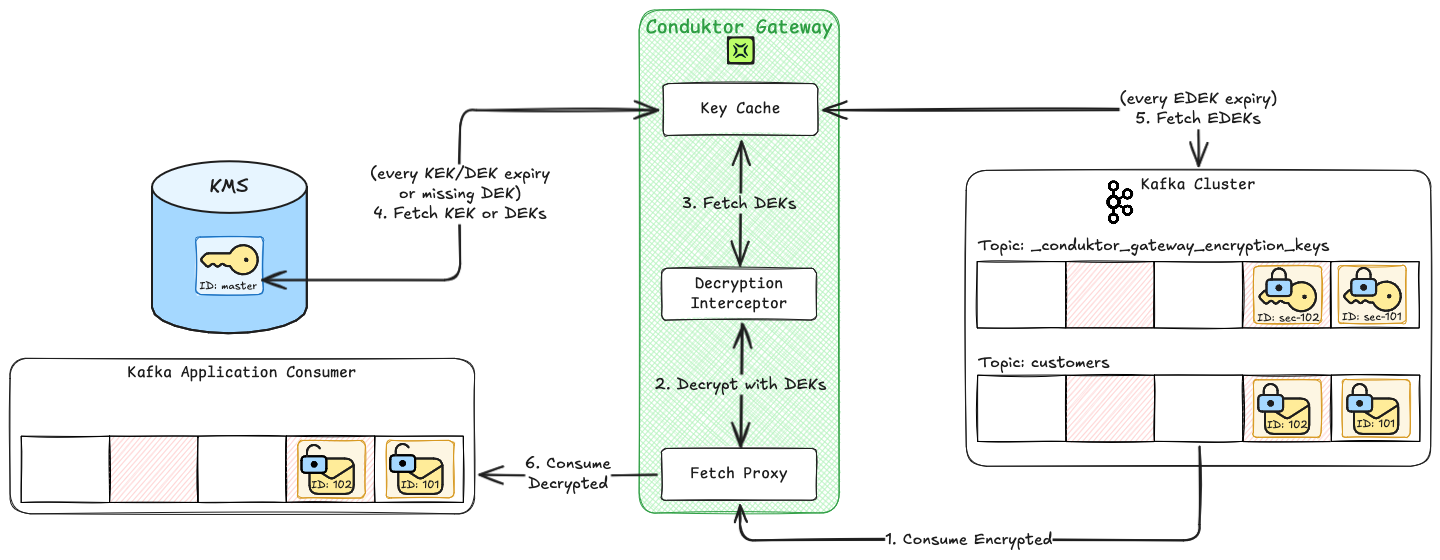
Here's a diagram visualizing how the consume process works for our use case, including the caches which prevent either KMS being overwhelmed by high traffic:
Pick the preferred option for inspecting the Vault tokens.
The following `curl` command should return `master-key`:
```bash theme={null}
curl \
--header "X-Vault-Token: vault-plaintext-root-token" \
--request LIST \
http://localhost:8200/v1/transit/keys/
```
The following command should return exactly two **EDEKs** from the `_conduktor_gateway_encryption_keys` topic that Gateway uses as its **Encryption Keys Store**.
```bash theme={null}
# (use command 'ctrl-c' to exit)
docker compose exec kafka-client kafka-console-consumer \
--bootstrap-server conduktor-gateway:6969 --topic _conduktor_gateway_encryption_keys \
--from-beginning --property print.key=true --property key.separator="|"
```
1. [Log into the Vault](http://localhost:8200) with:
* method: `Token` (should be pre-selected)
* password: `vault-plaintext-root-token`
2. Navigate to **Secrets engines** > **transit/**.
3. There should be one key: `master-key`.
In [Console](http://localhost:8080):
1. Click **Topics** in the left hand menu. No topics should be shown.
2. There should be just the one topic *customers* that we created earlier. The **Encryption Keys Store** topic is hidden by default.
3. Use the **Internal topics** selector above the topics table to select `Show`. More topics should now appear.
4. Type `encryption` into the search bar next to the `Internal topics` selector.
5. Click the *\_conduktor\_gateway\_encryption\_keys*. This is the default **Encryption Keys Store** topic.
You should see something like this:
| Key | Value |
| ---------------------------------------------------------------------------------------------------------- | -------------------------------------------------------------------------------------- |
| `{"algorithm":"AES128_GCM","keyId":"gateway-kms://sec-101","uuid":"8dc60b5e-b53b-4804-bb02-b827792c9ee4"}` | `{"edek":"vault:v1:5FWLvI/AcXn5ABTBPGONK5yqNVEdnxDfU6FWN8hvIb5aKy3lsXxgFF9LfLr6Og=="}` |
| `{"algorithm":"AES128_GCM","keyId":"gateway-kms://sec-102","uuid":"492d6b5e-c353-4bc1-9768-0d2f3b074a92"}` | `{"edek":"vault:v1:5RALxs8+0z4w9Xu9ZlEhdTzrti3Laj5JD+5oF06TafLAg+0qHLPjGog3T+jSTA=="}` |
There are two records (one for each `EDEK`) that match the two `keyIds`.
As the number of records with different `keyIds` grows, this can lead to **substantial cost savings** and **improved performance** compared to storing the same keys in the KMS.
The record **Key** is composed of:
* `algorithm`: hardcoded in the configuration and then used to generate the associated `DEK` in this record
* `keyId`: templated in the configuration and evaluated using data from the associated record (the `userId` field)
* `uuid`: uniquely generated per inserted record
The record **Value** is composed of:
* `edek`: the `DEK` generated by Gateway and encrypted using the Gateway `KMS`.
The `uuid` field is necessary because it's possible for two different Gateway nodes to process a record with the same `userId` for the first time at the same time.
In such a scenario two **Encryption Keys Store** records with the same `keyId` but a different `uuid` would be created (thus avoiding a race condition).
This means that it's possible (although relatively rare) for the same `keyId` to have multiple `EDEKs` (i.e., multiple `EDEKs` to be assigned to the same user).
Make a copy of the UUID returned for `"keyId":"gateway-kms://sec-101"` as we'll need it for crypto shredding the associated `EDEK` in [step 7: Crypto shredding](#7-crypto-shredding).
### 5. Configure Gateway decryption Interceptor
The decryption Interceptor configuration mirrors the encryption Interceptor configuration that we added earlier.
As before, pick the preferred method:
```yaml title="decryption-interceptor.yaml" theme={null}
apiVersion: gateway/v2
kind: Interceptor
metadata:
name: sensitive customer data decryption
spec:
pluginClass: io.conduktor.gateway.interceptor.DecryptPlugin
priority: 100
config:
topic: customers
kmsConfig:
vault:
uri: http://vault:8200
token: vault-plaintext-root-token
version: 1
gateway:
masterKeyId: vault-kms://vault:8200/transit/keys/master-key
```
To deploy this Interceptor configuration, paste the yaml into a file called `decryption-interceptor.yaml` in the same directory as your `docker-compose.yaml` and run the following command:
```bash theme={null}
docker compose exec -it conduktor-ctl conduktor apply -f /conduktor-ctl/decryption-interceptor.yaml
```
You should see the following output:
```
Interceptor/sensitive customer data decryption: Created
```
```json theme={null}
{
"name": "sensitive customer data decryption",
"pluginClass": "io.conduktor.gateway.interceptor.DecryptPlugin",
"priority": 100,
"config": {
"topic": "customers",
"kmsConfig": {
"vault": {
"uri": "http://vault:8200",
"token": "vault-plaintext-root-token",
"version": 1
},
"gateway": {
"masterKeyId": "vault-kms://vault:8200/transit/keys/master-key"
}
}
}
}
```
To apply this configuration:
1. In [Console](http://localhost:8080) click **Kafka Gateway** on the left.
2. Click **+ New Interceptor** on the right-hand side.
3. Type `Decrypt` into the search bar and select *Decrypt on consume any record fields encrypted by the gateway or the entire payload* (the only available Interceptor).
4. Paste the JSON above into the text box (replacing the existing JSON) and click `Deploy Interceptor` at the bottom of the screen.
You should now be back on the **Kafka Gateway** page with two Interceptors configured: *sensitive customer data encryption* and the newly created *sensitive customer data decryption*.
### 6. Consume and decrypt data
With a decryption Interceptor configured on consumption (from the same topic we've been encrypting data), it's now possible to decrypt and read the records.
Here's a diagram visualizing how the consume process works for our use case, including the caches which prevent either KMS being overwhelmed by high traffic:
 Pick the method for decrypting and consuming the records:
```bash theme={null}
# (use command 'ctrl-c' to exit)
docker compose exec kafka-client kafka-console-consumer \
--bootstrap-server conduktor-gateway:6969 --topic customers \
--from-beginning
```
1. In [Console](http://localhost:8080), go to **Topics**. All of the topics including the Gateway internal configuration ones should be available.
2. Type *customers* into the search bar next to the **Internal topics** selector and click on it when it appears.
You should see the following records exactly as they were originally sent:
```
{"userId":101,"name":"Joe Smith","password":"admin123","visa":4111111145551142}
{"userId":102,"name":"Mary Brown","password":"abc123","visa":4111111111111111}
```
Although we now produce and consume un-encrypted data, the `password` and `visa` fields are still encrypted at rest (on disk in the Kafka broker).
If you delete the decryption Interceptor, all of the fields would go back to being encrypted when consumed.
### 7. Crypto shredding
Records encrypted with Gateway KMS can have their `EDEKs` crypto shredded by tombstoning the associated record in the *Encryption Keys Store* topic.
The same `keyId` can have multiple record entries, so it's important to tombstone every record sharing the same `keyId` (each will have a unique `uuid`).
We currently don't offer an automated solution for this process; you have to read the entire topic manually and find every record with the `keyId` which needs tombstoning.
For this tutorial, we only published two records and both had a different `keyId`, so we can be confident that only one record needs tombstoning.
```bash theme={null}
# 1. Produce a record that tombstones the EDEK associated with
# 'keyId': 'gateway-kms://sec-101'
echo '{"algorithm":"AES128_GCM","keyId":"gateway-kms://sec-101","uuid":""}|NULL' | \
docker compose exec -T kafka-client \
kafka-console-producer --bootstrap-server conduktor-gateway:6969 \
--topic _conduktor_gateway_encryption_keys \
--property "parse.key=true" \
--property "key.separator=|" \
--property "null.marker=NULL"
# 2. Consume all the records in the 'Encryption Keys Store' topic
# (use command 'ctrl-c' to exit)
docker compose exec kafka-client kafka-console-consumer \
--bootstrap-server conduktor-gateway:6969 --topic _conduktor_gateway_encryption_keys \
--from-beginning --property print.key=true --property key.separator="|"
```
1. In [Console](http://localhost:8080), go to *Topics*\*. You should see all the topics, including Gateway's internal configuration ones.
2. Type *encryption* into the search bar next to the **Internal topics** selector.
3. Click on the *\_conduktor\_gateway\_encryption\_keys* topic.
4. Find the record that includes `"keyId":"gateway-kms://sec-101"` and open it.
5. Click **Reprocess message**.
6. As the **Target topic** select *\_conduktor\_gateway\_encryption\_keys*.
7. Click **Edit and publish**. You should be redirected to a produce window with all of the message already filled out in the table.
8. The **Value** table entry contains the existing `EDEK`. Select *Null* from the drop-down text above it, so that the `EDEK` filled text box is removed from the screen.
9. Click **Produce**. The produced message with a now `null` value will be shown on the right-hand side.
Records in the *Encryption Keys Store* topic should now show the latest record value for the `EDEK` that we've crypto shredded as `null` (or empty, if consuming via the CLI).
Gateway is now unable to decrypt data associated with it.
To verify this, repeat [step 4: Inspect the created keys](#4-inspect-the-created-keys).
You should see something like the following (if using the UI, the order will be in reverse):
| Key | Value |
| ---------------------------------------------------------------------------------------------------------- | -------------------------------------------------------------------------------------- |
| `{"algorithm":"AES128_GCM","keyId":"gateway-kms://sec-101","uuid":"9871c88e-d5dd-4cb2-86e0-4d65ef0a8361"}` | `{"edek":"vault:v1:rTbfUBpiPM23WAGu2njeeeqty60BzIPedhl6CL3jaViGDP9Nf0EfRe9+0pbD4A=="}` |
| `{"algorithm":"AES128_GCM","keyId":"gateway-kms://sec-102","uuid":"381e3464-8876-4bcc-9b75-ff49d19a918f"}` | `{"edek":"vault:v1:c8h+LWonSpPi0Q8Zd8KjHE9GTcxXzvUwAEULDVPQdxDKkSLtiN9teE8lhDeHNw=="}` |
| `{"algorithm":"AES128_GCM","keyId":"gateway-kms://sec-101","uuid":"9871c88e-d5dd-4cb2-86e0-4d65ef0a8361"}` | `null` |
The latest record value for `"keyId":"gateway-kms://sec-101"` (or first entry if using the UI) should be `null`. This indicates that it's been successfully crypto shredded.
There are two entries for `"keyId":"gateway-kms://sec-101"` because Kafka compaction isn't instantaneous.
Gateway guarantees to use the latest record and to prevent decryption if the associated `EDEK` has been shredded.
However, the earlier record still exists on disk and its `EDEK` is available to anyone who consumes the Kafka topic directly.
This means that it is technically possible for someone with access to the topic and the `KEK` to recover crypto shredded data. The key should eventually be deleted because the topic is configured for compaction, but there's no guarantee of when that will occur.
Reducing the time until *encrypted* encryption keys are deleted from disk is possible but beyond the scope of this tutorial.
### 8. Verify crypto shredded record no longer decrypts
Once an **EDEK** has been crypto shredded, Gateway will pass any associated records directly to consumers without attempting to decrypt them.
The following diagram visualizes how the consume process works for our use case.
Pick the method for decrypting and consuming the records:
```bash theme={null}
# (use command 'ctrl-c' to exit)
docker compose exec kafka-client kafka-console-consumer \
--bootstrap-server conduktor-gateway:6969 --topic customers \
--from-beginning
```
1. In [Console](http://localhost:8080), go to **Topics**. All of the topics including the Gateway internal configuration ones should be available.
2. Type *customers* into the search bar next to the **Internal topics** selector and click on it when it appears.
You should see the following records exactly as they were originally sent:
```
{"userId":101,"name":"Joe Smith","password":"admin123","visa":4111111145551142}
{"userId":102,"name":"Mary Brown","password":"abc123","visa":4111111111111111}
```
Although we now produce and consume un-encrypted data, the `password` and `visa` fields are still encrypted at rest (on disk in the Kafka broker).
If you delete the decryption Interceptor, all of the fields would go back to being encrypted when consumed.
### 7. Crypto shredding
Records encrypted with Gateway KMS can have their `EDEKs` crypto shredded by tombstoning the associated record in the *Encryption Keys Store* topic.
The same `keyId` can have multiple record entries, so it's important to tombstone every record sharing the same `keyId` (each will have a unique `uuid`).
We currently don't offer an automated solution for this process; you have to read the entire topic manually and find every record with the `keyId` which needs tombstoning.
For this tutorial, we only published two records and both had a different `keyId`, so we can be confident that only one record needs tombstoning.
```bash theme={null}
# 1. Produce a record that tombstones the EDEK associated with
# 'keyId': 'gateway-kms://sec-101'
echo '{"algorithm":"AES128_GCM","keyId":"gateway-kms://sec-101","uuid":""}|NULL' | \
docker compose exec -T kafka-client \
kafka-console-producer --bootstrap-server conduktor-gateway:6969 \
--topic _conduktor_gateway_encryption_keys \
--property "parse.key=true" \
--property "key.separator=|" \
--property "null.marker=NULL"
# 2. Consume all the records in the 'Encryption Keys Store' topic
# (use command 'ctrl-c' to exit)
docker compose exec kafka-client kafka-console-consumer \
--bootstrap-server conduktor-gateway:6969 --topic _conduktor_gateway_encryption_keys \
--from-beginning --property print.key=true --property key.separator="|"
```
1. In [Console](http://localhost:8080), go to *Topics*\*. You should see all the topics, including Gateway's internal configuration ones.
2. Type *encryption* into the search bar next to the **Internal topics** selector.
3. Click on the *\_conduktor\_gateway\_encryption\_keys* topic.
4. Find the record that includes `"keyId":"gateway-kms://sec-101"` and open it.
5. Click **Reprocess message**.
6. As the **Target topic** select *\_conduktor\_gateway\_encryption\_keys*.
7. Click **Edit and publish**. You should be redirected to a produce window with all of the message already filled out in the table.
8. The **Value** table entry contains the existing `EDEK`. Select *Null* from the drop-down text above it, so that the `EDEK` filled text box is removed from the screen.
9. Click **Produce**. The produced message with a now `null` value will be shown on the right-hand side.
Records in the *Encryption Keys Store* topic should now show the latest record value for the `EDEK` that we've crypto shredded as `null` (or empty, if consuming via the CLI).
Gateway is now unable to decrypt data associated with it.
To verify this, repeat [step 4: Inspect the created keys](#4-inspect-the-created-keys).
You should see something like the following (if using the UI, the order will be in reverse):
| Key | Value |
| ---------------------------------------------------------------------------------------------------------- | -------------------------------------------------------------------------------------- |
| `{"algorithm":"AES128_GCM","keyId":"gateway-kms://sec-101","uuid":"9871c88e-d5dd-4cb2-86e0-4d65ef0a8361"}` | `{"edek":"vault:v1:rTbfUBpiPM23WAGu2njeeeqty60BzIPedhl6CL3jaViGDP9Nf0EfRe9+0pbD4A=="}` |
| `{"algorithm":"AES128_GCM","keyId":"gateway-kms://sec-102","uuid":"381e3464-8876-4bcc-9b75-ff49d19a918f"}` | `{"edek":"vault:v1:c8h+LWonSpPi0Q8Zd8KjHE9GTcxXzvUwAEULDVPQdxDKkSLtiN9teE8lhDeHNw=="}` |
| `{"algorithm":"AES128_GCM","keyId":"gateway-kms://sec-101","uuid":"9871c88e-d5dd-4cb2-86e0-4d65ef0a8361"}` | `null` |
The latest record value for `"keyId":"gateway-kms://sec-101"` (or first entry if using the UI) should be `null`. This indicates that it's been successfully crypto shredded.
There are two entries for `"keyId":"gateway-kms://sec-101"` because Kafka compaction isn't instantaneous.
Gateway guarantees to use the latest record and to prevent decryption if the associated `EDEK` has been shredded.
However, the earlier record still exists on disk and its `EDEK` is available to anyone who consumes the Kafka topic directly.
This means that it is technically possible for someone with access to the topic and the `KEK` to recover crypto shredded data. The key should eventually be deleted because the topic is configured for compaction, but there's no guarantee of when that will occur.
Reducing the time until *encrypted* encryption keys are deleted from disk is possible but beyond the scope of this tutorial.
### 8. Verify crypto shredded record no longer decrypts
Once an **EDEK** has been crypto shredded, Gateway will pass any associated records directly to consumers without attempting to decrypt them.
The following diagram visualizes how the consume process works for our use case.
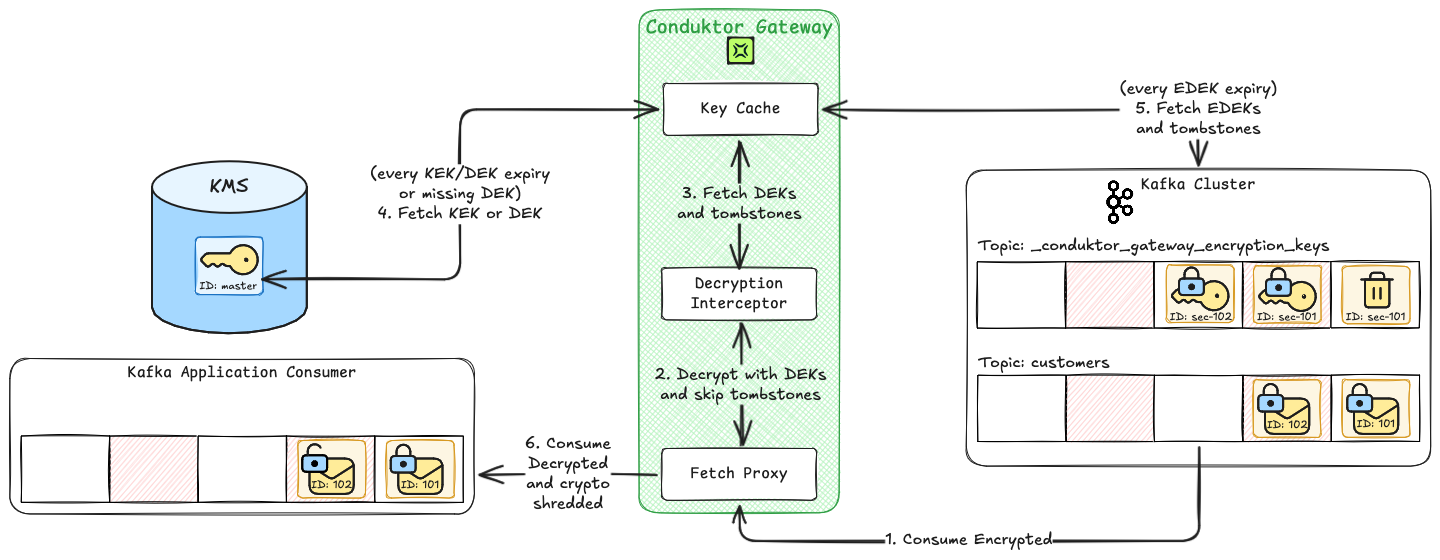 * The record `userId`: `101` is associated with the crypto shredded `keyId`: `sec-102` and is no longer decryptable.
* The record `userId`: `102` is associated with `keyId`: `sec-101` and is decryptable.
To verify this, repeat [step 6: Consume and decrypt data](#6-consume-and-decrypt-data).
```
{"userId":101,"name":"Joe Smith","password":"AAAABQAAAAKYcciO1d1MsobgTWXvCoNh51wLjVYSfeSdM8YncPhs5gSQhNYagQO6j74HXLw0nq9cyorBJ21qBollyQ==","visa":"AAAAAgAAAAKYcciO1d1MsobgTWXvCoNhJUWekrCBA77tBU2WfYu+z6eSeRwIuS5UluZs8m/PjSoAEsyL+2Xslt0j6XmvnzfMcFMzeZlk/U+2FNSnTEjB/CjXGXiSr5kA4Idr1dFx6kqJ4wtd0jk8e7kl8z1aAMXTKLyU5Xk6bk4inv7lpMs="}
{"userId":102,"name":"Mary Brown","password":"abc123","visa":4111111111111111}
```
Gateway crypto shredding only applies to historical records.
If a new record was produced for `userId`: `101` at this point, then a new `EDEK` would be created (with a new `UUID` that doesn't conflict) and the new record would be decryptable.
Historical records will remain crypto shredded.
* The record `userId`: `101` is associated with the crypto shredded `keyId`: `sec-102` and is no longer decryptable.
* The record `userId`: `102` is associated with `keyId`: `sec-101` and is decryptable.
To verify this, repeat [step 6: Consume and decrypt data](#6-consume-and-decrypt-data).
```
{"userId":101,"name":"Joe Smith","password":"AAAABQAAAAKYcciO1d1MsobgTWXvCoNh51wLjVYSfeSdM8YncPhs5gSQhNYagQO6j74HXLw0nq9cyorBJ21qBollyQ==","visa":"AAAAAgAAAAKYcciO1d1MsobgTWXvCoNhJUWekrCBA77tBU2WfYu+z6eSeRwIuS5UluZs8m/PjSoAEsyL+2Xslt0j6XmvnzfMcFMzeZlk/U+2FNSnTEjB/CjXGXiSr5kA4Idr1dFx6kqJ4wtd0jk8e7kl8z1aAMXTKLyU5Xk6bk4inv7lpMs="}
{"userId":102,"name":"Mary Brown","password":"abc123","visa":4111111111111111}
```
Gateway crypto shredding only applies to historical records.
If a new record was produced for `userId`: `101` at this point, then a new `EDEK` would be created (with a new `UUID` that doesn't conflict) and the new record would be decryptable.
Historical records will remain crypto shredded.