> ## Documentation Index
> Fetch the complete documentation index at: https://docs.conduktor.io/llms.txt
> Use this file to discover all available pages before exploring further.

# Share Kafka data externally

> Share Kafka data securely with external partners using Conduktor Partner Zones. Control topic access, apply data masking, and isolate partner traffic.

<Badge stroke color="blue" icon="sparkle" size="lg">Enterprise</Badge>

Third-party data sharing can be done securely and selectively using Conduktor.

## Partner Zones

<Tooltip tip="A specific mechanism to share Kafka topics with external partners selectively and securely.">Partner Zones</Tooltip> allow you to share Kafka topics with external partners selectively and securely. You can:

* set up **dedicated zones** with **customized access** to Kafka topics
* create a **single source of truth** because data isn't duplicated
* **reduce operational costs**, since you don't have to keep data streams synchronized

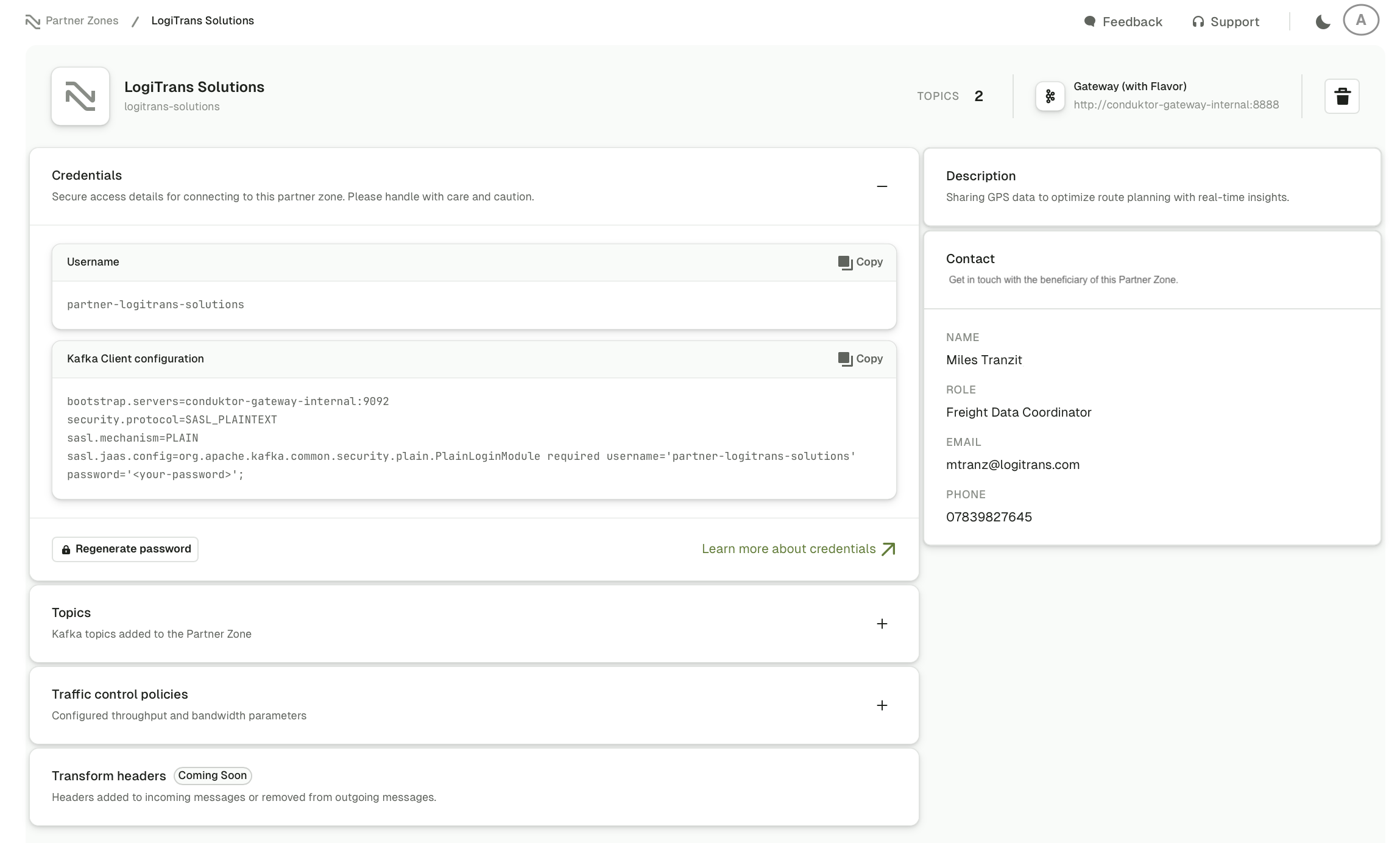
<img src="https://mintcdn.com/conduktor/23R4f9CHmZAh-xV6/images/pz-detail-view.png?fit=max&auto=format&n=23R4f9CHmZAh-xV6&q=85&s=2f0f7751ed73ecf51402aac2311e0eef" alt="Partner Zones overview" width="2298" height="1384" data-path="images/pz-detail-view.png" />

<Note>
  [Find out more about Partner Zones](/guide/conduktor-concepts/partner-zones) | [View resource reference](/guide/reference/console-reference#partner-zones)
</Note>

<Info>
  **From our blog:** [Kafka data sharing](https://conduktor.io/blog/kafka-data-sharing) The architectures, tradeoffs, and governance models for sharing Kafka data across organizational boundaries.
</Info>

## Prerequisites

Before creating a Partner Zone, you have to:

* use **Conduktor <Tooltip tip="A user interface for managing and monitoring Kafka infrastructure, supporting Kubernetes deployment.">Console</Tooltip> 1.37.0** or later
* use **Conduktor <Tooltip tip="A Kafka proxy that deploys extensible plugins for encryption, filtering, and data processing.">Gateway</Tooltip> 3.12.0** or later with the following configurations:
  * At least one listener configured with `GATEWAY_LISTENER_<NAME>_SECURITY_PROTOCOL` set to `SSL`, `SASL_SSL`, or `SASL_PLAINTEXT`
  * `GATEWAY_SECURITY_MODE` set to `GATEWAY_MANAGED`
  * `GATEWAY_FEATURE_FLAGS_MANDATORY_VCLUSTER` set to `true`. [Find out more about this environment variable](/guide/conduktor-in-production/deploy-artifacts/deploy-gateway/environment-variables#security-and-authentication) and what [service account](/guide/conduktor-concepts/gateway-service-accounts) has to be setup.
* use a <Tooltip tip="A service account is a non-human identity used by Kafka clients to authenticate and perform actions on resources.">service account</Tooltip> to connect to Gateway, that can access the topics you want to share
* be logged in as an admin to Console UI, or using an admin token for the CLI
* in Console, [configure your Gateway cluster](/guide/conduktor-in-production/admin/configure-clusters) and fill in the **Provider** tab with Gateway API credentials

<Warning>
  Partner Zones currently have the following limitations:

  * Local service accounts cannot be revoked, they only expire on their time-to-live. If you need **to revoke access** to your partner after issuing a local service account credential, you will have to delete the Partner Zone.
</Warning>

## Create a Partner Zone

You can create a Partner Zone from the **Console UI**, or the **Conduktor CLI**.

<Tabs>
  <Tab title="Console UI">
    Use the Console UI to create a Partner Zone in just a few steps.

    1. In Conduktor Console, go to **Settings** > **Partner Zones** and click **+New zone**.
    2. Define the Partner Zone details:
       * Add a descriptive **name** for the zone.
       * The **Technical ID** will be auto-populated as you type in the name. This is used to identify this zone in CLI/API. You may choose your own ID if you prefer.
       * **Service account** will also be auto-generated based on the name but you can edit this as required. [Service accounts](/guide/manage-kafka/kafka-resources/service-accounts-acls) are used to define permissions on Kafka resources, these permissions are mapped to ACL (Access Control List) entries.
       * (Optional) Enter a relevant **URL** for your partner.
       * (Optional) Enter a **Description** to explain your reasons/requirements for sharing data.
       * (Optional) Specify contact details of the beneficiary/recipient of this Partner Zone.
       * **Select Gateway** to choose the one you want to use, then select an available cluster under the Gateway and click **Continue**.
         * [Find out how to set up Gateway for multiple clusters](/guide/conduktor-in-production/deploy-artifacts/deploy-gateway/multi-clusters).
         * Only clusters that have also been configured in Console will be available to select. See the [Partner Zone multi-cluster tutorial](/guide/tutorials/partner-zone-multi-cluster#2-configure-the-underlying-kafka-clusters-in-console) on how to configure the underlying clusters in Console.
    3. Choose what and how to share:
       * **Select the Kafka topics** to include in this Partner Zone, you can filter topics by custom labels you've defined or search for a topic by name.
       * **Select Read/Write**. By default, any topics that are shared, will be shared with **Read**-only access, but you can additionally allow **Write** access.
       * (Optional) **Rename topics** to how you want the consumer to read them by hovering over the name of any topic being shared, and selecting the **pencil** button.
       * **Continue** when done.
    4. Select the preferred authentication mechanism to connect to the Partner Zone. Enter the service account name required to connect to the Partner Zone.
       * For credentials managed by **OAuth**, the service account name has to match the "sub" claim in the token.
    5. (Optional) Protect your cluster by limiting clients with <Tooltip tip="Validation rules that impose limits on configuration changes for topics, brokers and clients.">Traffic Control Policies</Tooltip>. Limit their rate of producing, consuming or committing offsets.
    6. Review the details and if you're happy with the data you're about to share, click **Create**.

    It will *take a few moments* for the zone to be created.

    Once completed, the **Credentials** will be displayed. Copy/download and share these as required.

    To view and manage all the zones you have access to, go to **Settings** > **Partner Zones**. You'll see the total number of zones and topics shared, as well as a list of zones, each showing:

    * name and URL
    * the number of topics shared
    * Gateway details
    * the status:
      * **PENDING**: means the configuration isn't deployed or refreshed yet. It may need to wait for the next reconciliation, which is configurable via the environment variables
      * **READY**: shows that the configuration is up-to-date on Gateway
      * **FAILED**: indicates that something unexpected happened during the creation. Check that the connected Gateway is active
    * the date the zone was last updated

    Click on a Partner Zone to view its details.
  </Tab>

  <Tab title="Conduktor CLI">
    You can also use the [Conduktor CLI (Command Line Interface)](/guide/conduktor-in-production/automate/cli-automation) to create Partner Zones.

    1. Save this example to file, e.g. `pz.yaml`:

       ```yaml theme={null}
       apiVersion: v2
       kind: PartnerZone
       metadata:
           name: external-partner-zone
       spec:
           cluster: gateway-1
           underlyingCluster: kafka-cluster-1
           vclusterName: custom-partner-vcluster
           displayName: External Partner Zone
           url: https://partner1.com
           authenticationMode:
               serviceAccount: external-partner-service-account
               type: PLAIN
           topics:
           - name: topic-a
             backingTopic: kafka-topic-a
             permission: WRITE
           - name: topic-b
             backingTopic: kafka-topic-a
             permission: READ
           partner:
             name: John Doe
             role: Data analyst
             email: johndoe@company.io
             phone: 07827 837 177
       ```

    ### Authentication modes

    Partner Zones support different authentication mechanisms:

    #### PLAIN authentication (Default)

    Traditional username/password authentication using service accounts:

    ```yaml theme={null}
    authenticationMode:
        serviceAccount: my-partner-service-account
        type: PLAIN
    ```

    #### OAUTHBEARER authentication

    OAuth/OIDC authentication for partners with existing identity providers:

    ```yaml theme={null}
    authenticationMode:
        serviceAccount: oauth-partner-service-account  
        type: OAUTHBEARER
    ```

    For OAuth authentication, the service account name must match the "sub" claim in the partner's OAuth token.

    #### mTLS authentication

    Mutual TLS authentication for certificate-based security:

    ```yaml theme={null}
    authenticationMode:
        serviceAccount: mtls-partner-service-account
        type: MTLS
    ```

    <Note>
      mTLS authentication requires proper certificate setup on both the partner's client and your Kafka cluster. Partners will need to configure their clients with the appropriate certificates and key stores.
      Unless you modified `GATEWAY_SSL_PRINCIPAL_MAPPING_RULES`, you need to use the client DN as the Partner Zone `serviceAccount`.
    </Note>

    * The `cluster` field corresponds to the technical ID of the cluster connection from Console to Gateway.
    * Use `underlyingCluster` to target a specific cluster connection, already defined in a [multi-cluster configuration](/guide/conduktor-in-production/deploy-artifacts/deploy-gateway/multi-clusters) Gateway. The upstream cluster also needs to be configured in the Console and the technical ID from that configuration will populate this field.
    * Use `vclusterName` to specify a name for the Virtual Cluster created for this Partner Zone. A custom name can help when migrating from existing Virtual Clusters and with maintaining required naming conventions.

    <Info>
      Both `underlyingCluster` and `vclusterName` are optional. When not set, the main physical cluster on Gateway is used and a Virtual Cluster name will be auto-generated.
    </Info>

    1. Use [Conduktor CLI](/guide/conduktor-in-production/automate/cli-automation) to apply the configuration:

       ```bash theme={null}
       conduktor apply -f pz.yaml
       ```

    2. Check the status of the Partner Zone:

       ```bash theme={null}
       ❯ conduktor get PartnerZone
       ---
       apiVersion: v2
       kind: PartnerZone
       metadata:
           name: external-partner-zone
           id: 332b30cd-7bda-4659-b1c1-39986986f0bd
           updatedAt: "2025-01-27T12:55:05.387368Z"
           status: PENDING
       spec:
           cluster: gateway-1
           underlyingCluster: kafka-cluster-1
           vclusterName: custom-partner-vcluster
           displayName: External Partner Zone
           url: https://partner1.com
           serviceAccount: external-partner-service-account
           topics:
               - name: topic-a
                 backingTopic: kafka-topic-a
                 permission: WRITE
               - name: topic-b
                 backingTopic: kafka-topic-a
                 permission: READ
           partner:
               name: John Doe
               role: Data analyst
               email: johndoe@company.io
               phone: 07827 837 177
       ```

       The `metadata status` can have one of these values:

       * **PENDING**: means the configuration isn't deployed or refreshed yet. It may need to wait for the next reconciliation, which is configurable via the environment variables
       * **READY**: the configuration is up to date on Gateway
       * **FAILED**: something unexpected happened during the creation
       * **TO\_DELETE**: the Partner Zone is being deleted asynchronously

    3. To securely connect to a Partner Zone through Kafka client, we've created a local service account `spec.serviceAccount`. For additional security, you have to also generate a password for it:

       ```bash theme={null}
       curl --request POST \
           --url 'http://localhost:8080/public/partner-zone/v2/$PARTNER_ZONE_NAME/generate-credentials' \
           --header "Authorization: Bearer $CDK_API_KEY"
       ```

    4. Once generated, retrieve the password and create a `config.properties` file:

       ```bash theme={null}
       security.protocol=SASL_PLAINTEXT
       sasl.mechanism=PLAIN
       sasl.jaas.config=org.apache.kafka.common.security.plain.PlainLoginModule required username=external-partner-service-account password=${SERVICE_ACCOUNT_PASSWORD};
       ```

    5. Finally, use CLI to list the topics of the Partner Zone:

       ```bash theme={null}
       ❯ kafka-topics --bootstrap-server gateway:9094 --list --command-config config.properties
       topic-a
       topic-b
       ```
  </Tab>
</Tabs>

## Edit a Partner Zone

<Tabs>
  <Tab title="Console UI">
    To edit a Partner Zone you can either:

    * go to the Partner Zone page list view, and click the **three dots** on the right-hand side then select **Edit**
    * or go to a specific Partner Zone's details view, click the **Edit** button in the top right corner.

    This will open the Partner Zone details window in edit mode, allowing you to:

    * update Partner Zone details (name, URL, description and contact details)
    * manage topics - add new ones or change topic aliases
    * change traffic control policies or transformations

    ### Change zone details

    * Name (hover over the name and click the **pencil** button)
    * URL
    * Description
    * Contact details

    ### Manage topics

    * Add new topics (follow the steps from [creating a Partner Zone](#create-a-partner-zone))
    * Change shared topic alias

    <Warning>
      If you change a topic alias **after it's been shared** with a partner, they won't be able to find the topic anymore and get an error. Only change shared topic names if you're sure that your partners are not using this topic.
    </Warning>

    * Remove existing topics from the Partner Zone (click the **trash can** button next to the relevant topic under the **Topics** section). Click **Continue** when done.

    <Info>
      At least one topic has to exist in a Partner Zone, so you won't be able to delete the last topic via the UI. If you have to, [delete that Partner Zone](#delete-a-partner-zone).
    </Info>

    ### Update traffic control policies

    Expand the **Traffic control policies** section by clicking on it. You can toggle the switch next to the policy you want to enable/disable and update the value. Click **Save** in the top right corner when done.
  </Tab>

  <Tab title="Conduktor CLI">
    1. Open the previously  created YAML file (e.g. `pz.yaml`) and make the required changes.

    2. Use [Conduktor CLI](/guide/conduktor-in-production/automate/cli-automation) to apply the changes:

       ```bash theme={null}
       conduktor apply -f pz.yaml
       ```
  </Tab>
</Tabs>

## Delete a Partner Zone

<Tabs>
  <Tab title="Console UI">
    To delete a Partner Zone you can either:

    * go to the Partner Zone page list view, and click the **three dots** on the right-hand side then click the **trash can** button
    * or go to a specific Partner Zone's details view, click the **trash can** button in the top right corner.

    Deleting a Partner Zone cannot be undone and will remove a partner's access.

    A confirmation window will pop up. Enter `DELETE` to confirm the deletion. *This cannot be undone.*
  </Tab>

  <Tab title="Conduktor CLI">
    Deleting a Partner Zone will remove a partner's access to it. *This can't be undone.*

    ```bash theme={null}
       conduktor delete PartnerZone {name}
    ```
  </Tab>
</Tabs>

## Download CA certificates

If CA certificates have been configured against the underlying SSL Gateway cluster, you can download them per Partner Zone via Console UI.

To be available for download, certificates have to be on the properties of the Gateway cluster [configured in Console](/guide/conduktor-in-production/deploy-artifacts/deploy-console#configure-custom-truststore-via-conduktor-console), either via the truststore location (`ssl.truststore.location`) or directly stored as a PEM (`ssl.truststore.certificates`). You can do this in the cluster configuration page, via the API or CLI.

If valid certificates are available, click **Download certificates** to download them in PEM format. You can find this option on the Partner Zone create form (at the bottom of the final creation step) or the Partner Zone details page, at the bottom of the credentials section.

If there's a configuration issue with the certificates, a warning message will be shown. Click **Manage** to configure the certificate.

## Troubleshoot

<AccordionGroup>
  <Accordion title="What does the Partner Zone status mean?">
    <p>
      The status of a Partner Zone may be one of the following:

      * **PENDING**: the configuration isn't deployed or refreshed yet
      * **READY**: the configuration is up-to-date on Gateway
      * **FAILED**: something unexpected happened during the deployment. Check that the connected Gateway is active
      * **TO\_DELETE**: the Partner Zone is being deleted asynchronously
    </p>
  </Accordion>

  <Accordion title="My Partner Zone creation failed, how do I find out what the issue is?">
    <p>To check the status, [use the API](https://developers.conduktor.io/?product=console\&version=1.31.2#tag/cli_partner-zone_console_v2_16/operation/get-partner-zone-by-name) <Icon icon="up-right-from-square" /> to GET the state of the Partner Zone, or check the Gateway and Console logs.</p>
  </Accordion>

  <Accordion title="Does Generate password invalidate the previously issued credentials of a service account?">
    <p>No, you can't invalidate issued credentials - they instead have a set time to live.
    If you're concerned about any issued credentials, **delete and re-create the Partner Zone**, then re-issue fresh credentials.
    We recommend deploying Partner Zones using the IaC (Infrastructure as Code) approach. [Find out more about this resource](/guide/reference/console-reference/#partner-zones).</p>
  </Accordion>
</AccordionGroup>

## Audit log events

| **Event type**                    | **Description**                                  |
| --------------------------------- | ------------------------------------------------ |
| **Admin.PartnerZone.Create**      | A Partner Zone is created.                       |
| **Admin.PartnerZone.Update**      | A Partner Zone is updated.                       |
| **Admin.PartnerZone.Delete**      | A Partner Zone is deleted.                       |
| **Admin.PartnerZone.TokenCreate** | A token is created for accessing a Partner Zone. |

## Related resources

* [View resource reference](/guide/reference/console-reference#partner-zones)
* [Connect to clusters](/guide/conduktor-in-production/admin/configure-clusters)
* [Manage service accounts](/guide/manage-kafka/kafka-resources/service-accounts-acls)
* [Find out more about Gateway service accounts](/guide/conduktor-concepts/gateway-service-accounts)
* [Create Partner Zones with multi-cluster Gateway](/guide/tutorials/partner-zone-multi-cluster)
* [Give us feedback/request a feature](https://conduktor.io/roadmap) <Icon icon="up-right-from-square" />