

Overview
Stream lineage shows the flow of data through your Kafka estate, mapping the producers, consumers, and topics involved in each stream. Use it to:- Trace how a topic is being read and written across applications
- Identify which service accounts depend on a given topic
- Investigate the downstream impact of a topic or application change
- Watch live produce and consume throughput on Gateway clusters
ApplicationInstance and ApplicationInstancePermission resources (including approved Topic Access Requests), so the resulting lineage reflects the applications and permissions you’ve modeled in Console.
On Confluent Cloud or Confluent Platform clusters configured to use role bindings instead of ACLs, the edges of the lineage graph are populated from those role bindings. See the guides for migrating to role bindings on Confluent Cloud and Confluent Platform.
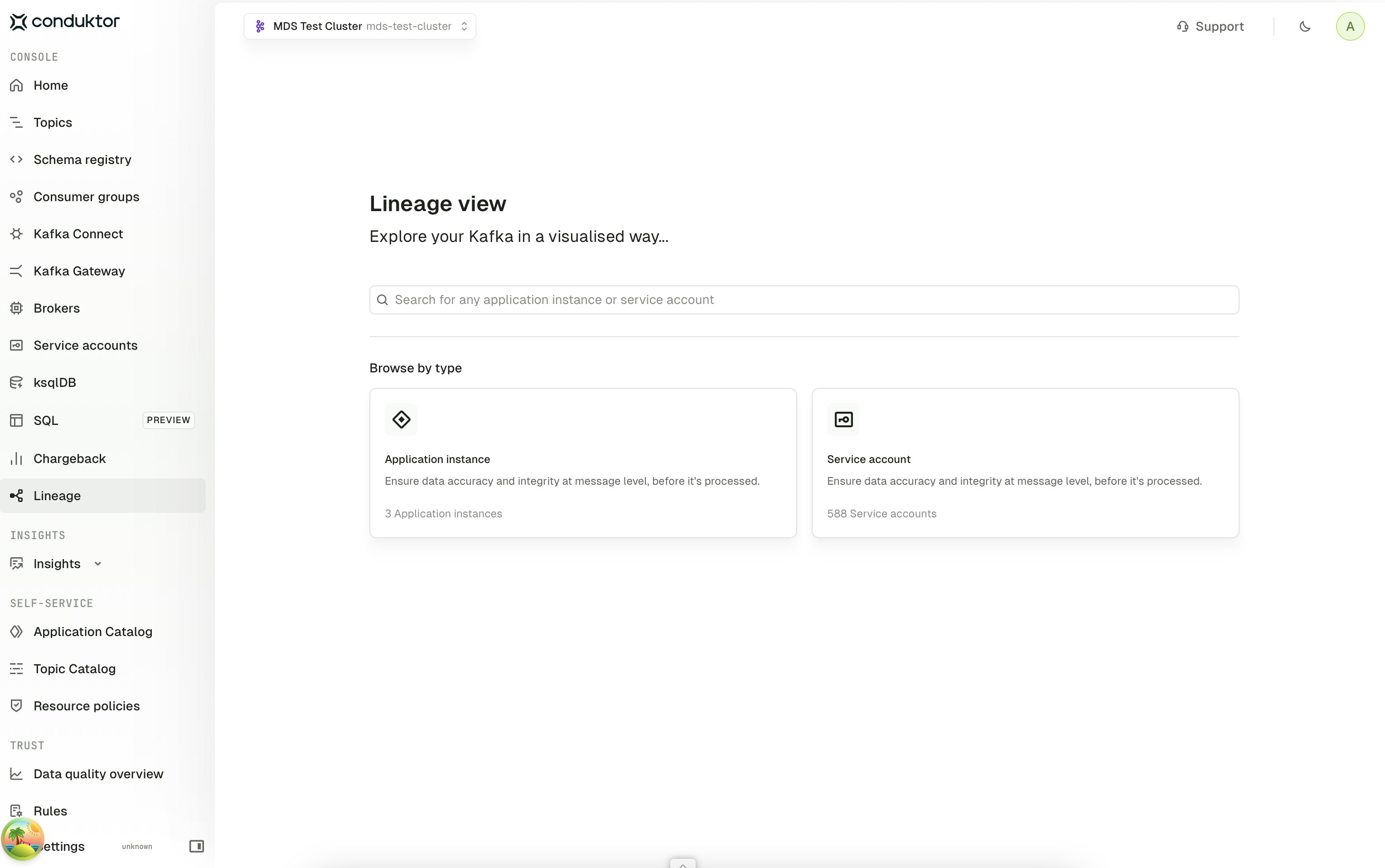
Lineage view entry point
Open Lineage from the Console sidebar to land on the entry point for the selected cluster. From here, choose which dimension of your platform’s data flow you want to explore:- Application instance — view the flow built from Self-service data, with
ApplicationInstanceresources as the nodes - Service account — view the flow built from the underlying Kafka authorization data (ACLs, or role bindings on Confluent Cloud and Confluent Platform), with service accounts as the nodes
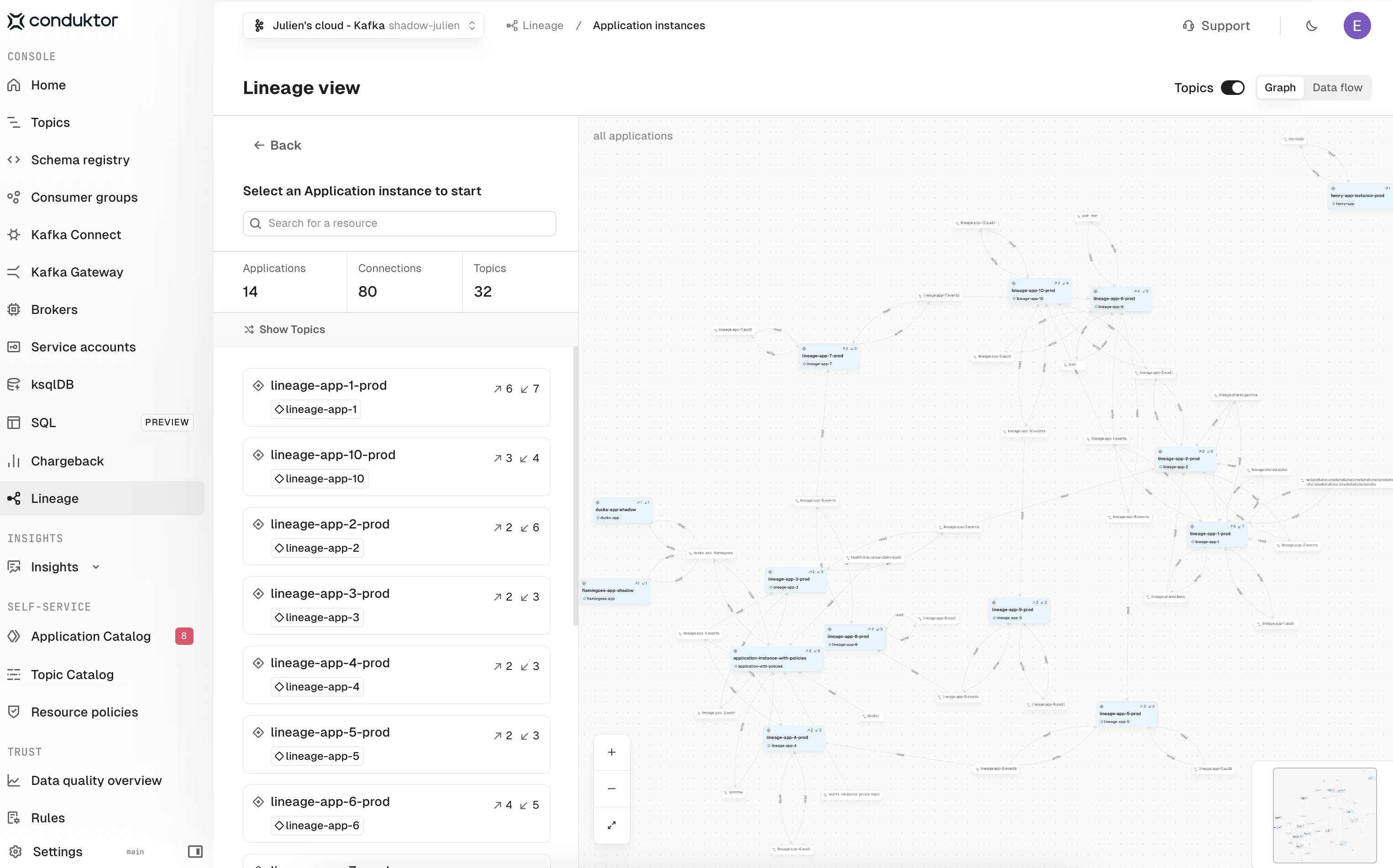
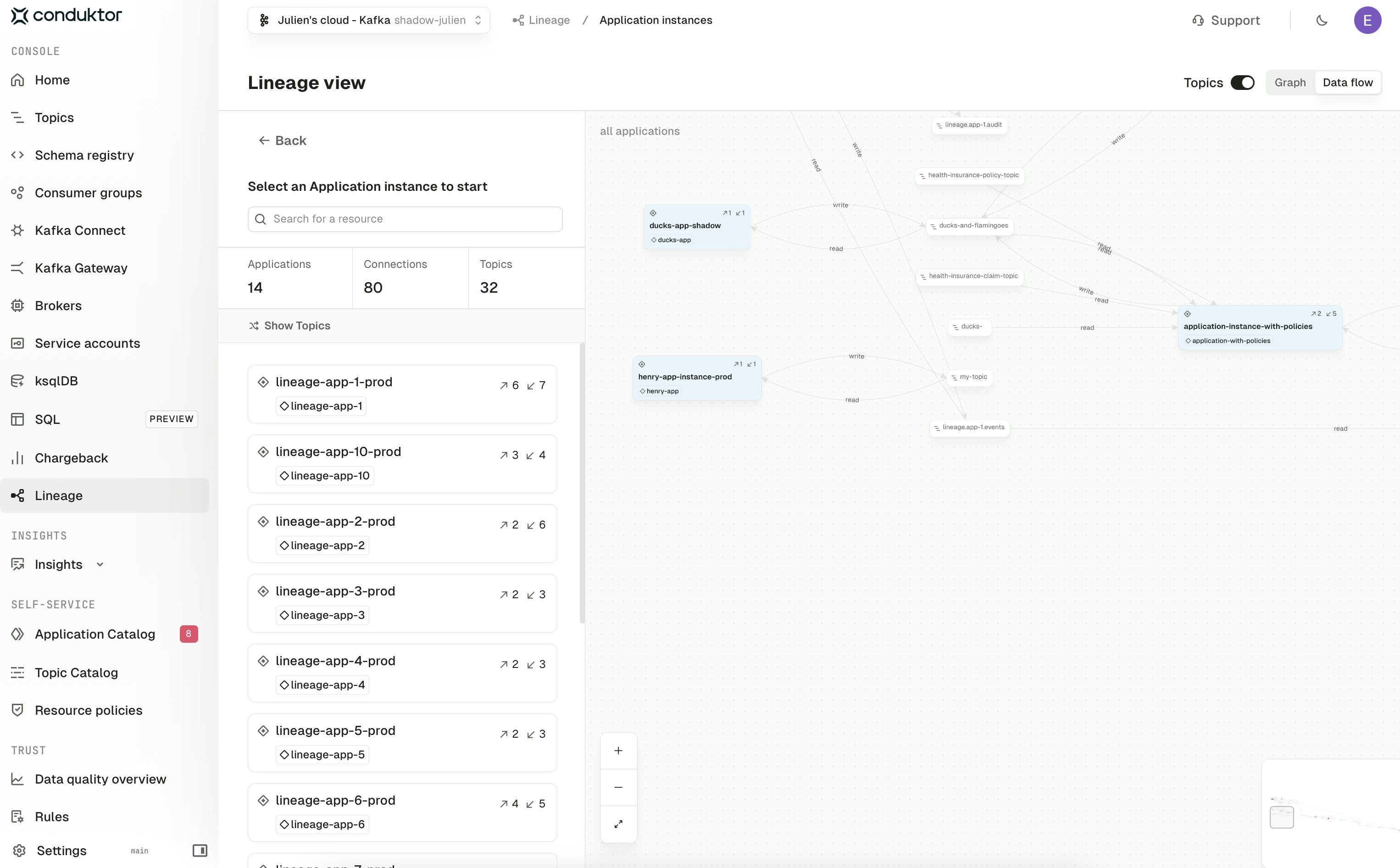
Application instance view
The Application instance view shows how your Self-service applications connect to one another through the topics they produce to and consume from. Each card on the left lists an instance with its read and write counts; selecting one focuses the graph on that instance and its neighbours. The Topics toggle in the top right controls how connections are rendered:- On — every topic that links two applications is shown as a node on the graph, so you can see exactly which topics carry data between services
- Off — topics are hidden and the graph collapses to a compressed view showing only how applications are transitively connected through any shared topics
Service account view
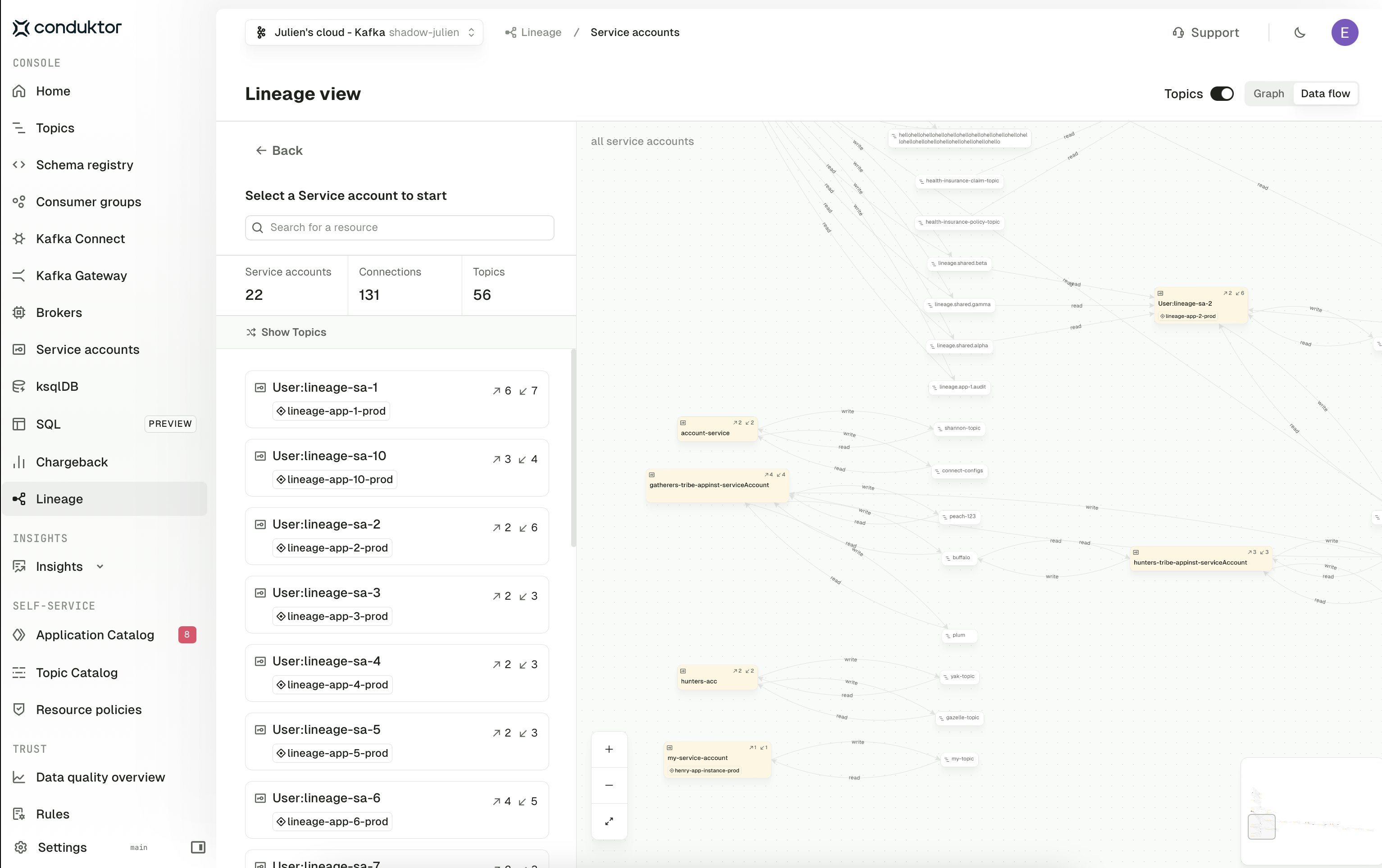
The Service account view shows the flow derived directly from Kafka authorization data, with each service account as a node and edges drawn from the ACLs (or role bindings) granting read or write access to a topic. This is the view to use when you want to reason about access at the authorization layer rather than the Self-service model — for example, to spot service accounts that have permissions outside of any registered application. The Topics toggle and the Graph / Data flow switch behave the same as in the Application instance view.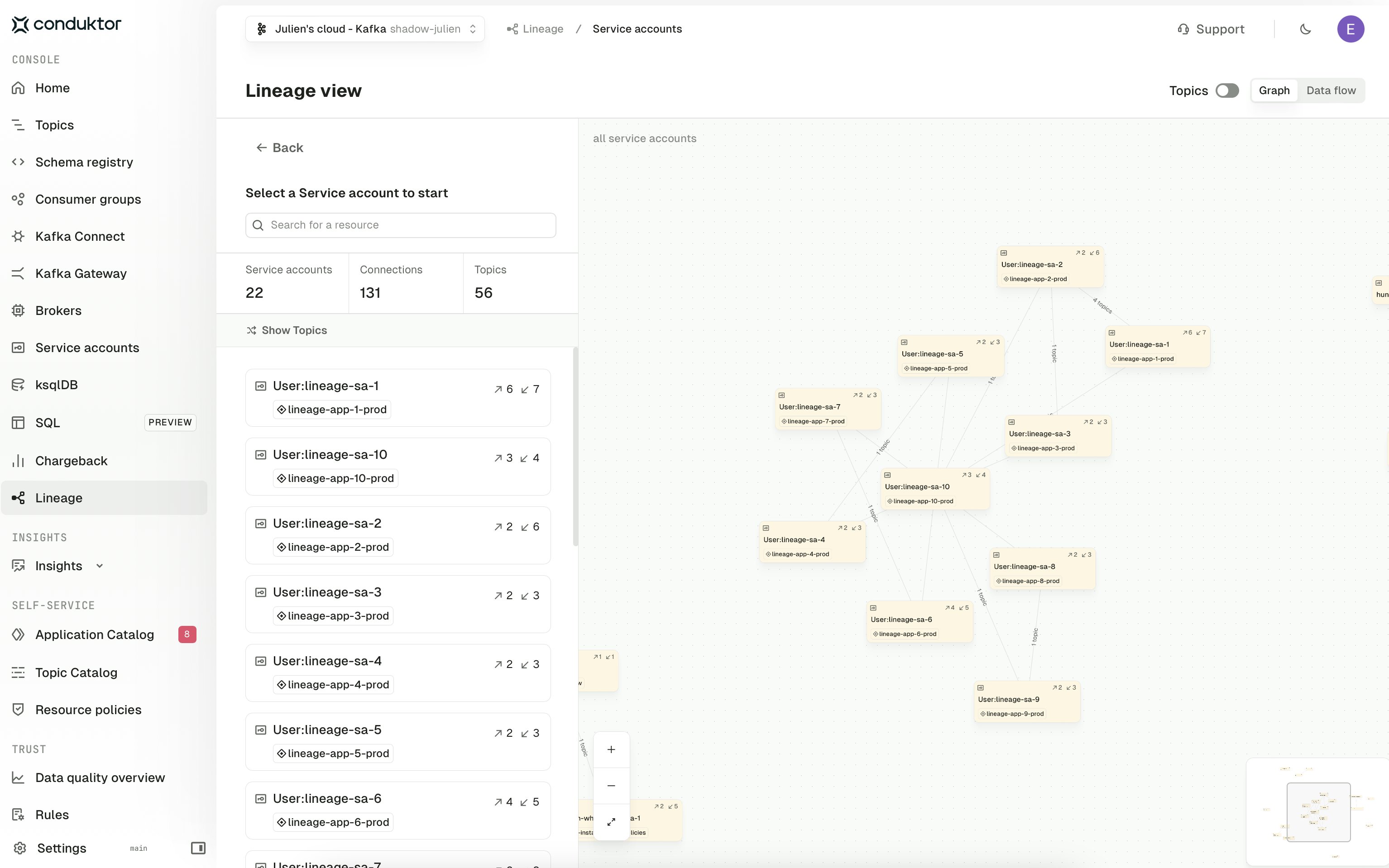
Live lineage
On Gateway clusters, the Live toggle at the top of the Lineage view overlays live throughput on the graph. Each connection shows its current rate in bytes per second, updated every few seconds: connections carrying more traffic are drawn thicker and animate in the direction the data flows, while connections with no traffic stay thin and grey. A badge on the canvas shows the state of the live feed: Live, Connecting or Reconnecting.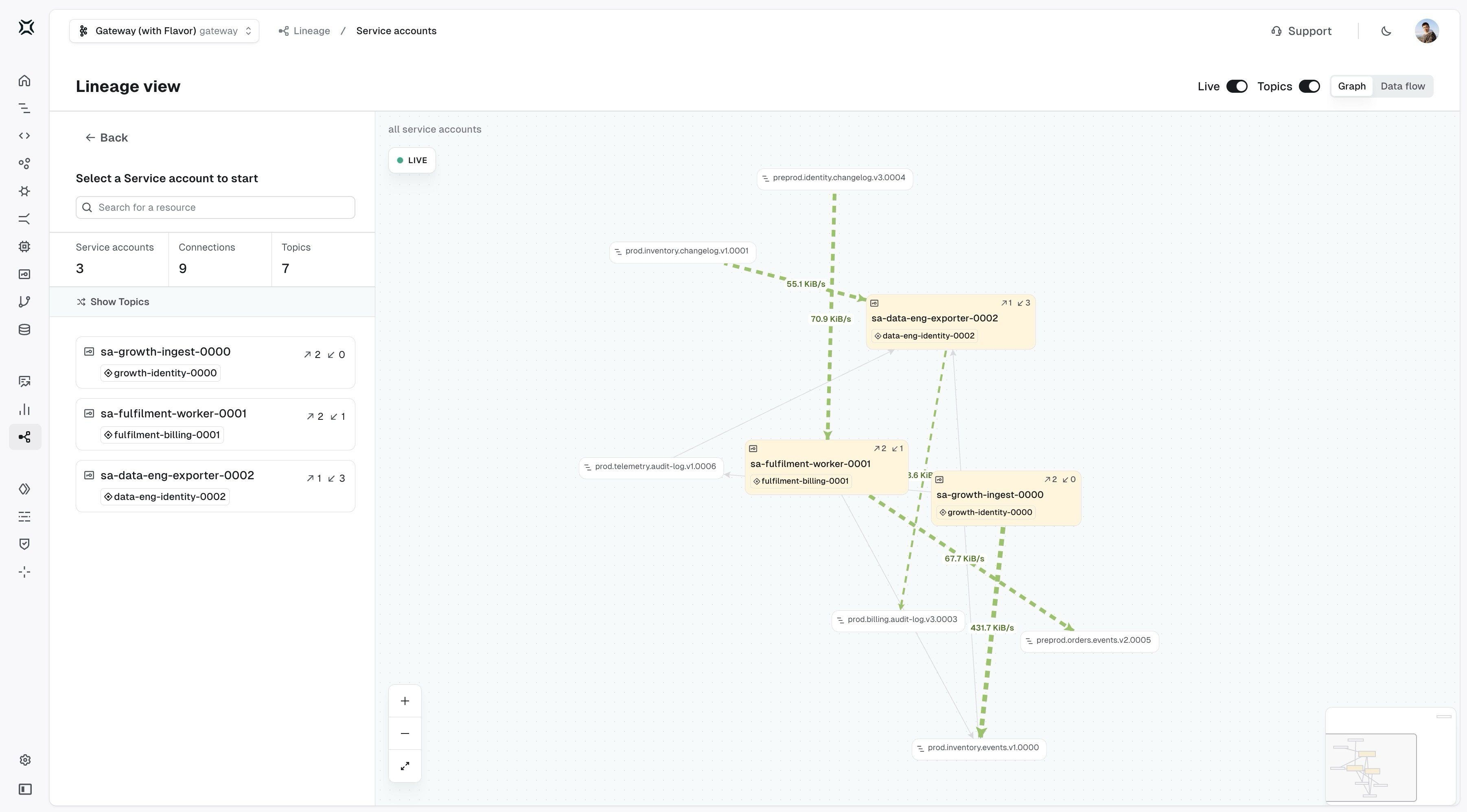
- The cluster has to be a Gateway cluster. On other cluster types the Live toggle doesn’t appear.
- The observability Interceptor has to be deployed on Gateway. This is the same Interceptor that Chargeback uses for Gateway throughput, so if you’ve already set that up, live lineage needs no extra configuration.
- Rates are averaged over the Interceptor’s flush interval (five minutes by default), so set
flushIntervalInSecondto a low value, such as 10 seconds, for numbers that respond quickly.
Large graphs and drill-down views
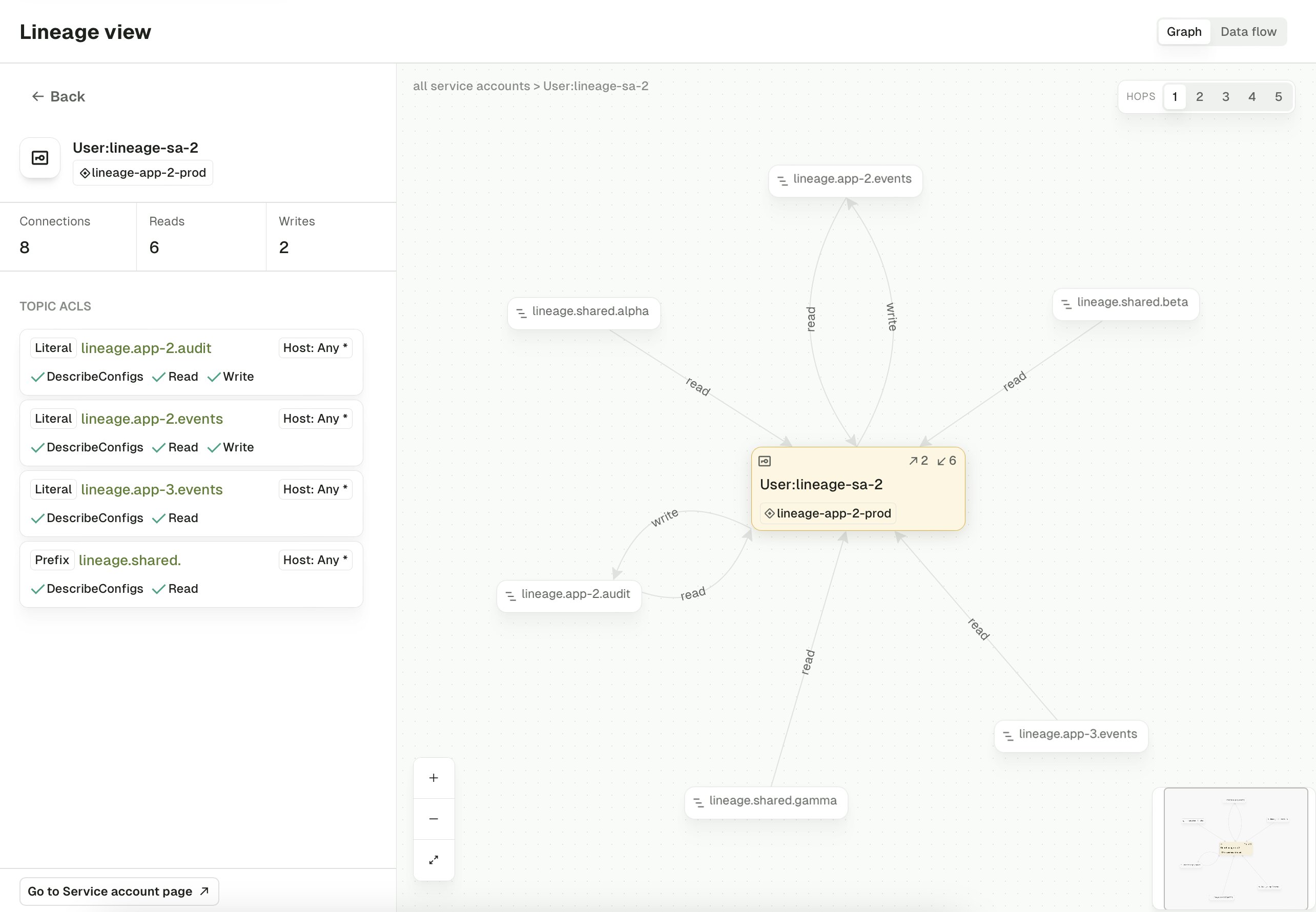
For very large graphs, the view is trimmed to stay responsive: Console keeps the 5,000 most connected nodes and draws the most significant connections between them, with a banner telling you when the graph has been trimmed. To see everything around a specific resource, use the drill-down views: select an individual Application instance or service account from the sidebar list and click Expand to open a sub-graph that centers on that resource and shows only its transitive relationships to other services and topics.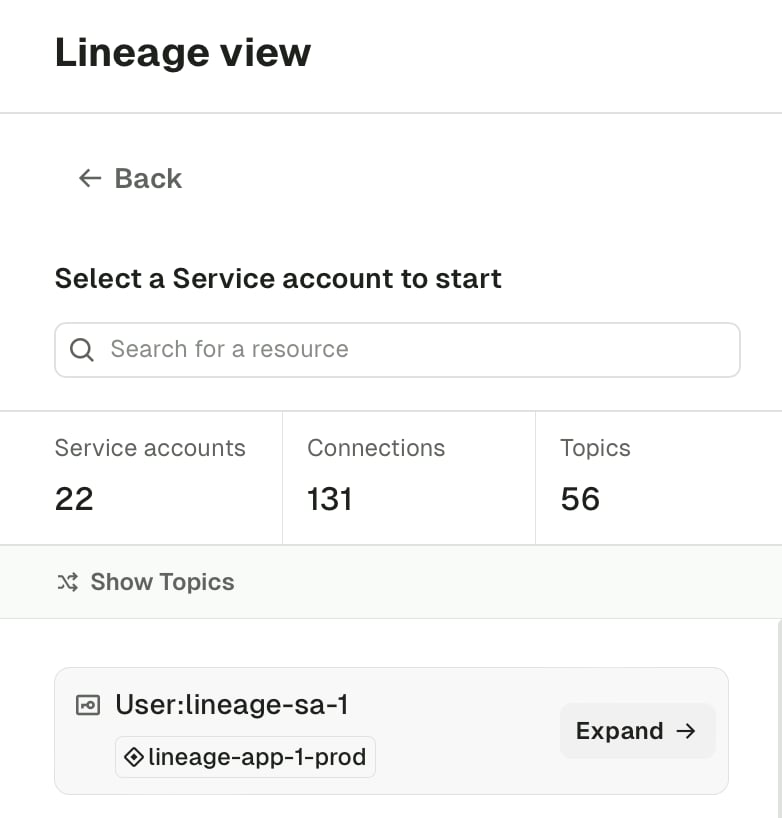
Performance impact
Console caches each cluster’s lineage graph in memory to keep the views responsive, which carries a small JVM heap cost. From our internal benchmarks, a cluster with a graph of around 15,000 nodes adds roughly 150 MB to the Console JVM heap while that cluster sits in the cache. To keep the overhead bounded:- Graphs are cached with a 15 minute TTL, after which Console rebuilds them on the next request
- At most three clusters’ graphs live in the cache at any one time; cycling to a fourth cluster evicts the least recently used graph
CDK_STREAMLINEAGE_* options listed in the Console environment variables reference.