Learn how to manage consumer groups and troubleshoot lag in 20 minutes Learn to work with consumer groups in Kafka using CLI. What you’ll learn:
  • How to reset consumer group offsets to reprocess messages
  • How to list and describe consumer groups and their state
  • How to troubleshoot consumer lag and identify root causes
  • How to delete consumer groups and manage offsets
The Kafka consumer groups CLI kafka-consumer-groups is used to manage consumer groups in Kafka. Make sure you have started Kafka beforehand.
Use CLI commands with appropriate extensions for your platform: for Windows - kafka-consumer-groups.bat, for Mac and Linux - kafka-consumer-groups.sh.

How to reset a Kafka consumer group using the CLI?

To reset a Kafka consumer groups, we need to:
  • Find your broker hostname and port e.g., localhost:9092
  • Understand the offset reset strategy (to earliest, to latest, to specific offset, shift by…)
  • Stop the running consumer groups (otherwise the command will fail)
  • Use the kafka-consumer-groups.sh CLI with the --reset-offsets option

Example: Reset offsets to the earliest

First, ensure that the consumers are stopped (“has no active members”)
kafka-consumer-groups --bootstrap-server localhost:9092 --describe --group my-first-application

Consumer group 'my-first-application' has no active members.
Observe the current offsets for your consumer group (same command as above)
GROUP                TOPIC           PARTITION  CURRENT-OFFSET  LOG-END-OFFSET  LAG             CONSUMER-ID     HOST            CLIENT-ID
my-first-application first_topic     0          3               3               0               -               -               -
my-first-application first_topic     1          5               5               0               -               -               -
my-first-application first_topic     2          6               6               0               -               -               -
We will reset the offsets to the earliest position in order to read the topic entirely again
kafka-consumer-groups --bootstrap-server localhost:9092 --group my-first-application --reset-offsets --to-earliest --execute --topic first_topic

GROUP                          TOPIC                          PARTITION  NEW-OFFSET
my-first-application           first_topic                    0          0
my-first-application           first_topic                    1          0
my-first-application           first_topic                    2          0
As you can see the new offsets for that consumer group for all partitions are 0, which means that upon restarting a consumer in that group, it will read from the beginning of each partition:
kafka-console-consumer --bootstrap-server localhost:9092 --topic first_topic --group my-first-application
third message
fifth message
seventh message
tenth message
first message
fourth message
eigth message
hello
world
second message
sixth message
ninth message
Note that messages are read in order for each partition, not across partitions (we have 3 partitions in this example) - we will never stop reminding you this.

Example: Reset offsets shift by

Stop the running consumers to be able to reset offsets. Shift by allows you to rewind offsets by a specific value (negative to go back in messages and positive to advance in messages).
kafka-consumer-groups --bootstrap-server localhost:9092 --describe --group my-first-application

Consumer group 'my-first-application' has no active members.
GROUP                TOPIC           PARTITION  CURRENT-OFFSET  LOG-END-OFFSET  LAG             CONSUMER-ID     HOST            CLIENT-ID
my-first-application first_topic     0          3               3               0               -               -               -
my-first-application first_topic     1          5               5               0               -               -               -
my-first-application first_topic     2          6               6               0               -               -               -
In this example we reset offsets by shifting by -2 for the consumer group my-first-application subscribed on the topic first_topic
kafka-consumer-groups --bootstrap-server localhost:9092 --group my-first-application --reset-offsets --shift-by -2 --execute --topic first_topic

GROUP                          TOPIC                          PARTITION  NEW-OFFSET
my-first-application           first_topic                    0          1
my-first-application           first_topic                    1          3
my-first-application           first_topic                    2          4
As you can see the offsets decreased by 2 for each partition. Read messages from the topic first_topic using Kafka console consumer CLI. It will only return last 2 messages from each partition of the topic.
kafka-console-consumer --bootstrap-server localhost:9092 --topic first_topic --group my-first-application
seventh message
tenth message
fourth message
eigth message
sixth message
ninth message

Gotchas

Here are the common mistakes and caveats with the kafka-consumer-groups.sh command:
  • You cannot reset a consumer group if consumers are active in it.
  • This command can be used to reprocess data for a consumer group (in case you have a bug fix)
  • This command be also be used to advance message consumption in Kafka (for example if a message is a poison pill, or if your consumer is too slow to catch up with the entire topic).

Extra: Important options you can set (advanced)

--all-groups Applies to all groups, use with caution --all-topics Consider all topics assigned to a group in the reset-offsets process, use with caution --by-duration Reset to offsets by duration --dry-run Only show the expected result, but does not actually run the command --to-datetime, --by-period, --to-earliest, --to-latest, --shift-by, --from-file, --to-current All the various options available to you to reset the offsets

How to list all Kafka consumers in a consumer groups using the CLI?

Listing all the Kafka consumer in a consumer group help you understand where the consumers are placed on your network, and how far they are into the topic consumption.
kafka-consumer-groups --bootstrap-server localhost:9092 --describe --group my-first-application

GROUP                TOPIC           PARTITION  CURRENT-OFFSET  LOG-END-OFFSET  LAG             CONSUMER-ID                                                          HOST            CLIENT-ID
my-first-application first_topic     0          3               3               0               consumer-my-first-application-1-0237b0a1-911d-45f1-891f-8fd7630a7593 /172.19.0.1     consumer-my-first-application-1
my-first-application first_topic     1          5               5               0               consumer-my-first-application-1-70ddc756-8dbc-45e4-b5b6-1e5a75db9e62 /172.19.0.1     consumer-my-first-application-1
my-first-application first_topic     2          6               6               0               consumer-my-first-application-1-a8ce2af3-97b3-4445-bba3-f4a5f6c4464d /172.19.0.1     consumer-my-first-application-1
The CONSUMER ID represents the unique identifier of the consumer to the Kafka broker The CLIENT ID represents a client-side setting that you can optionally set to identify a consumer in your consumer groups (with the client.id consumer property) The CURRENT-OFFSET is the latest committed offset for that group The LOG-END-OFFSET represents the latest message offset available in the topic-partition for consumption The LAG is the difference of LOG-END-OFFSET and CURRENT-OFFSET and represents how far behind a consumer is to the tail of a topic. The HOST is the hostname / IP of the consumer client machine.

How to list all Kafka consumers groups using the CLI?

Listing the consumer groups help you understand which ones could be down, or not stable. Listing consumer groups state
kafka-consumer-groups --bootstrap-server localhost:9092 --list --state
GROUP                STATE
my-first-application Stable
Describe all consumer groups and state (helpful for assignment strategy and coordinator ID)
kafka-consumer-groups --bootstrap-server localhost:9092 --describe --all-groups  --state

GROUP                     COORDINATOR (ID)          ASSIGNMENT-STRATEGY  STATE           #MEMBERS
my-first-application      127.0.0.1:9092 (1)        range                Stable          3
You can instead of using --all-groups just specify the command for one group only.
Note:As of Kafka >= 2.1, the “console-consumer-” groups will not appear in the output

How to delete a consumer group in Kafka using the CLI?

You may want to delete a consumer group in order to reset entirely the reading mechanism. For this, you can use the delete option:
$ kafka-consumer-groups --bootstrap-server localhost:9092 --delete --group my-first-application
Deletion of requested consumer groups ('my-first-application') was successful.
Alternatively, if you want to only delete offsets for a specific topic (helpful when your consumer group is reading from multiple topics) you can use the following command:
kafka-consumer-groups --bootstrap-server localhost:9092 --delete-offsets --group my-first-application --topic first_topic
Request succeed for deleting offsets with topic first_topic group my-first-application

TOPIC                          PARTITION       STATUS
first_topic                    0               Successful
first_topic                    1               Successful
first_topic                    2               Successful

Troubleshoot consumer lag

Consumer lag occurs when consumers can’t keep up with the rate of incoming messages. Understanding and resolving lag is critical for maintaining real-time data processing.

Understand LAG

LAG = LOG-END-OFFSET - CURRENT-OFFSET
  • LAG = 0: Consumer is fully caught up
  • LAG > 0 and stable: Consumer is behind but processing consistently
  • LAG > 0 and growing: Consumer is falling further behind (problem!)

Consumer lag visualization

This diagram shows how lag accumulates when a consumer cannot keep up with the producer: Understanding the diagram:

  • Producer has written seven messages (offset 0-6, LOG-END-OFFSET is 7)
  • Consumer has only processed three messages (CURRENT-OFFSET is 3)
  • LAG of 4 means four unprocessed messages are waiting
  • If LAG keeps growing, the consumer is too slow

Check consumer lag

kafka-consumer-groups --bootstrap-server localhost:9092 \
  --describe --group my-consumer-group

GROUP            TOPIC      PARTITION  CURRENT-OFFSET  LOG-END-OFFSET  LAG
my-consumer-group orders    0          1500            2500            1000
my-consumer-group orders    1          2300            2350            50
my-consumer-group orders    2          900             5000            4100
In this example:
  • Partition 0: 1,000 messages behind
  • Partition 1: 50 messages behind (acceptable)
  • Partition 2: 4,100 messages behind (critical!)

Common causes and solutions

1. Slow message processing

Symptoms:
  • LAG increases steadily over time
  • Consumer CPU usage is high
  • Processing time per message is high
Diagnosis:
# Check if lag is growing
kafka-consumer-groups --bootstrap-server localhost:9092 \
  --describe --group my-consumer-group

# Run again after 60 seconds and compare LAG values
Solutions:
  • Optimize consumer code (reduce processing time per message)
  • Add more consumer instances (up to number of partitions)
  • Increase consumer threads (num.streams in older API)
  • Use async processing where possible

2. Under-partitioned topic

Symptoms:
  • Maximum consumers reached but still have lag
  • Cannot add more consumers to scale
  • Single partition has very high lag
Diagnosis:
# Check partition count
kafka-topics --bootstrap-server localhost:9092 \
  --describe --topic orders

Topic: orders  PartitionCount: 3  # Only 3 partitions!
Solutions:
  • Increase partition count (careful: can’t decrease later)
  • Create new topic with more partitions and migrate
  • Consider if messages can be processed in parallel

3. Consumer rebalancing

Symptoms:
  • Periodic spikes in lag
  • LAG increases then decreases repeatedly
  • Consumer logs show “Revoke” and “Assign” messages
Diagnosis: Check consumer logs for rebalancing events:
[Consumer] Revoking previously assigned partitions
[Consumer] partitions lost: [orders-0, orders-1]
Solutions:
  • Use incremental cooperative rebalancing
  • Increase session.timeout.ms (default: 10s → 45s)
  • Increase max.poll.interval.ms if processing takes long
  • Enable static group membership for planned restarts

4. Network or broker issues

Symptoms:
  • Sudden spike in lag across all consumers
  • Intermittent connection errors
  • Broker CPU or disk I/O is saturated
Diagnosis:
# Check broker health
kafka-broker-api-versions --bootstrap-server localhost:9092

# Monitor broker metrics (requires JMX)
# Check: CPU, disk I/O, network throughput
Solutions:
  • Check network connectivity between consumers and brokers
  • Add more brokers if cluster is overloaded
  • Optimize broker configuration (buffer sizes, threads)
  • Check disk performance (especially if using spinning disks)

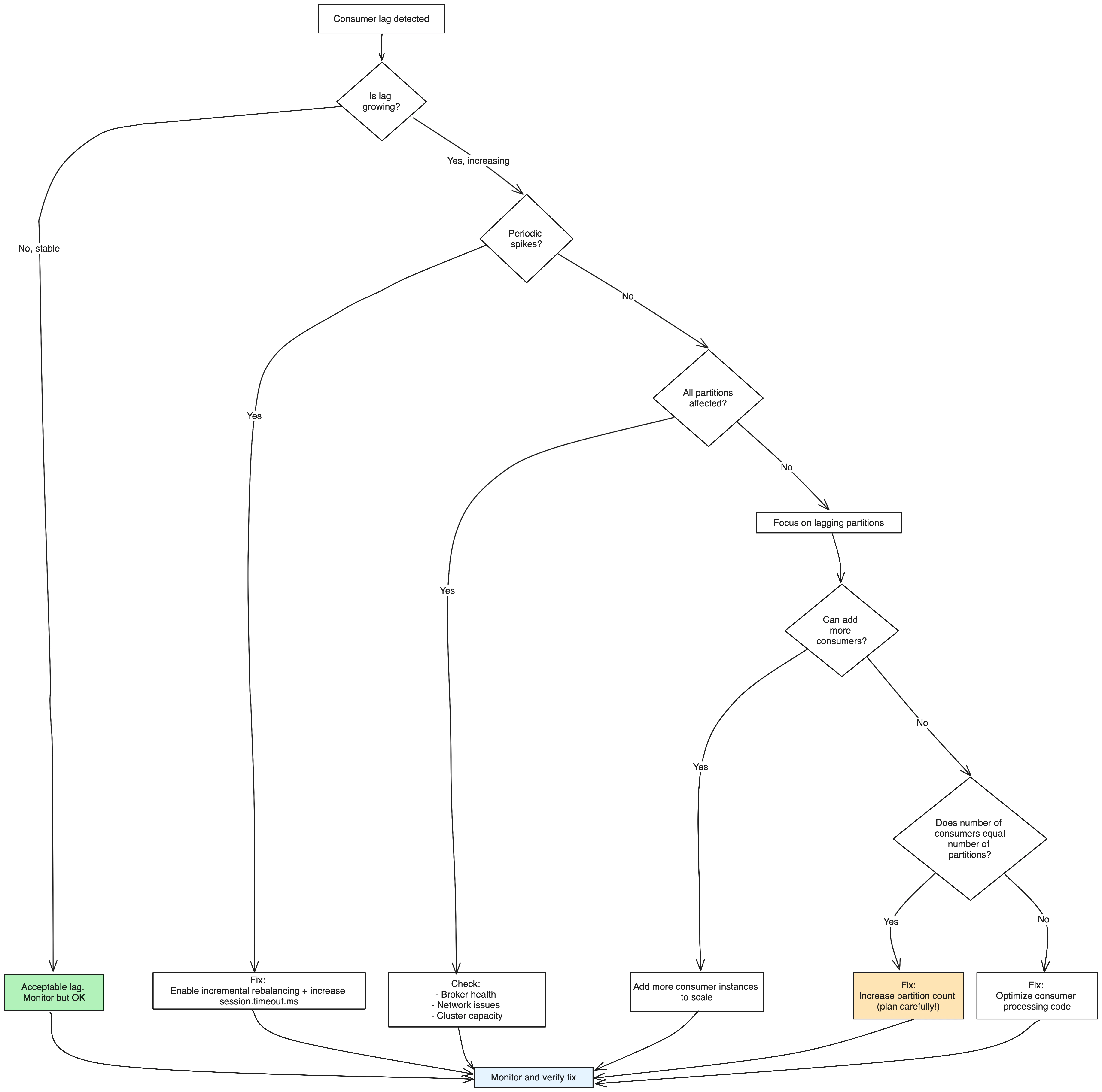
Troubleshoot with this decision tree
Best practices

Monitor lag continuously:
  • Set up alerts for LAG > threshold (e.g., 1000 messages)
  • Track lag growth rate, not just absolute value
  • Monitor per-partition lag, not just group average
Prevent lag:
  • Start with enough partitions (2-3x expected consumers)
  • Use incremental rebalancing to minimize disruption
  • Optimize consumer processing before adding instances
  • Test consumer performance under load before production
See it in practice with ConduktorConduktor Console provides real-time consumer lag monitoring with visual graphs, alerting thresholds, and historical trends. Identify lagging partitions at a glance and drill down to see consumer group details, rebalancing events, and processing rates.

Next steps