

View consumer groups
The Consumer Groups page lets you search for any consumer group on your currently selected Kafka cluster. Multiple search capabilities can be combined to help you find the consumer group you want faster. You can filter by:- Consumer group name
- State (Stable, Empty, Dead, Rebalancing, Unknown)
- Labels (click on a label to add/remove it from the filters)
- Name
- State
- Overall lag
- Max lag time
- Number of members
Your current filters, active sort, and visible columns are stored in your browser’s local storage for each Kafka cluster and persist across sessions.
View consumer group details
Click on a consumer group from the list to view its details. The details page shows:- State: The current state of the consumer group (Stable, Empty, Dead, Rebalancing, etc.)
- Members: List of active members with their client IDs, hosts, and assigned partitions
- Topics: Topics the consumer group is subscribed to
- Lag: Current lag per partition and overall lag
View members
The Members tab displays all active members of the consumer group:- Member ID and Client ID
- Host information
- Assigned topic-partitions
- Per-member lag statistics
View topics
The Topics tab shows all topics the consumer group consumes from:- Topic name
- Number of partitions assigned
- Current offset, end offset, and lag per partition
- Consume rate statistics
View alerts
The Alerts tab shows all alerts configured for the consumer group. You can create alerts to monitor lag, consume rate, or other metrics.View statistics
The statistics bar shows an overview of the consumer group:- State: Current state of the consumer group
- Consume rate: Messages consumed per second
- Offset lag: Total lag across all partitions
- Time lag: Estimated time to catch up based on consume rate
Operations
Several actions are available for consumer groups.Create consumer group
You can create a new consumer group with initial offsets for specific topics.- Click the Create consumer group button
- Provide a consumer group name
- Select the topics to subscribe to
- Choose the initial offset position:
- Earliest: Start from the beginning of each partition
- Latest: Start from the end of each partition (only consume new messages)
Create a consumer group with initial offsets when you want to pre-configure offset positions before your consumer application starts.
Duplicate consumer group
You can duplicate an existing consumer group to create a new one with the same offset positions.- Select the consumer group you want to duplicate
- Click on the Duplicate action
- Provide a name for the new consumer group
Reset offsets
Reset offsets to change the position from which a consumer group reads messages. To reset offsets:- Select the consumer group
- Click on Reset offsets
- Choose which partitions to reset:
- All partitions
- Specific topics
- Specific topic-partitions
- Select the reset strategy:
- To earliest: Reset to the beginning of each partition
- To latest: Reset to the end of each partition
- To specific offset: Reset to a specific offset value
- To timestamp: Reset to the offset at a specific point in time
- Shift by: Add or subtract a number from current offsets
Preview changes
Before applying offset changes, use the Preview feature to see what the new offsets will be for each partition. This helps you verify the changes before committing them. The preview shows:- Topic and partition
- Current offset
- New offset after reset
Delete consumer group
You can delete a consumer group from Kafka.- Select the consumer group
- Click on the Delete action
- Confirm the deletion
Remove members and rebalance
Force all members to leave the consumer group and trigger a rebalance.Manage consumer group labels
You can categorize your consumer groups using key-value pairs called labels. To manage labels:- Select the consumer group
- Click on the Edit labels action
- Add, modify, or remove label key-value pairs
- Filter consumer groups in the list view
- Organize consumer groups by team, environment, or application
- Apply RBAC policies based on labels
View linked resources
View from topics
You can view consumer groups that consume from a specific topic directly from the Topic details page under the Consumer Groups tab.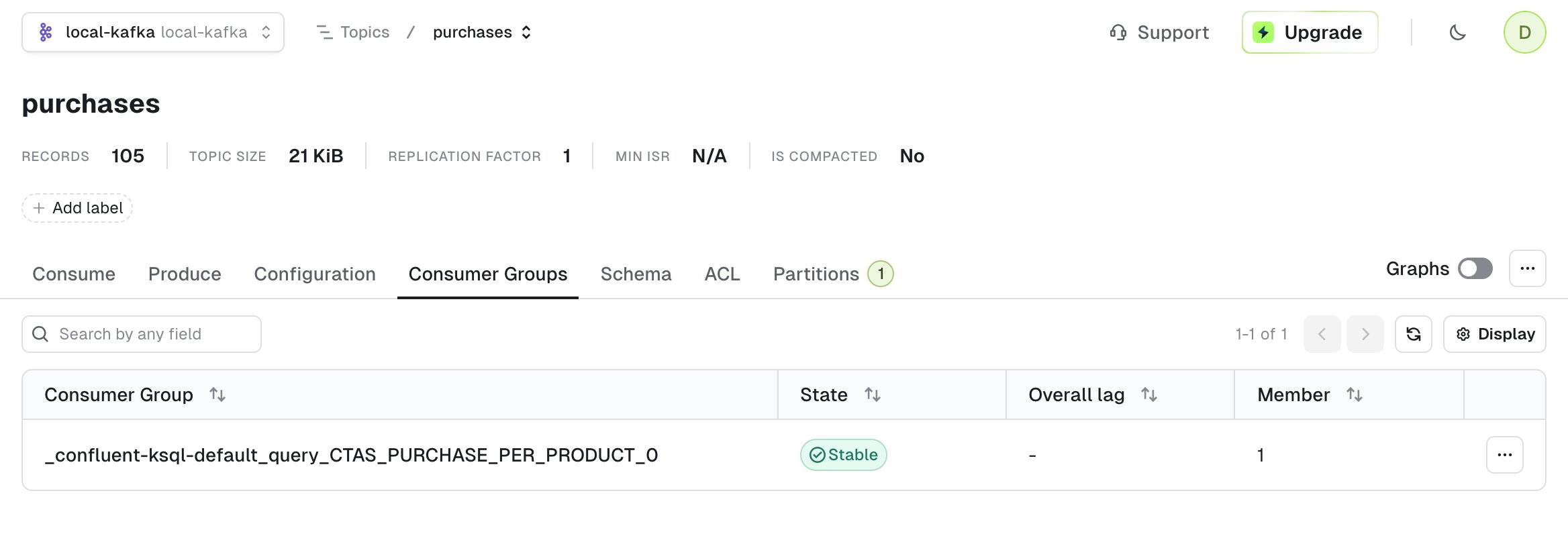
Understand consumer group states
Understand consumer group states to manage them effectively:Offset modifications (reset, delete) are only allowed when the consumer group is in Empty or Dead state.