

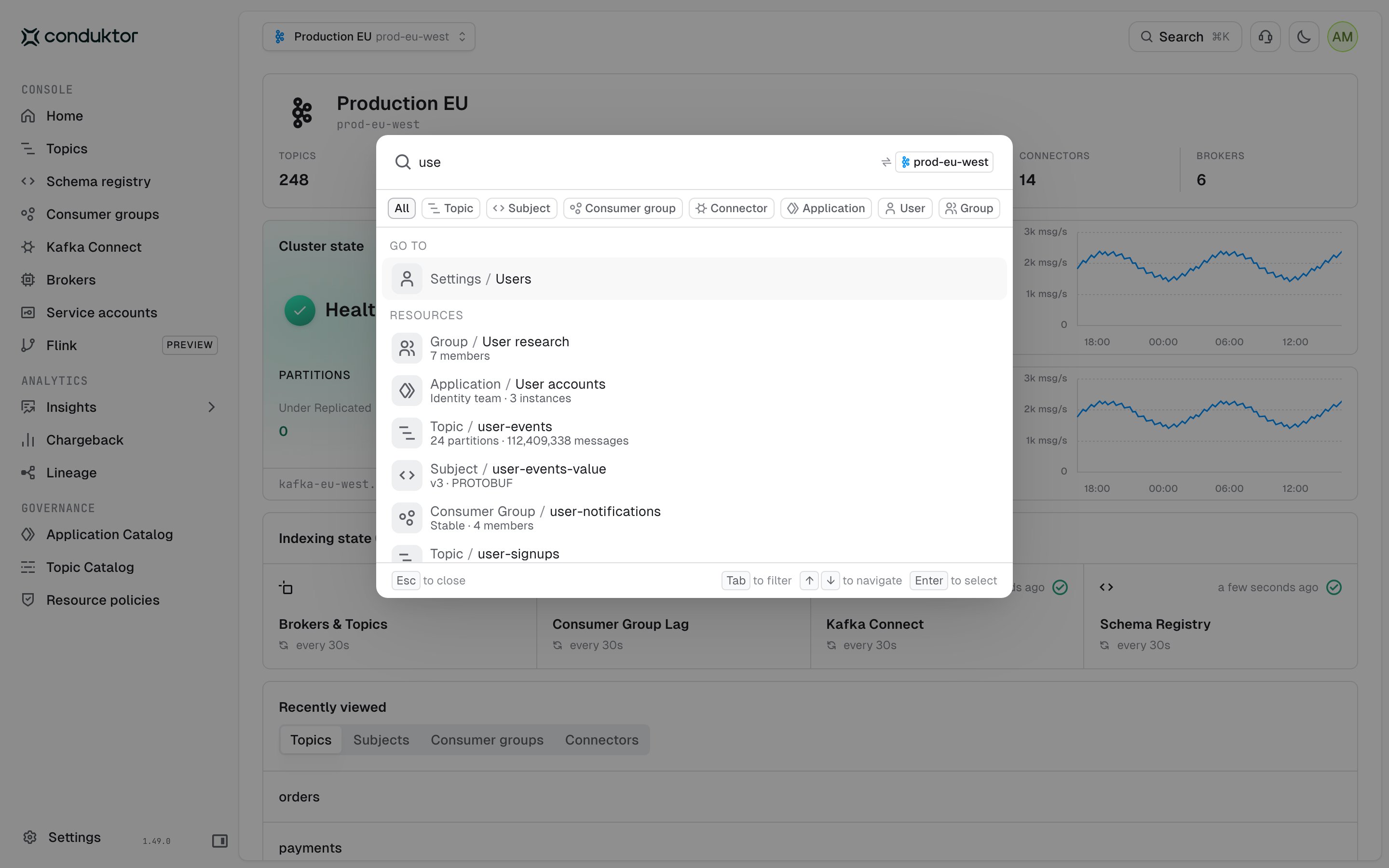
Open global search
Press Cmd+K on macOS or Ctrl+K on Windows and Linux, or click Search in the top bar. Both work on every Console page.Search for resources
Type at least three characters. The results update as you type and the first entry is selected, so you can press Enter to open it.
Global search looks for the text you type anywhere in the name and ignores case. Searching for
ord finds orders, customer-orders and Payment-Orders. It doesn’t correct typos: ordrs doesn’t find orders.
Console orders the results by how closely the name matches: names that equal your search come first, then names that start with it, then names that contain it.
The list shows up to 20 results across all resource types. If more resources match, a message under the list asks you to refine your search: type more of the name or select a filter.
Topics, consumer groups, subjects and connectors come from the metadata that Console indexes for each cluster, so a resource you just created can take a moment to appear.
To open a result, click it. You can also select it with the arrow keys and press Enter. Users and groups open in Settings. Applications open in the Application Catalog.
Search one cluster or all clusters
Cmd+K or Ctrl+K searches the topics, consumer groups, subjects and connectors of the cluster that’s selected in Console. To search every cluster you have access to, press Cmd+Shift+K or Ctrl+Shift+K. You can also click the cluster badge on the right of the search box. Do the same again to go back to the current cluster. When you search all clusters, each of these results shows its cluster. If you open a result on another cluster, Console switches to that cluster first. Applications, users and groups don’t belong to a cluster, so global search finds them either way. Search in the top bar opens global search on the scope you used last.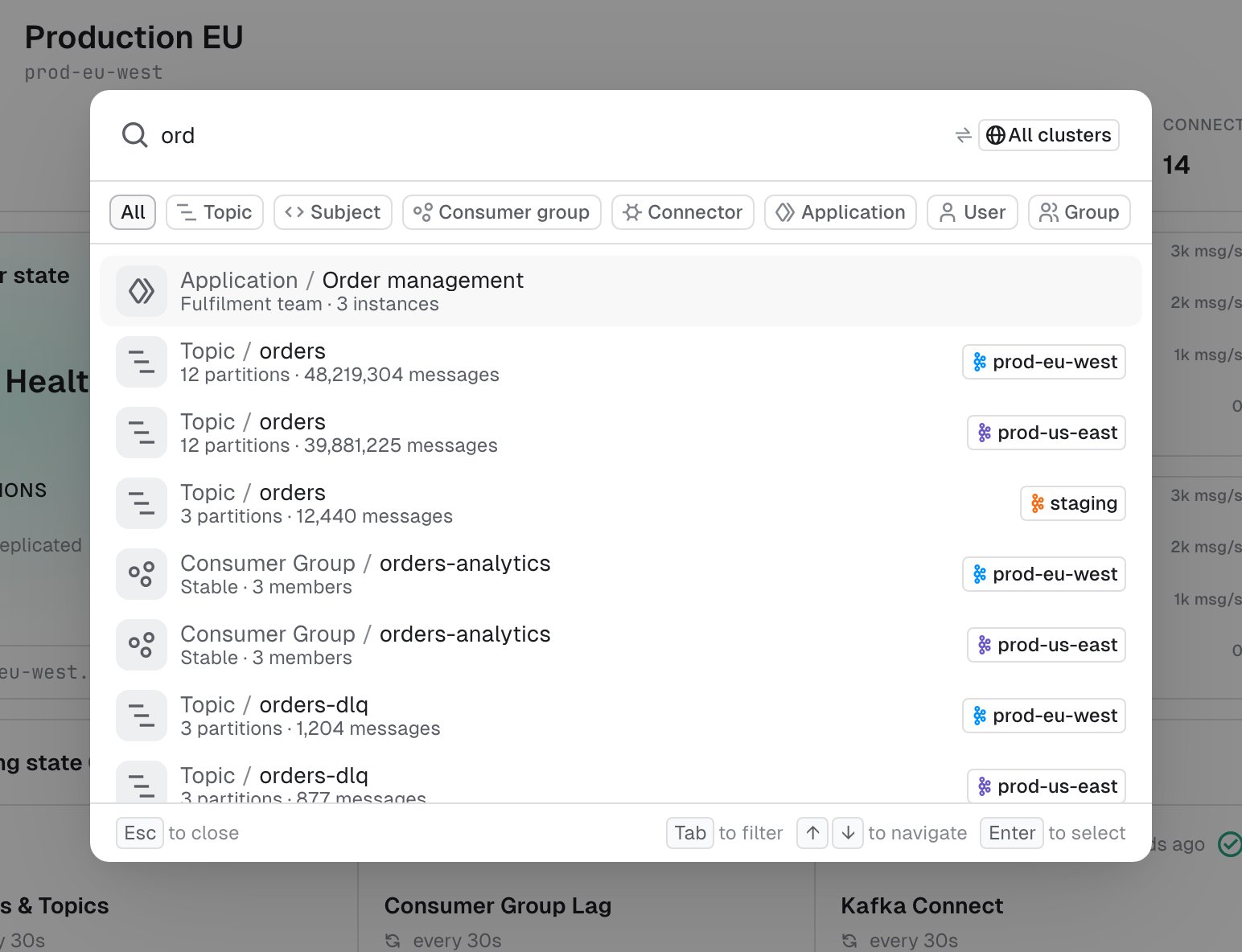
Filter by resource type
Under the search box, select a filter to search one resource type: All, Topic, Subject, Consumer group, Connector, Application, User or Group. Click a filter, or press Tab and Shift+Tab to move through them. To go back to All, press Backspace in an empty search box.Start from the filter of the current page
Global search opens with the filter that fits the page you’re on: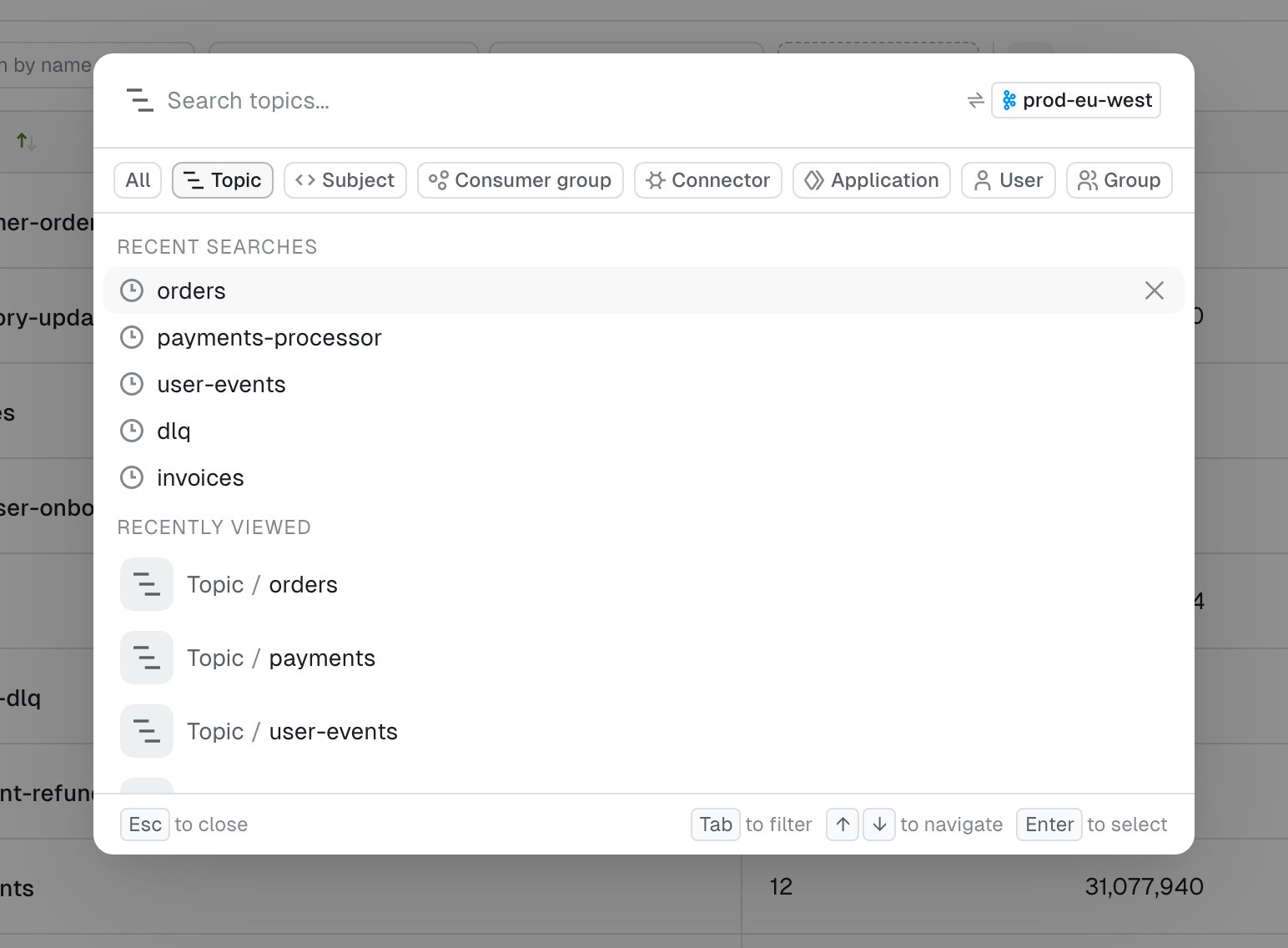
Use type shortcuts
To select a filter from the keyboard, type its shortcut in an empty search box and press Space. Console selects the filter and clears the search box.
Type shortcuts work when the filter is All, or is still the one global search opened with. Once you select a filter yourself, Console treats a letter followed by a space as part of your search. To use a shortcut again, press Backspace in an empty search box to clear the filter first.
Go to a page
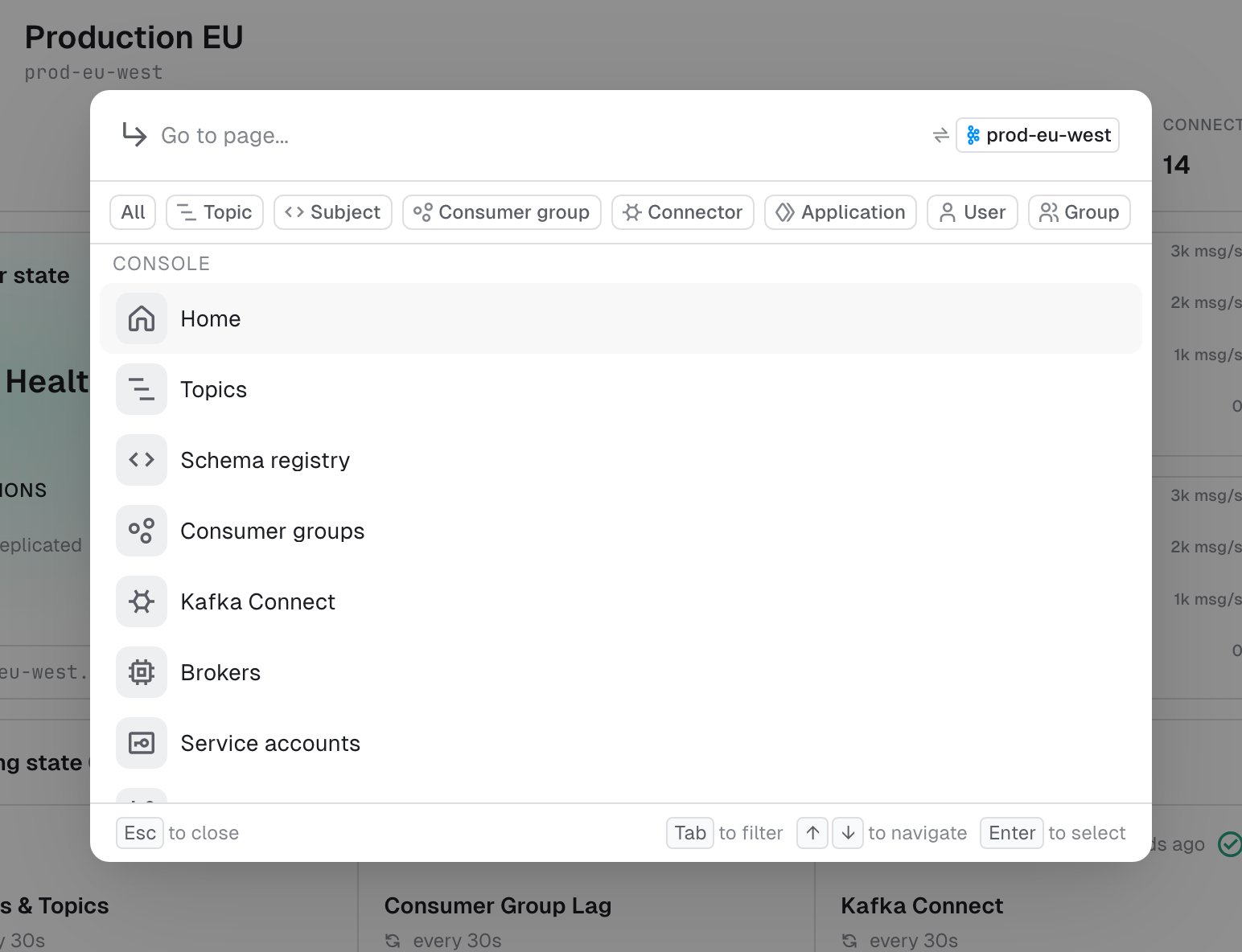
When the filter is All, the Console pages that match your search appear under Go to, above the resources. Pages match from the first character you type, and the list shows up to four of them. A page matches when every word you type starts a word in its name or in one of its related terms. For example,lag finds Consumer groups and rbac finds Groups.
To see pages only, type go and press Space. Global search then lists every page you can open, grouped like the sidebar: Console, Analytics, Governance and Settings. Type to narrow the list. In this mode, global search doesn’t look for resources.
Pages that belong to a cluster, such as Topics or Brokers, open on the cluster that’s selected in Console.
To leave the page list, press Tab or press Backspace in an empty search box.
Reuse recent searches and recently viewed resources
When the search box is empty, global search lists your recent searches and the resources you viewed recently.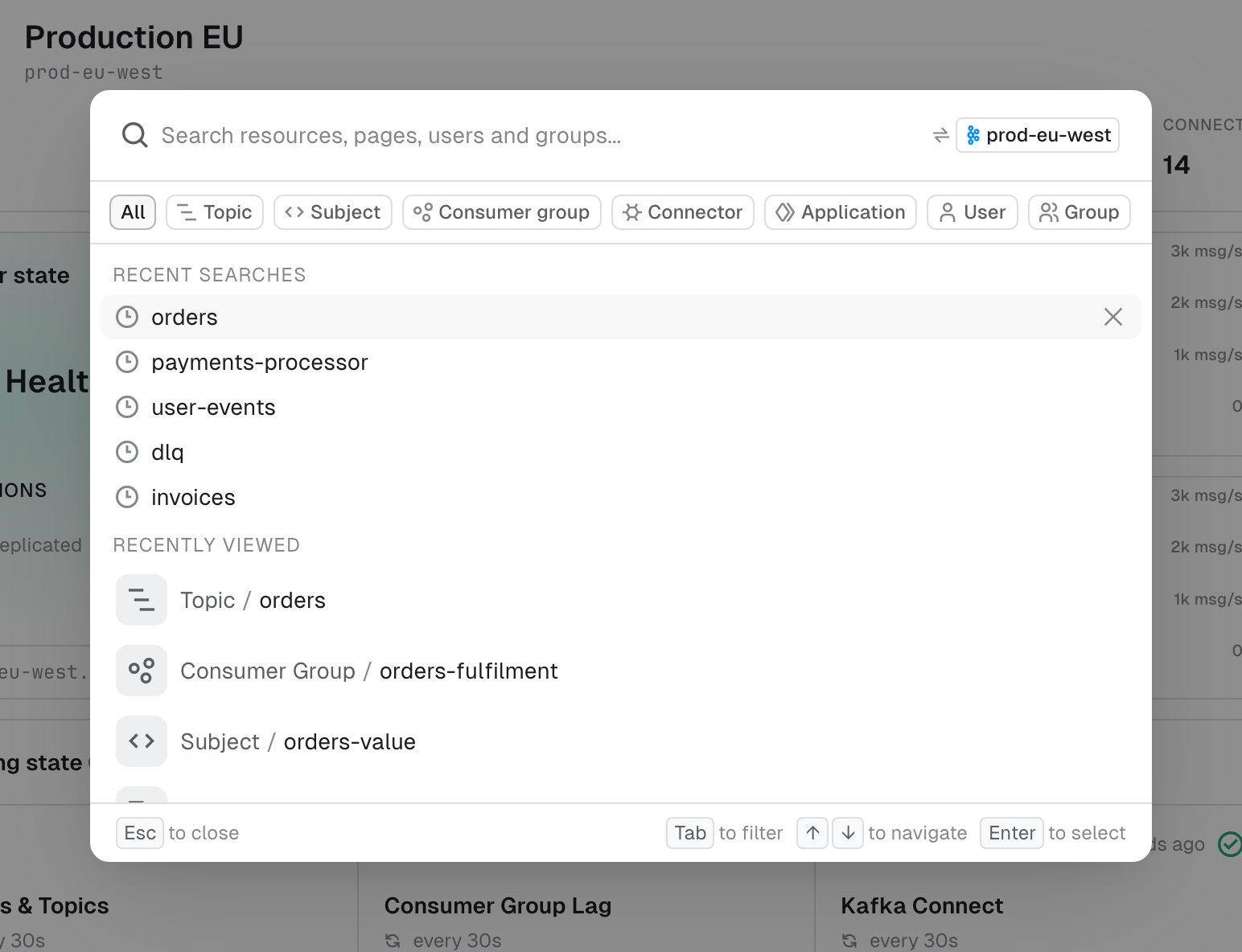
Recent searches
Recent searches lists your last five searches, newest first. Console saves a search when you open an entry from its results. Select a recent search to run it again. To remove one, point to it and click X. Console saves recent searches with your user preferences, so you get the same list in every browser you sign in from.Recently viewed
Recently viewed lists the topics, subjects, consumer groups and connectors you opened last, newest first. Console keeps up to five of each type for every cluster, and doesn’t keep a history for applications, users or groups. The list follows the filter and the cluster you search: when you search all clusters, it covers every cluster you have access to.Console keeps the recently viewed history in the browser, not with your user account, so you don’t get it in another browser or on another device. It stays in the browser after you sign out, but nobody else who signs in there sees it.The browser keeps one history at a time: when another user signs in to Console in the same browser and opens a topic, subject, consumer group or connector, their history replaces yours.Console doesn’t show history saved by an earlier Console version, so the list can be empty after an upgrade.
Understand what each user can find
Global search applies your permissions to every result, so two users can get different results for the same search.
Global search doesn’t include topics that you can see in the Topic Catalog but don’t have access to. To find and request access to those topics, search the Topic Catalog.
Find out how to assign permissions with Role Based Access Control (RBAC).
Configure global search
Global search is on by default. Administrators can turn it off, or change its timeouts, the number of searches it runs at the same time and the number of results it checks against permissions, with the global search properties in the Console configuration. When global search is off, Console removes the Search button and the keyboard shortcuts.Troubleshoot
A resource you expect doesn't appear
A resource you expect doesn't appear
Check the following:
- the filter and the cluster badge in the search box: a filter limits the results to one resource type, and Cmd+K or Ctrl+K searches the current cluster only
- the spelling: global search looks for the exact text you type
- your permissions: global search only shows the resources you have permission to view
- how recent the resource is: topics, consumer groups, subjects and connectors appear once Console has indexed them
You get fewer results than you expect
You get fewer results than you expect
For each resource type, Console checks your permissions on a limited number of matches. If you only have access to a few of many matching resources, type more of the name to narrow the search.Administrators can raise this limit with the global search properties.